Sheltered programs
Set up individual surveys or aggregate collection for VSP and other non-participating shelters.
Updated October 22, 2026. Screenshots use fictional training data. Select an image to enlarge it.
Set up sheltered programs
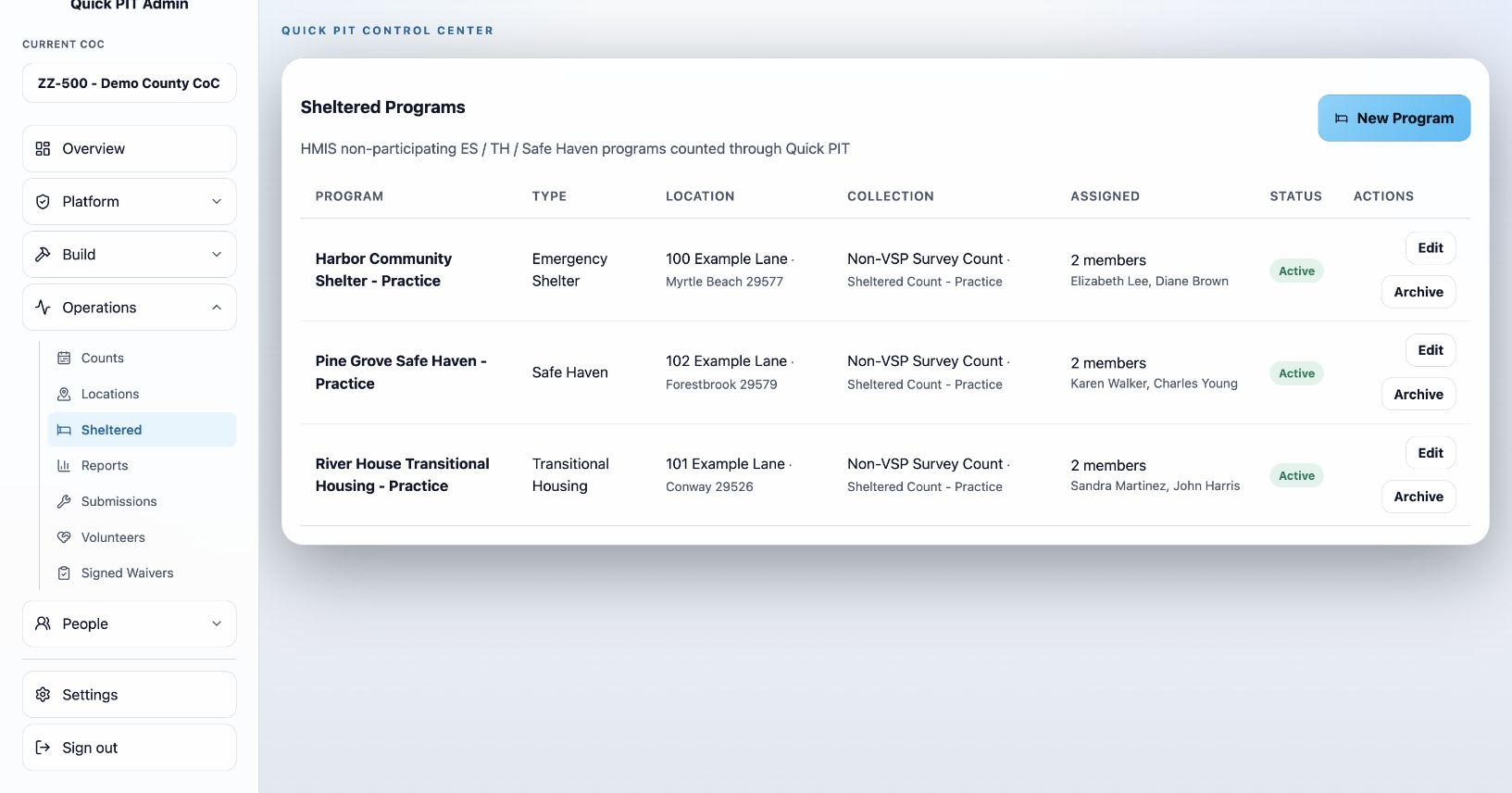
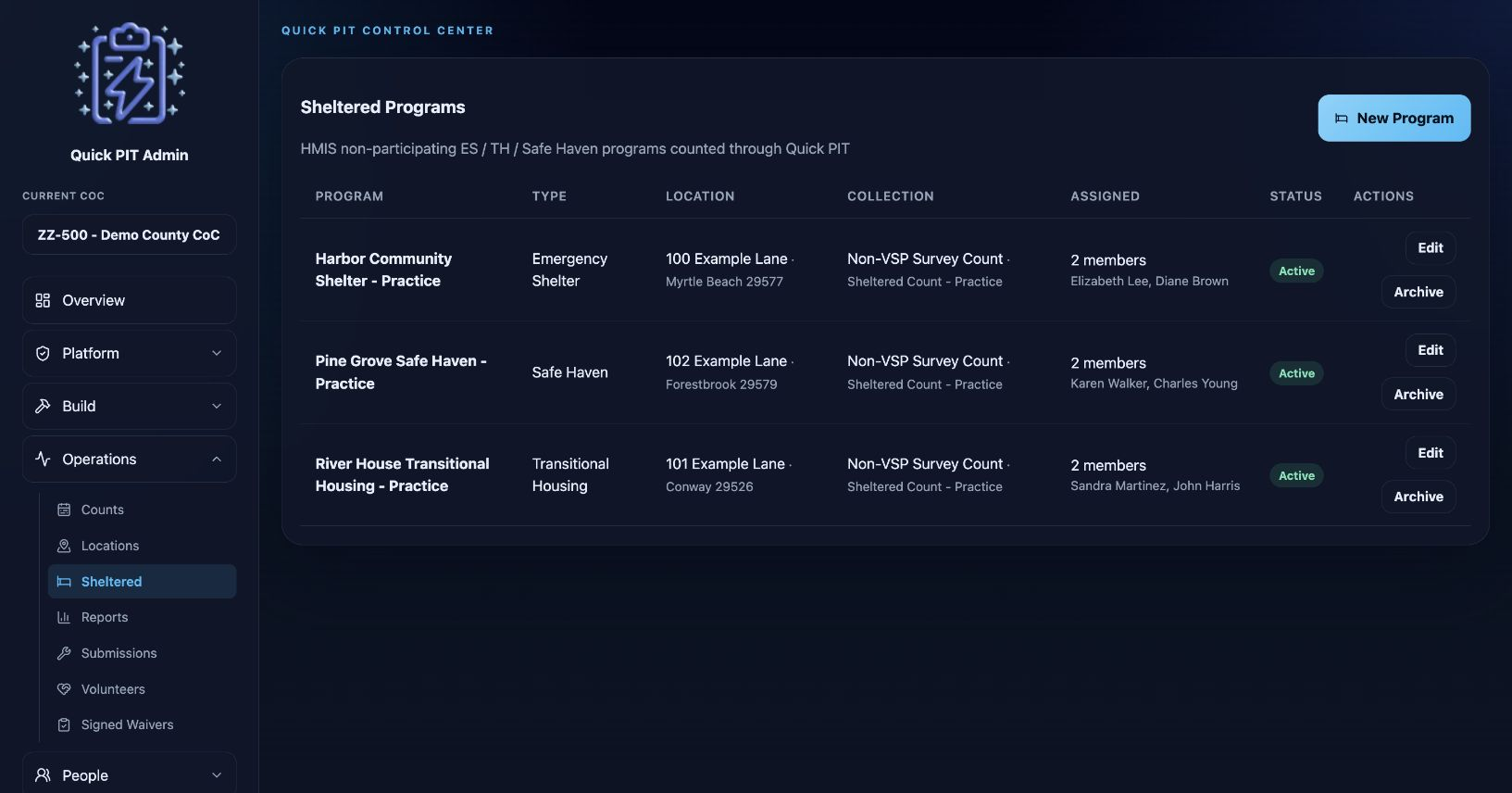
Use Operations → Sheltered to set up HMIS non-participating programs for Emergency Shelter (ES), Transitional Housing (TH), or Safe Haven (SH). Each program uses either individual surveys or aggregate counts for its contribution to a PIT count.
Choose the collection method
Choose the collection method before setting up the program:
| Collection method | Use this option for |
|---|---|
| VSP Aggregate | A victim service provider submitting aggregate counts. Quick PIT requires aggregate collection for VSP programs. |
| Non-VSP Aggregate | Another shelter that does not participate in HMIS and chooses to submit program totals instead of individual surveys. |
| Non-VSP Survey Count | A non-VSP program whose staff or assigned surveyors will complete individual surveys in Quick PIT. |
Use one collection method for each program’s contribution to a count. If individual responses already exist for the program and count, resolve them before approving aggregate totals so the same people are not included twice.
An existing aggregate program cannot be switched directly to individual survey collection. Create a separate program if its collection method needs to change, and review which program will contribute to the count.
Programs using individual surveys
For Non-VSP Survey Count, create an active sheltered survey under Build → Surveys first.
- Open Sheltered and select New Program, or edit an existing survey-count program.
- Select Non-VSP Survey Count. Enter the program name, program type, and location.
- Select the sheltered survey and assign the staff who will collect its data.
- Select Create Program or Save Program.
Assigned staff see the program in the field app. The survey belongs to the program, and completed responses are associated with the active count. Before collection begins, confirm the count is published, its collection window is open, and the survey and staff assignments are correct.
The program type determines whether its responses appear under ES, TH, or SH in reporting.
Programs submitting aggregate counts
For VSP Aggregate or Non-VSP Aggregate, a CoC admin invites a designated staff member to enter program totals through a private web page. Providers do not need a Quick PIT account or the mobile app. Approved submissions become part of the PIT population reports and Excel export used to prepare the HDX submission.
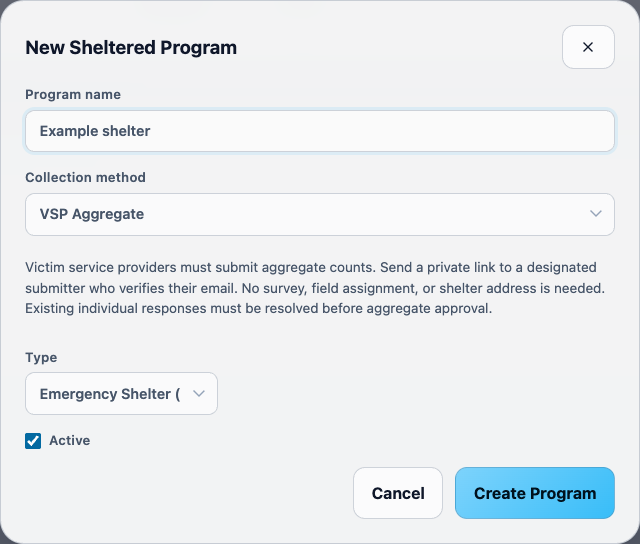
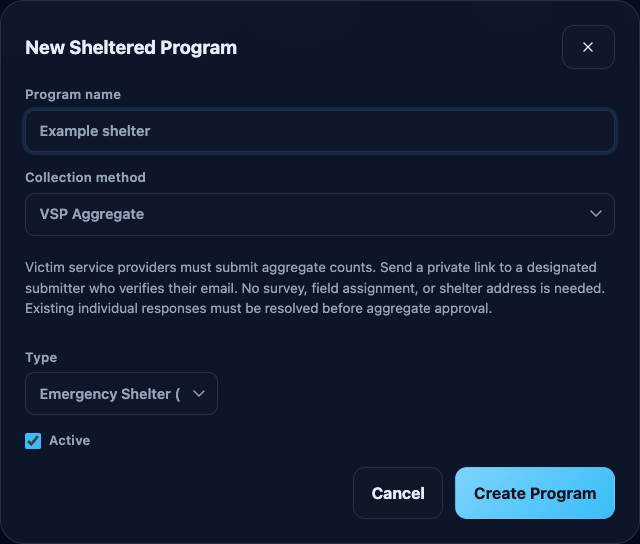
Open Sheltered and select New Program, or edit an existing aggregate program. Enter the program name, choose its program type, and select the appropriate aggregate Collection method. Select Create Program or Save Program.
Aggregate programs do not require a survey assignment, assigned field users, or a shelter address. The program type determines which questions appear and where approved totals belong in reports.
Set up provider access
- Open the saved program’s Aggregate submissions panel.
- Select the PIT Count.
- Enter the Designated submitter email. Add a Backup submitter email if another staff member needs access.
- Select Create submission link.
- Copy the Provider link to share with the designated staff, or send an invitation from the dashboard.
Only the designated email addresses can request a verification code. The primary and backup submitters work on the same submission, so they should coordinate their edits.
The submitter must provide their own name and phone number. Quick PIT records their verified email with the submission so the CoC can follow up about the totals.
Send or schedule an invitation
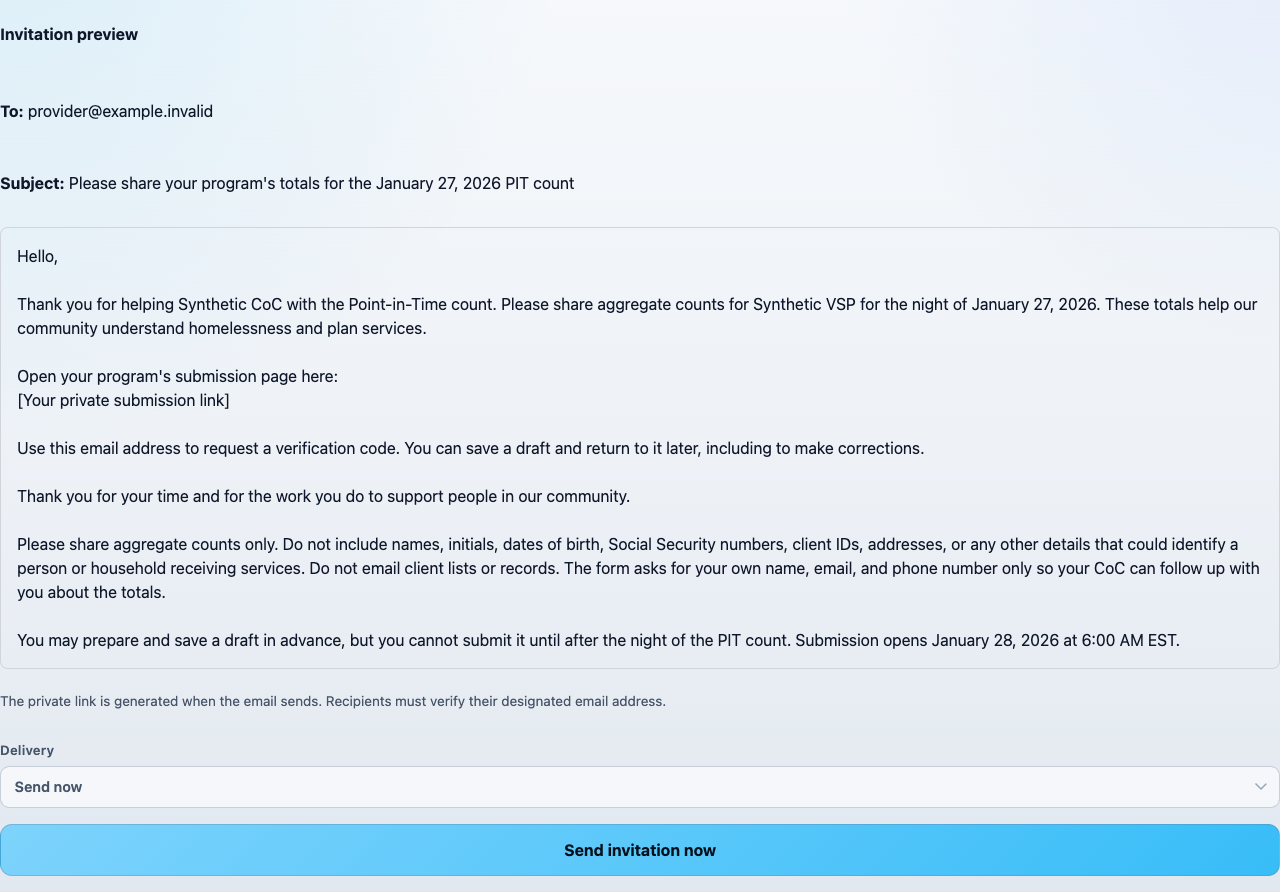
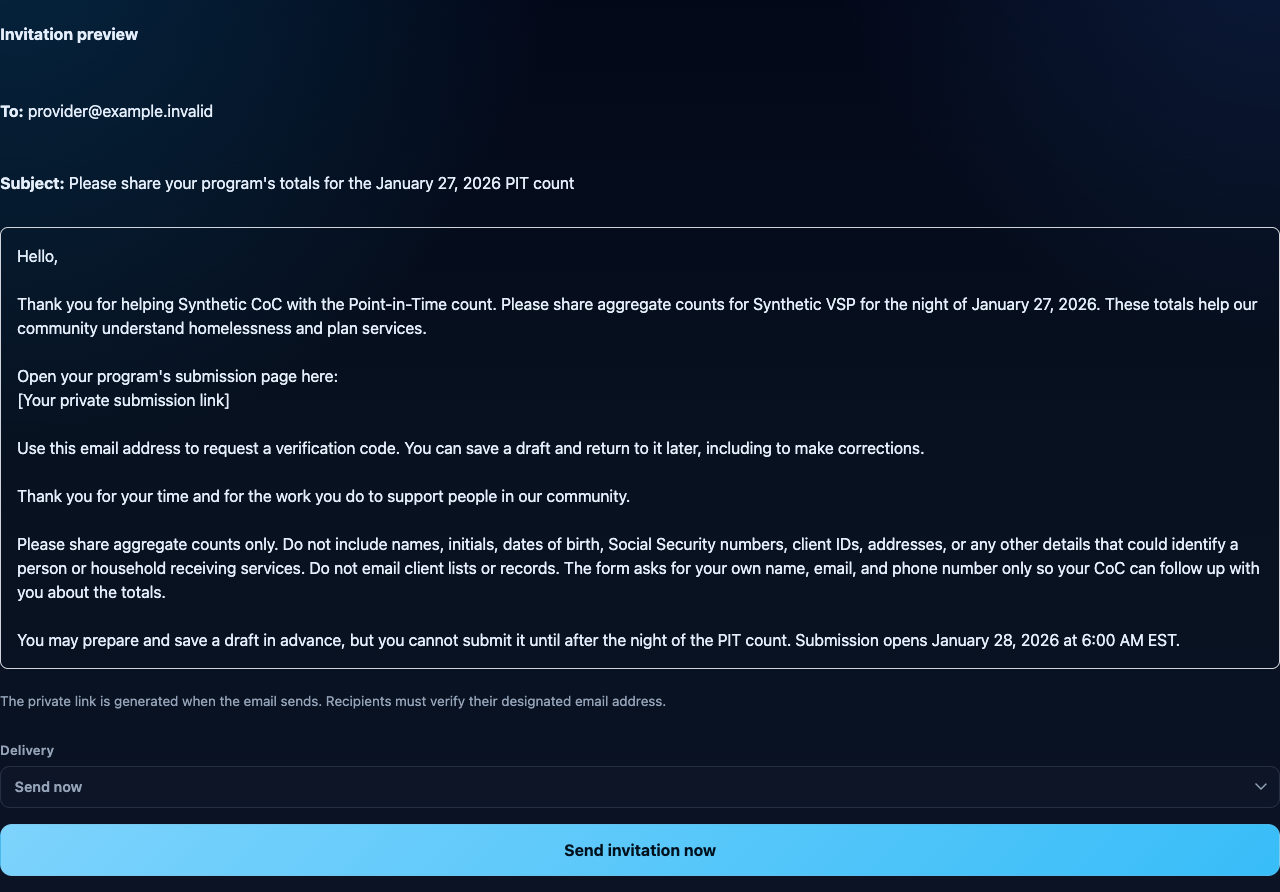
Open Email invitation within the program’s aggregate submission panel. Review the subject and message, then select Preview invitation to see the email and its recipients.
The template fills in the program name, CoC name, PIT date, and private submission link. If you edit the message, keep the {PIT_DATE} and {SUBMISSION_LINK} placeholders. The email always includes privacy instructions and the submission opening time.
Under Delivery, choose Send now or Schedule for later. For a scheduled invitation, select the date and time using the timezone displayed beside the field. Finish with Send invitation now or Schedule invitation.
Recent invitations shows a separate card for each message, including its subject, recipients, delivery status, and time. Sent to email service means the email service accepted the message; it does not confirm arrival in the recipient’s inbox. Use Refresh invitation status to check for updates. A scheduled invitation can be canceled before sending begins.
If program access or count details change, a pending invitation may be canceled. Review the updated details and create a new invitation when needed.
What providers will do
The provider opens the private link, selects Email me a code, and enters the six-digit code sent to their designated email address.
Providers can prepare and save drafts before PIT night. They can submit only after PIT night, once the submission window opens. The invitation and submission page show the exact opening time.
The form collects household and person totals, demographic breakdowns, additional adult populations, veteran households, unaccompanied youth, and parenting youth. Each section includes expandable Who should I count? Definitions and examples guidance specific to that category. Emergency Shelter and Safe Haven forms also include a separate Chronically Homeless definition where those counts are collected. Transitional Housing forms omit chronic homelessness questions.
The first three household sections establish the program’s total: households with adults and children, adults only, and children only. Each household belongs in one of those sections. Providers then include qualifying households and people again in the applicable veteran, youth, or additional population sections.
For example, a veteran parent staying with two children belongs in both the adults-and-children household section and the veteran-households-with-children section. This is one household with three people in the program total. The veteran section describes that same household and does not add another household to the total.
Providers may leave fields blank when the count is zero. A blank is treated as zero when submitted. If a demographic characteristic is unknown, use the available unknown category. The form checks that household counts and related breakdowns add up and identifies answers that need correction.
Collect aggregate counts only. Do not enter or email names, initials, dates of birth, Social Security numbers, client IDs, addresses, or other identifying details about people receiving services. The required contact information belongs to the staff member preparing the submission.
After submitting, the form collapses and shows Submitted for CoC review, along with a confirmation notification. Providers can select Review or edit submission to reopen their answers. Changes must be submitted again for CoC review.
Review and approve a submission
To review the submission:
- Open the program’s Aggregate submissions panel and select the count.
- Select Refresh submission to load the latest information.
- Review the submitted revision, contact details, and count sections. If an approved revision already exists, review Changes since approval.
- Select Approve submitted revision when the counts are ready to include in reports.
Saving a draft or submitting answers does not add them to report totals. Approval is required. Unknown age or race counts do not prevent approval.
Request corrections
Select Request corrections to open a separate review panel. Enter Feedback for the submitters, explaining which aggregate counts need another look. Do not include identifying information about people served.
Select Preview corrections email to review the recipients, subject, feedback, and message. Then select Request corrections and email submitters. Quick PIT records the feedback, opens collection for updates, and emails the designated submitters a private link to their saved answers.
If a new revision is submitted while you are reviewing, Quick PIT asks you to review the latest counts and preview the email again. Your written feedback is kept.
Requesting corrections, saving a newer draft, or resubmitting does not remove previously approved totals from reports. Those totals remain until you approve an updated revision. If the existing approved totals should no longer be included, enter a reason and select Withdraw approved data.
Include approved totals in the HDX report
Open Reports and select the count. Approved aggregate submissions are combined with individual survey counts in the PIT population tables. Select Recompute to refresh the report after approvals or corrections. Check the aggregate contribution summary and any pending-review notices before exporting.
Choose Raw (show unknowns) to retain reported unknown age and race counts. Choose Extrapolated to distribute those unknowns using the available known counts within the relevant population and shelter type. If no known counts are available for a breakdown, those counts remain unknown. Extrapolation does not change the provider’s saved submission.
Select Export Excel to download the population tables using the selected Raw or Extrapolated view. The Program reconciliation worksheet identifies each aggregate program, its approved revision, included households and people, and pending work.
Aggregate totals are not individual survey records. They do not appear in the individual-response CSV export or response-based Live View counters and custom charts. Use Reports to review the combined PIT totals.
Close collection, manage access, or archive a program
For aggregate programs, select Close collection when provider editing is finished. Providers can still view their saved counts and request reopening. Select Reopen collection to allow further updates.
To replace the designated contacts, use Update contacts and generate a new link. This revokes previous links and provider sessions while preserving saved submissions. Revoke access blocks provider access without removing approved report totals.
For either collection method, use Archive when a program should no longer be offered for new work.