Getting started
Sign in at admin.quickpit.app, prepare a practice run, configure your count, and assign locations.
Updated October 22, 2026. Screenshots use fictional training data. Select an image to enlarge it.
Sign in and find your organization
Use Continue with Google, Continue with Microsoft, Continue with Apple, or your email and password. Choose the method associated with your account. Forgot password? sends a reset link for an email/password account.
Your organization must also give you CoC Admin access to use its dashboard.
If you belong to several organizations, check the CoC selector in the menu before making changes. The sidebar groups pages by task:
| Menu | Pages |
|---|---|
| Overview | Count activity, maps, and Getting started |
| Build | Surveys, Survey Types, Question Bank, Waiver Templates, Resources |
| Operations | Counts, Locations, Sheltered, Reports, Submissions, Volunteers, Signed Waivers |
| People | Users, Teams, Alerts |
| Settings | Personal preferences and CoC configuration |
Select a group name to expand or collapse it. On smaller screens, open the menu with the menu button. Wide tables scroll within their cards.
Prepare for your count
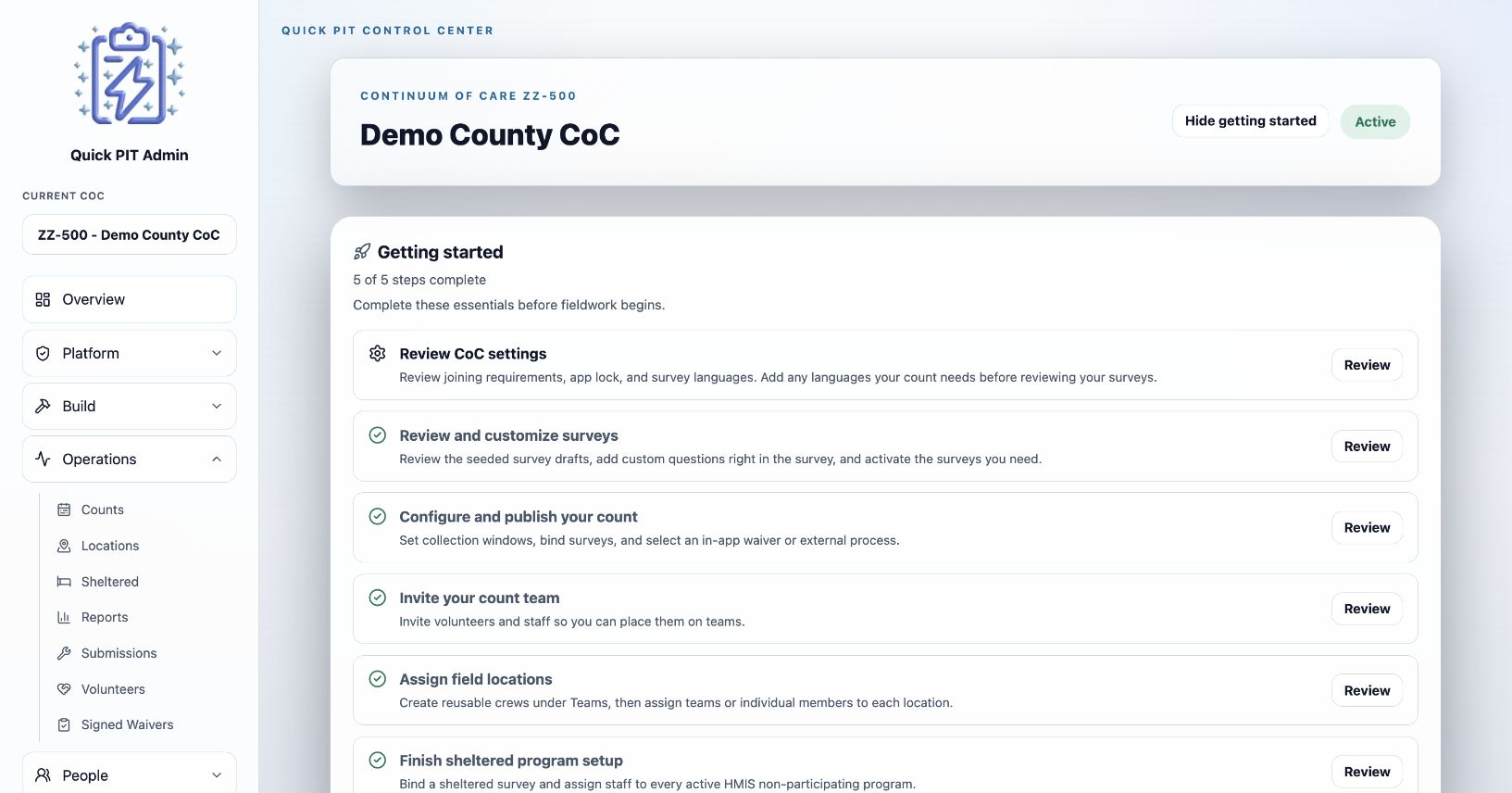
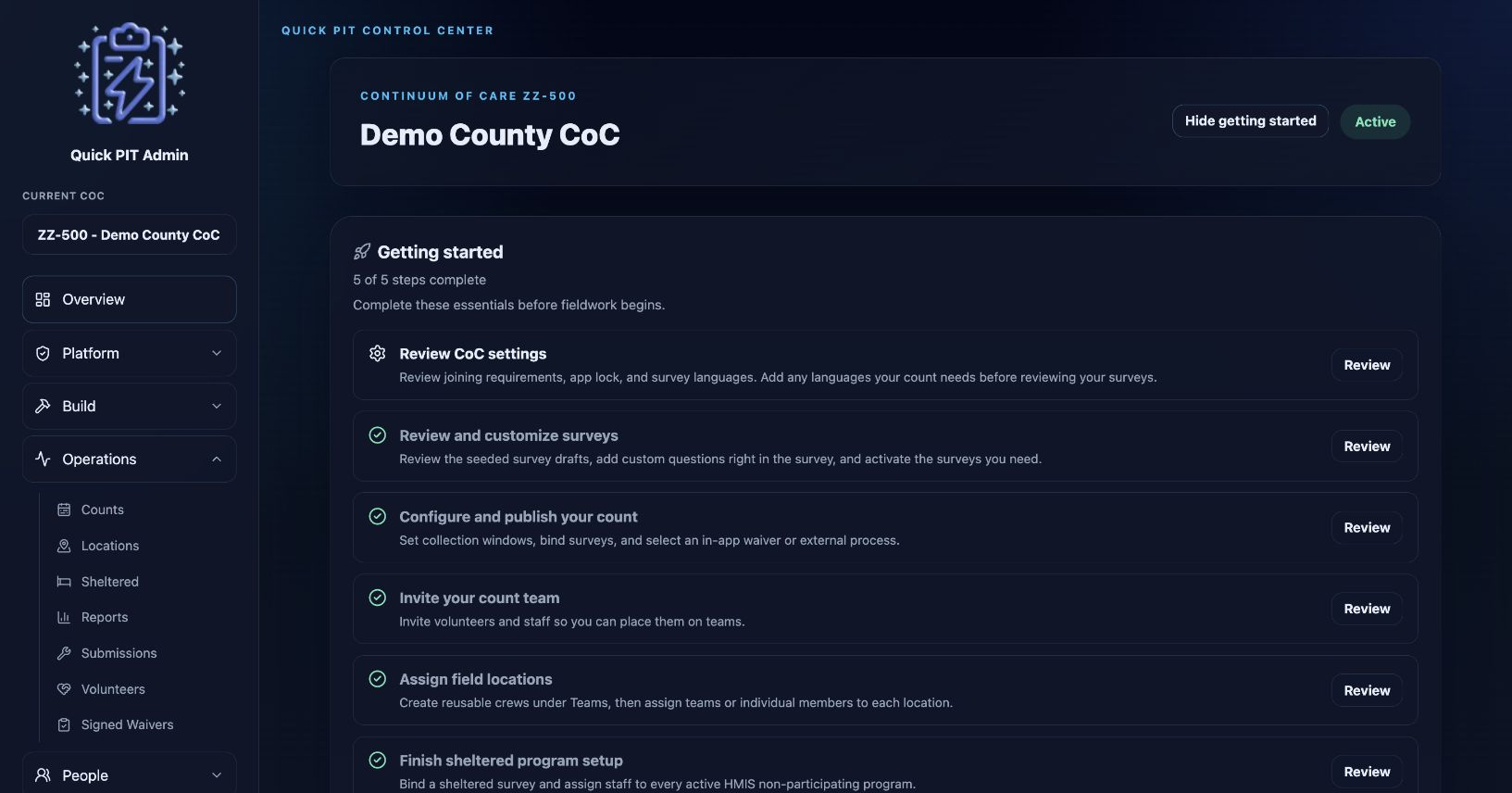
Open Overview and select Getting started. A new CoC without a count sees this checklist immediately.
The checklist follows your setup. It includes surveys, invitations, a published count, and location assignments. Translation and sheltered-program steps appear when those features apply. Use Open or Review beside a step to visit its page.
Complete a practice run in the field app before your real count. Check the survey language, question order, conditional questions, waiver requirements, and assignments using an ordinary volunteer account.
Configure and publish a count
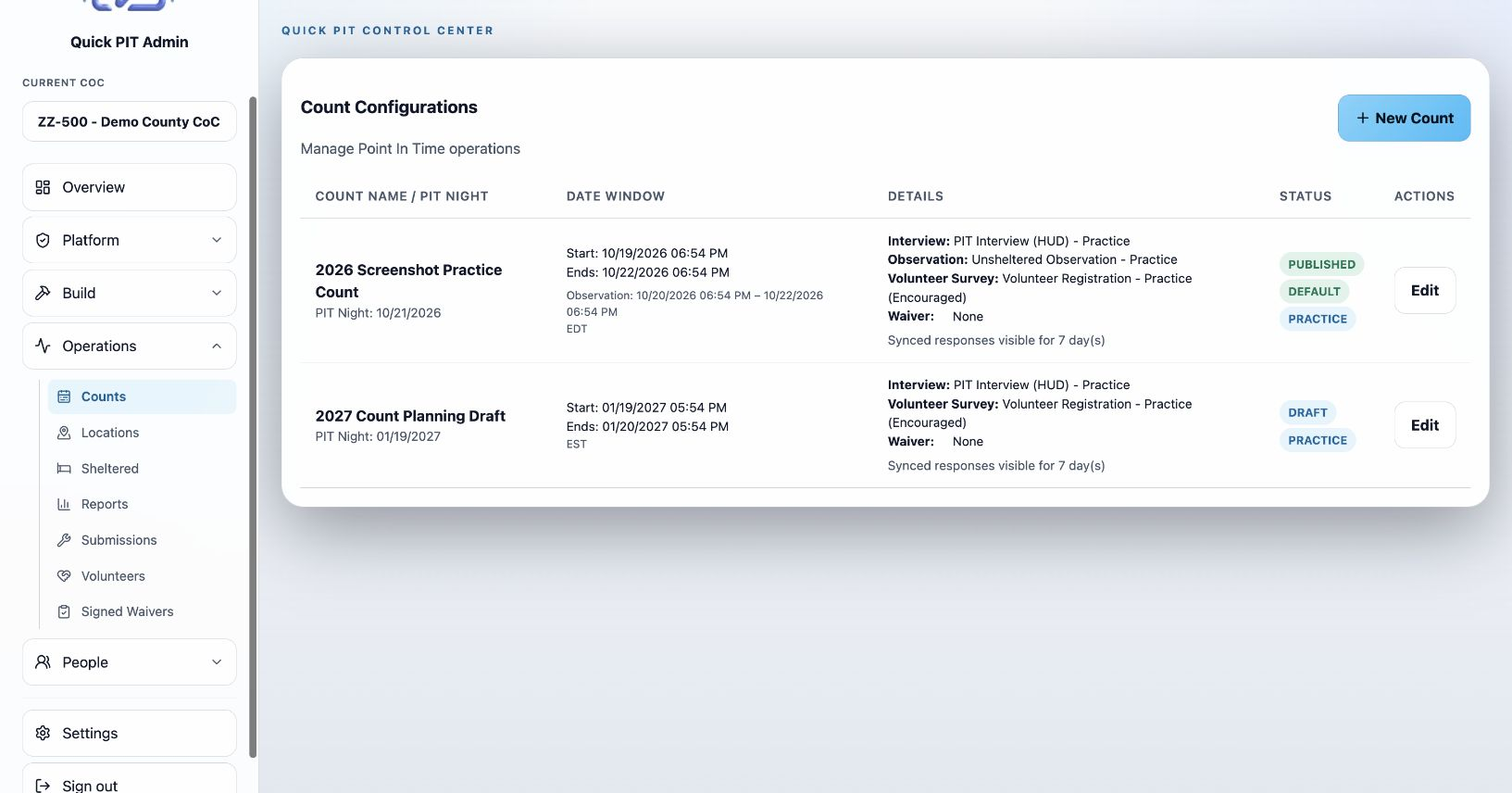
- Open Operations → Counts and choose New Count.
- Enter the count name, PIT Night, and collection start and end windows. Check the CoC timezone shown above the form.
- Select the active interview survey and any other count surveys you intend to use.
- Enable observations when needed and select their survey. Separate observation times are optional; when left blank, observations follow the main count window.
- If using a Volunteer Survey, select it and choose Encouraged or Required. Encouraged surveys can be declined; required surveys must be completed before conducting client surveys.
- Choose the Waiver Profile or the external waiver process. Review the organization-wide waiver requirement.
- Decide whether end users may review synced submissions and set the Review Window (days) if enabled.
- Leave Published unchecked to save a draft. Check it when the count is ready for the field app, then choose Save Count or Save Count Changes.
A published count appears in the app, but collection still depends on its date window. Set as Default Count does not override publication or dates. Main and observation windows cannot overlap another published count.
Use Practice / Training count for rehearsals and record fictional people only. The field app displays a practice warning. Practice counts still take part in the publication overlap checks, so schedule them outside real collection windows.
The review window starts when the server first records a submission. Editing a response does not restart that period.
Create and assign locations
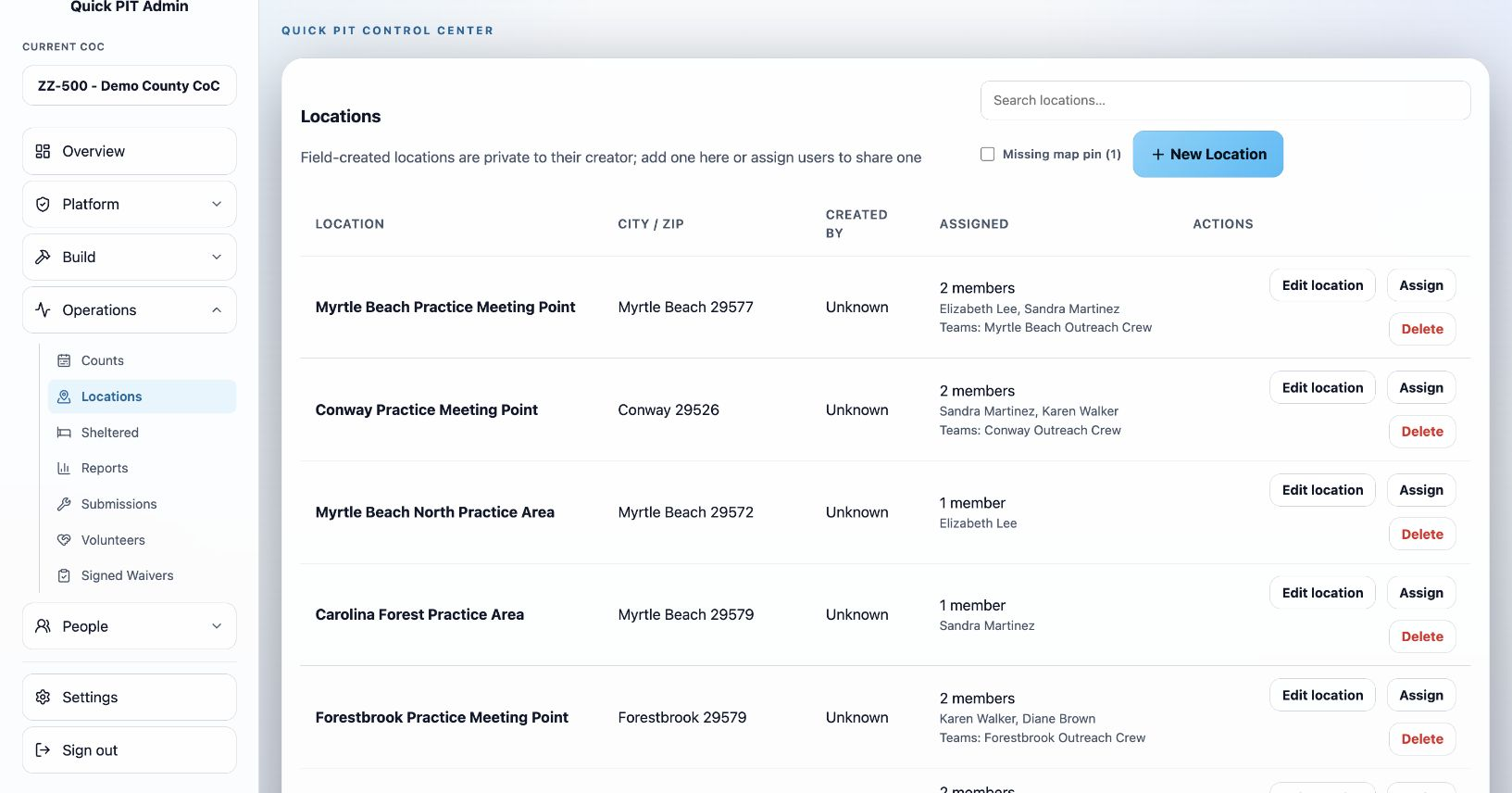
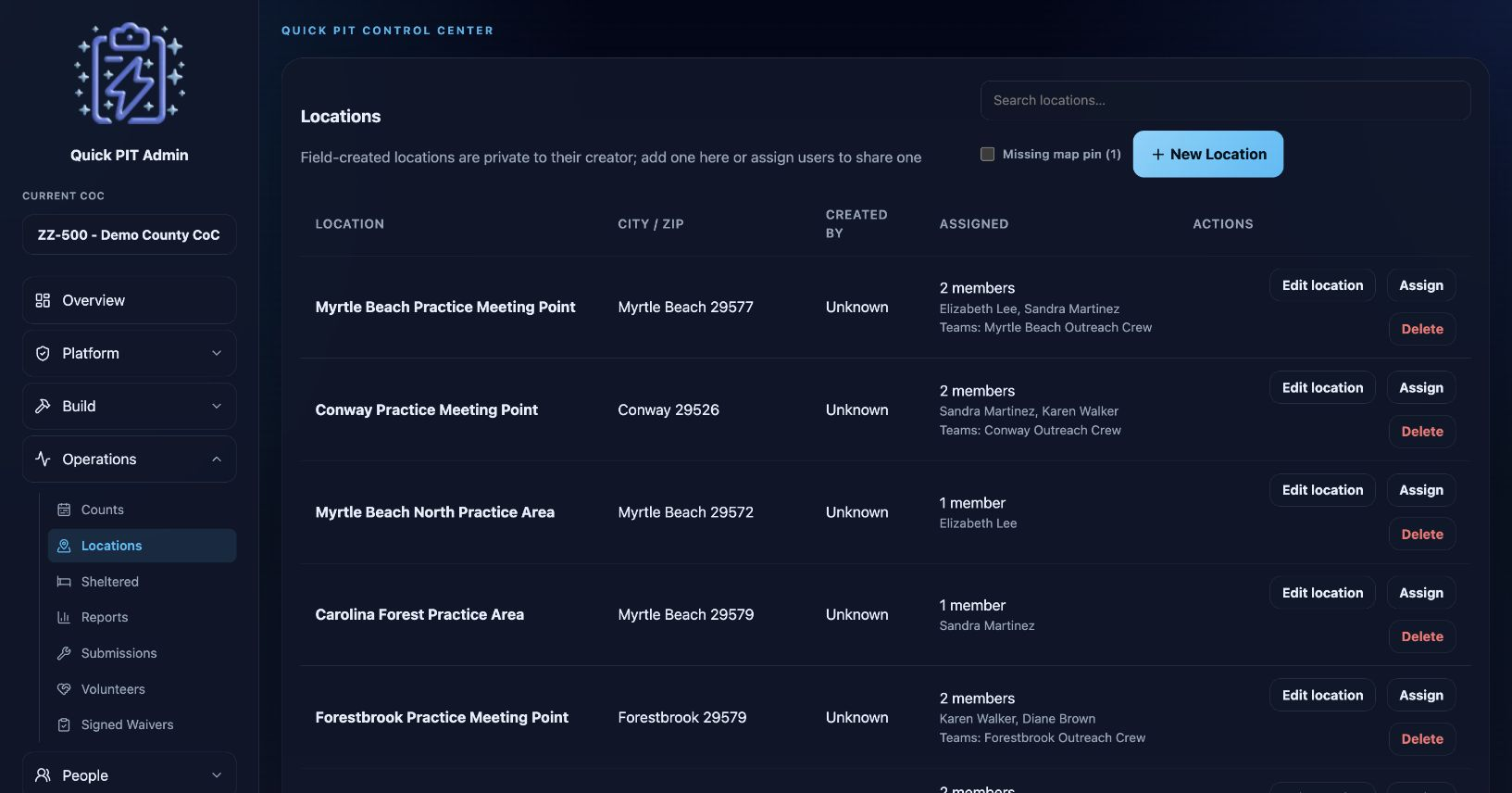
Open Operations → Locations and choose New Location. Enter a useful name or address, city, and ZIP. Select Find address on map, then check the result. You can click the map to place a pin, drag it to adjust the position, or enter latitude and longitude and select Use coordinates.
Check I confirm this pin marks the correct location before selecting Create Location. A valid, confirmed pin is required. To correct a saved location, choose Edit location, check its details and pin, and select Save Location. Use the Missing map pin filter to find older locations that need attention.
Use Assign to share a location with individual members or teams. Locations created in the field are initially private to their creator. Once an administrator assigns a field-created location, the administrator manages its sharing.
Check both the assignment list and Overview’s map before fieldwork. Older records without coordinates may appear at an approximate ZIP-area position. That position does not establish the exact encounter location.