Reports and submissions
Review population totals, export results, check duplicates, and correct submissions.
Updated October 22, 2026. Screenshots use fictional training data. Select an image to enlarge it.
Review reports and export results
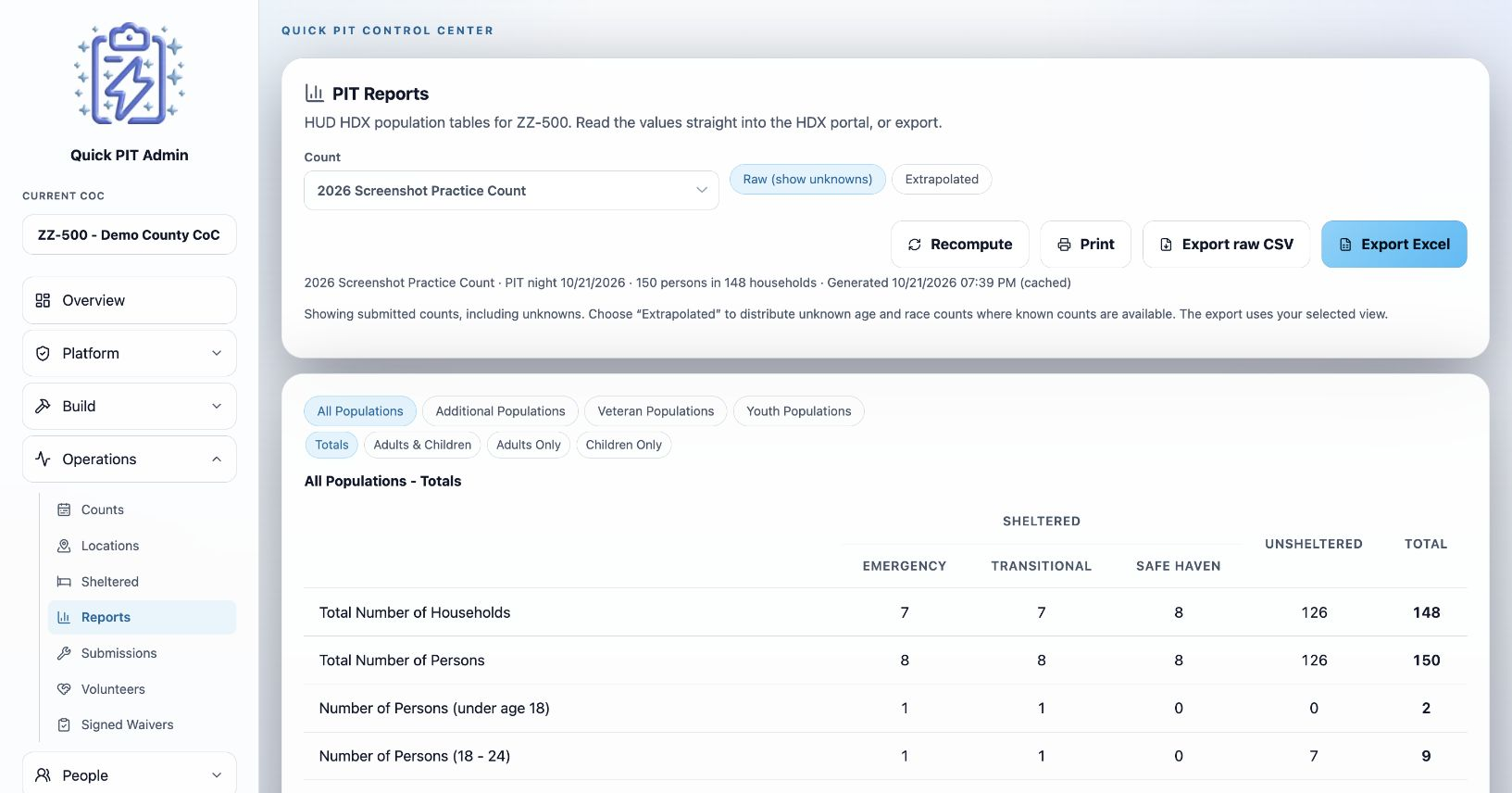
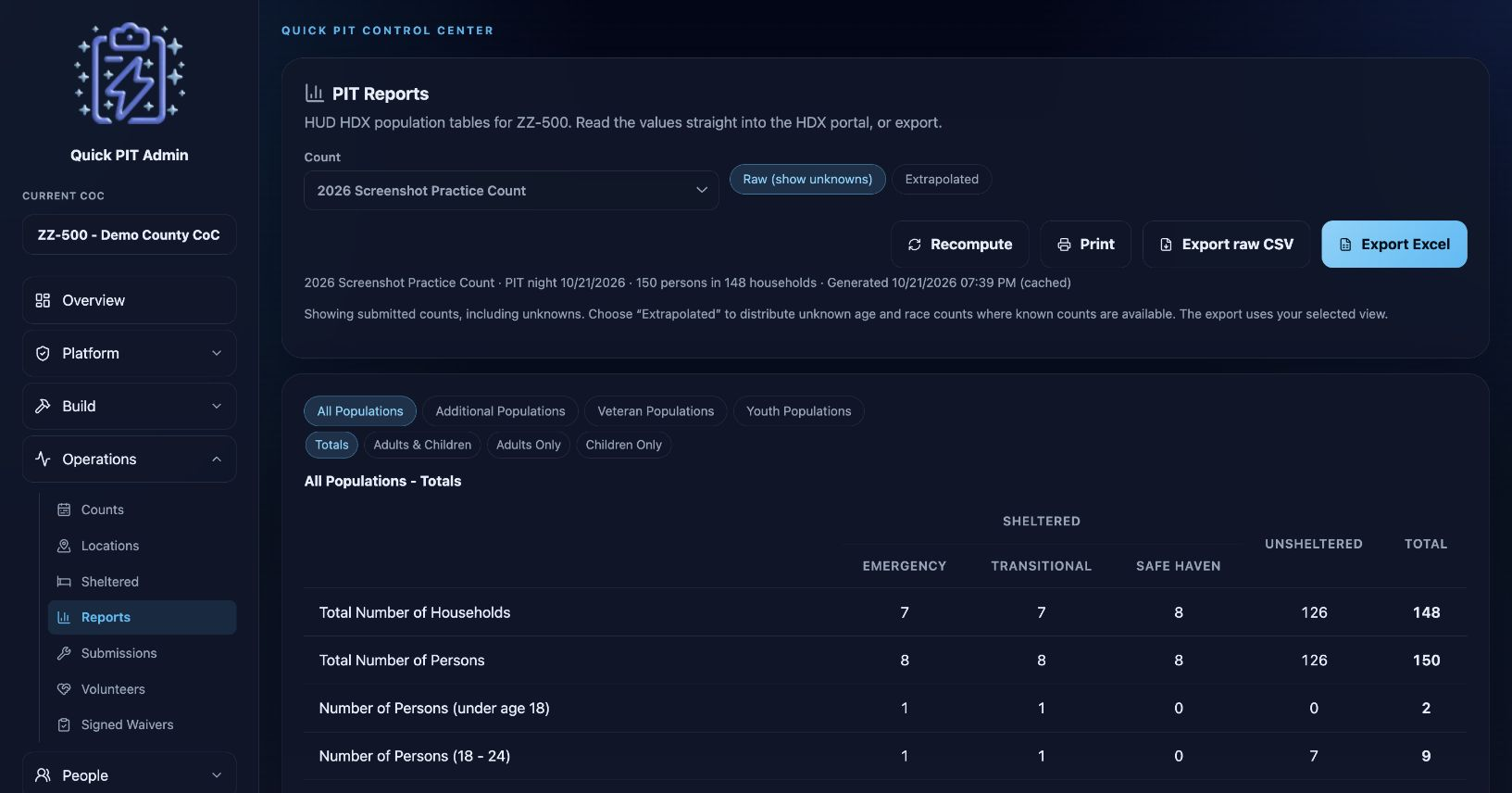
Open Operations → Reports and select the count. Review the generated time and any missing-question warnings before using the totals.
Choose All Populations, Additional Populations, Veteran Populations, or Youth Populations. Within a population table, start with Totals or select the household group you need.
- Raw (show unknowns) keeps unknown answers visible.
- Extrapolated proportionally distributes unknown age and race values among known categories. If no known answers exist in a category, the application cannot derive a distribution. Review the result against your reporting process.
- Recompute generates a fresh report after corrections. Reports can reuse saved results when the underlying responses and program information have not changed. The page already open in your browser is not a continuously updating live report.
- Export Excel downloads the report tables. Print opens the browser’s print flow. Export raw CSV exports individual response data for the selected count.
Approved aggregate submissions are included in PIT population tables and the Excel export. Check the Program reconciliation worksheet for approved program totals and pending work. Aggregate counts are not individual responses and do not appear in the raw response CSV. See Programs submitting aggregate counts for review and approval.
Raw exports offer a separate, unchecked option to include full Social Security Numbers where those were collected. Enabling it displays an additional warning. Use it only for an authorized need and handle the resulting file according to your organization’s data practices.
The Survey languages table includes enabled languages even when there are no responses, previously recorded languages that have since been disabled, and unknown or older records without language information.
Review possible duplicates
Select Check for duplicates and compare the suggested matches. A match is a reason to review records, not proof that they describe the same person. In the comparison, choose Keep for the record to retain. Choose the values to keep where fields differ, then use Merge & remove others. Use Remove others (no merge) when you want to retain the chosen record without copying values from the others.
Removal can be reversed from Submissions while the record remains stored. Purge removed duplicates permanently deletes records marked as removed duplicates in the selected count. Review carefully before confirming a purge, then recompute your report.
See Custom charts for chart types, grouping, filters, and refresh instructions.
Correct individual submissions
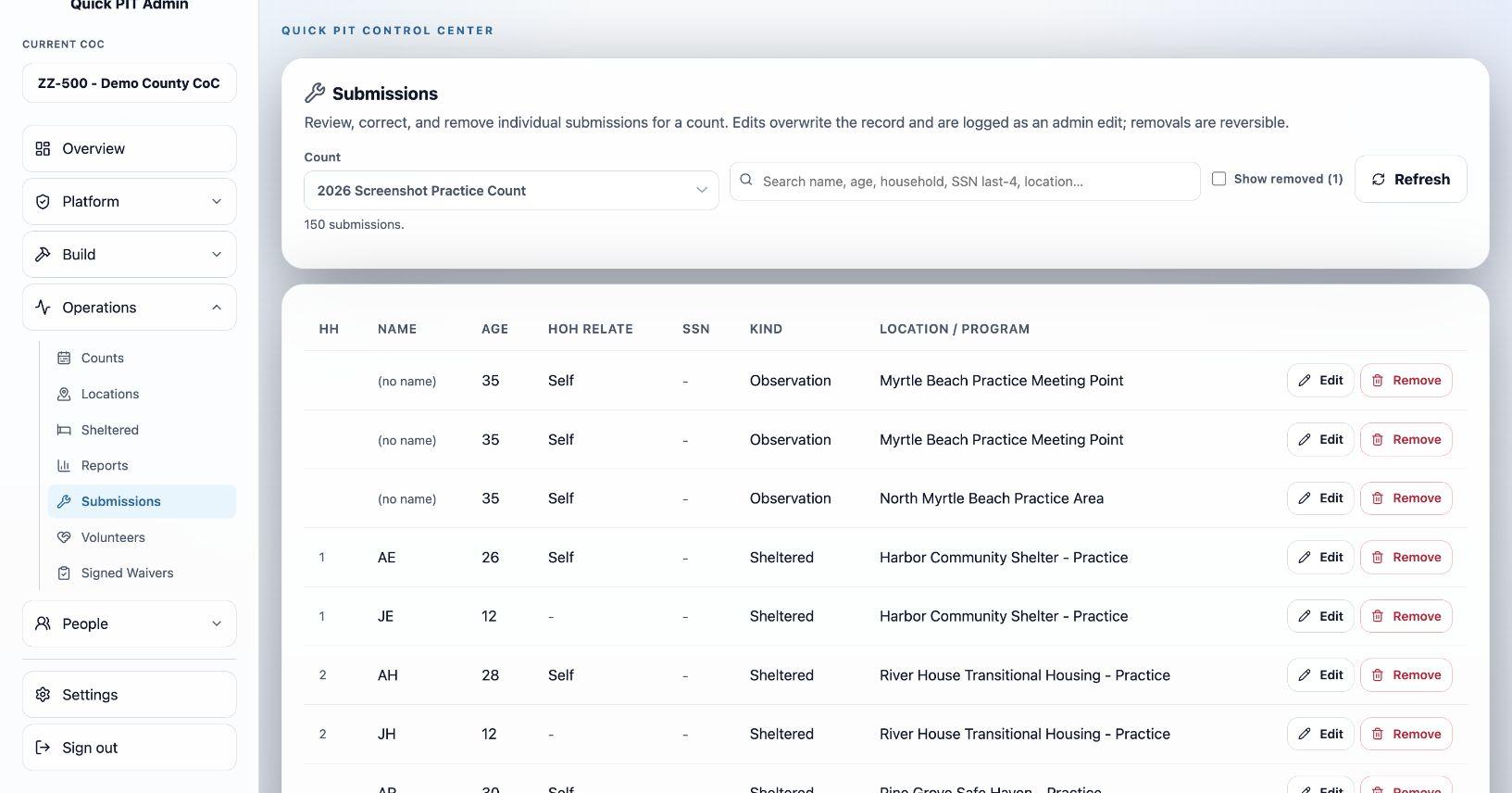
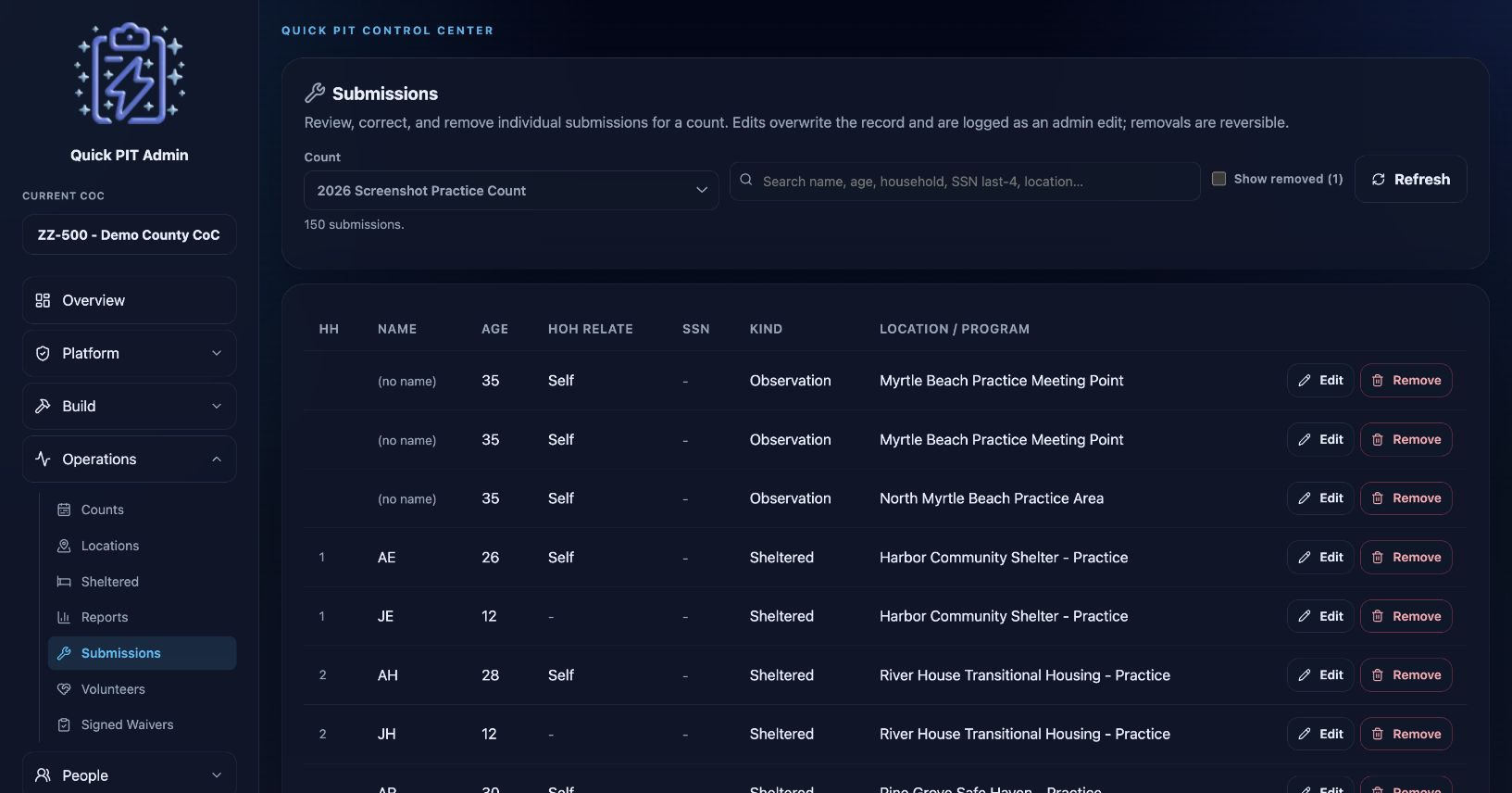
Open Operations → Submissions, select the count, and search for the response. Choose Edit to correct it or Remove to exclude it. Turn on Show removed to find removed records and use Restore when appropriate.
Use Refresh to reload the list after changes elsewhere. Recompute the report after completing corrections. This page is for client responses; use Volunteers to read volunteer intake answers.
Review volunteer submissions
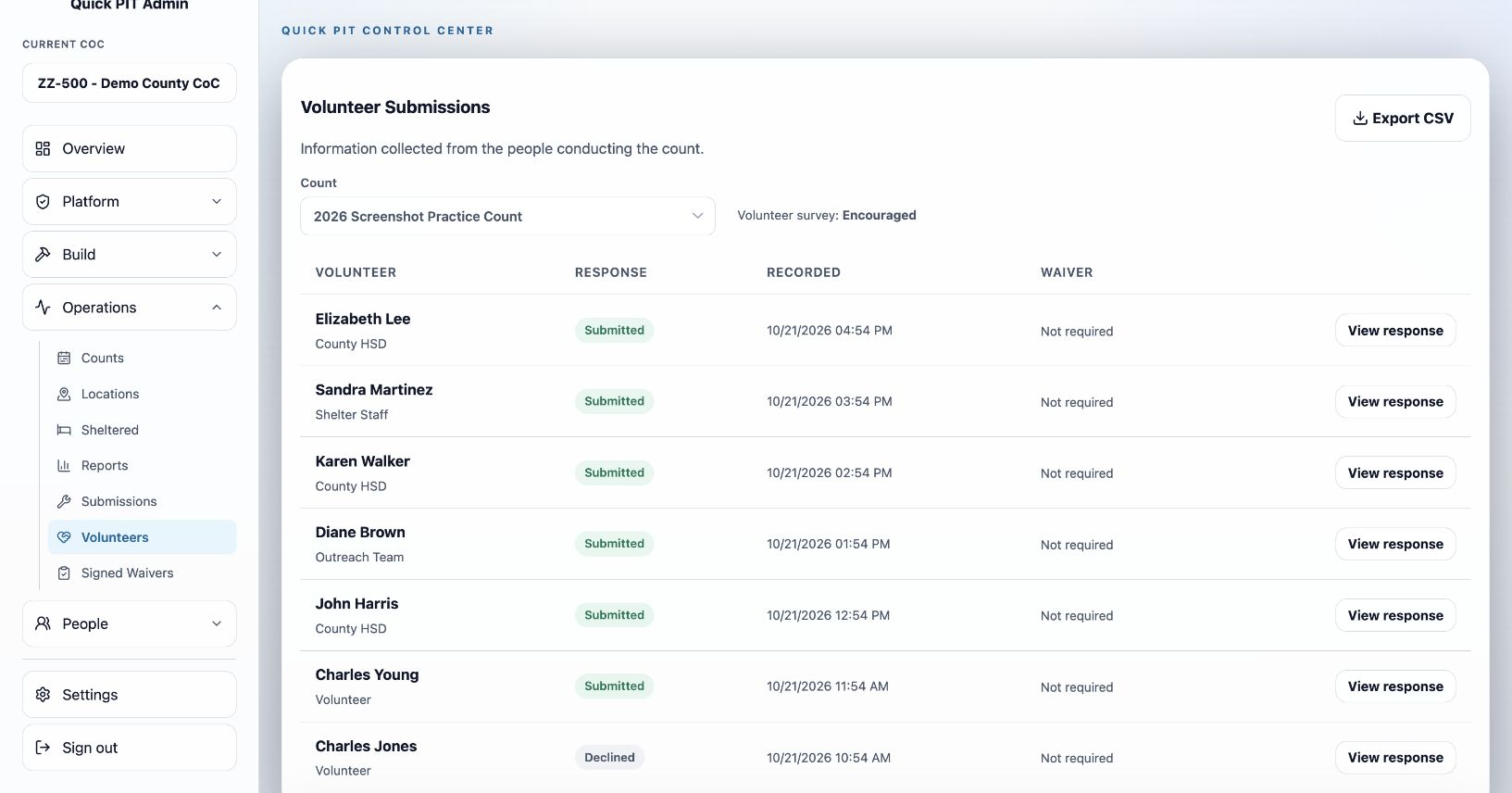
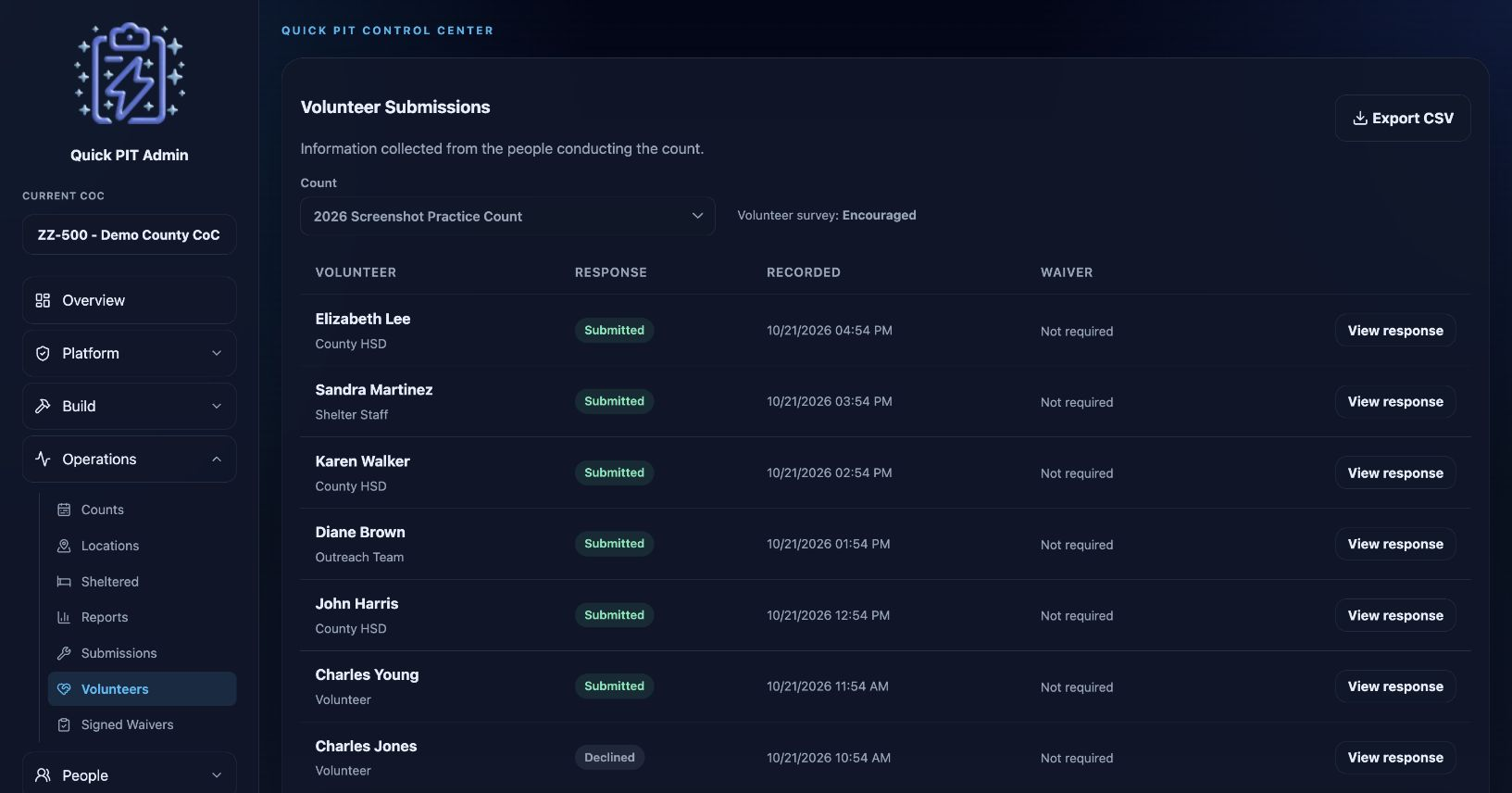
Open Operations → Volunteers and select a count that has a Volunteer Survey attached. The summary lists the volunteer, organization where available, Submitted or Declined status, recorded date, and waiver information.
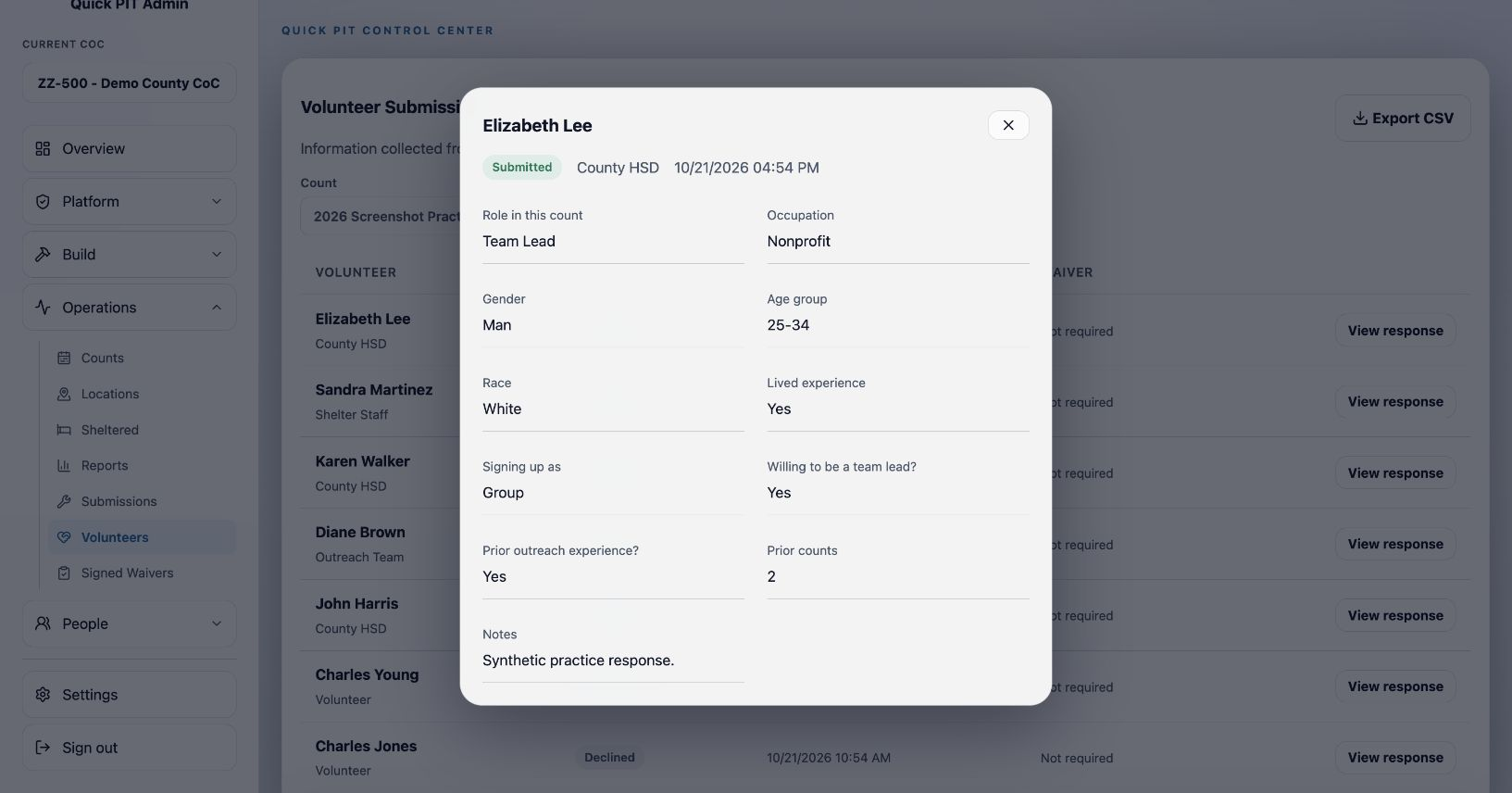
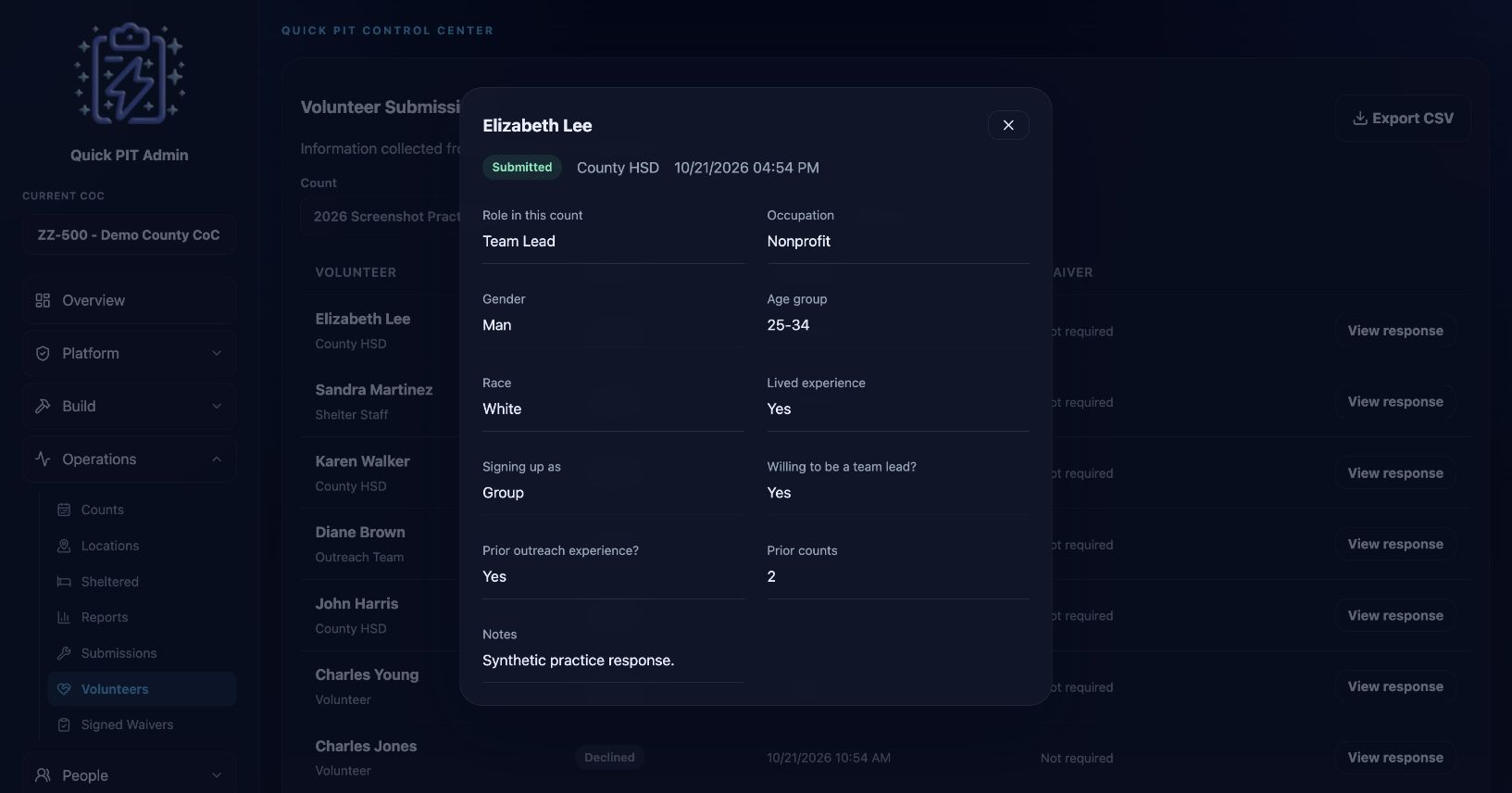
Choose View response to read the complete answers in a separate dialog. A declined response explains that the volunteer chose not to complete the survey. Export CSV includes the full answers, even though the summary list keeps them out of individual table columns.
Waiver information shows the latest signed record found for the displayed volunteer and offers a PDF when available. It is not a separate certification that every count-specific waiver requirement is satisfied. Volunteer charts appear below the list.
This page shows responses for the Volunteer Survey currently attached to the count. Editing that same survey does not prompt people who already submitted or declined to answer again. To request a new response from everyone, create a new Volunteer Survey and attach it to the count.