Surveys and translations
Build surveys, check reporting questions, publish translations, and maintain the Question Bank.
Updated October 22, 2026. Screenshots use fictional training data. Select an image to enlarge it.
Create and maintain surveys
- Open Build → Surveys.
- Choose Create from a template, select a survey type, and give the survey a useful name. Interview-style templates use questions from the Question Bank. Observation and volunteer templates can be created without first filling the bank.
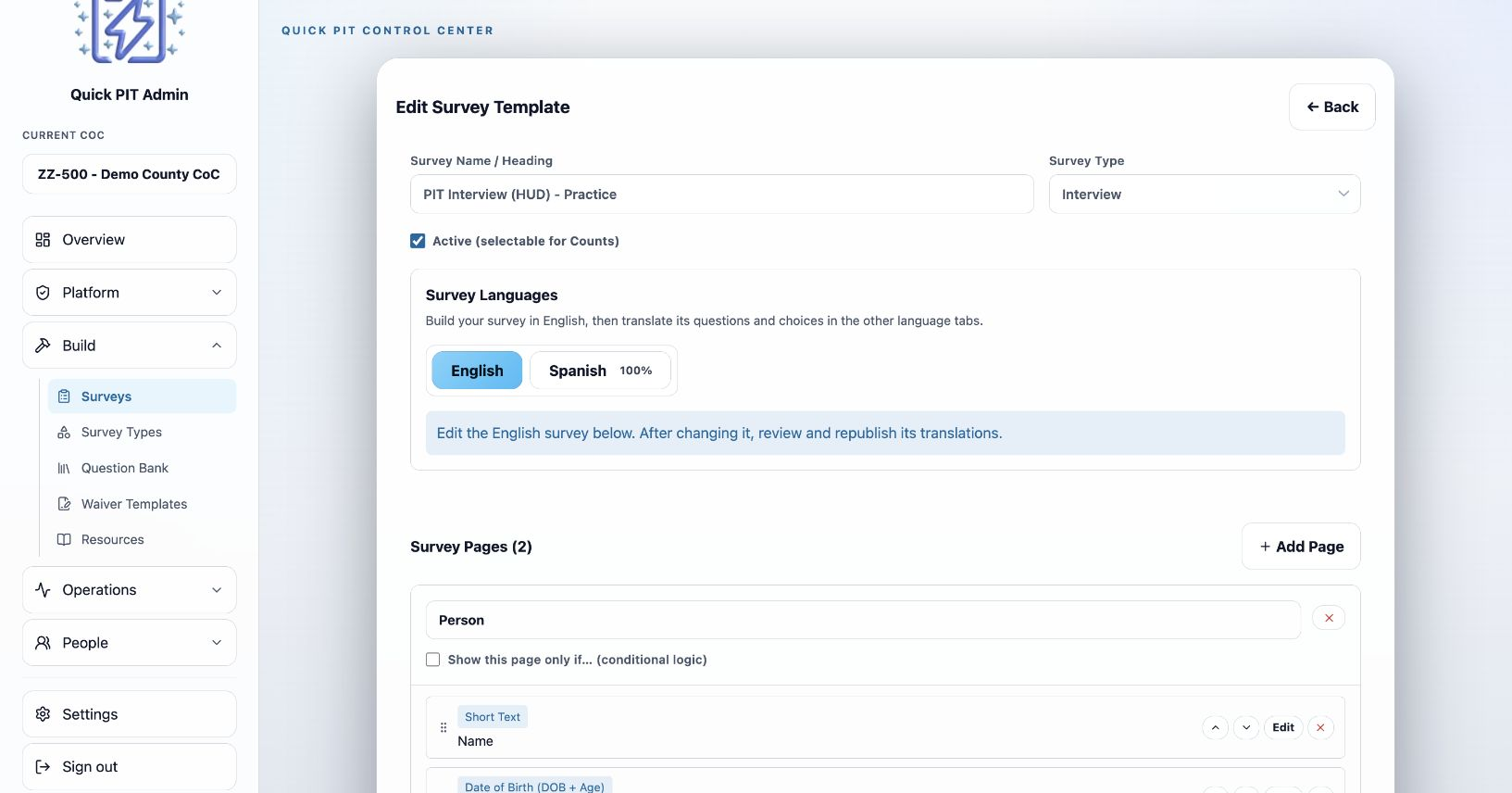
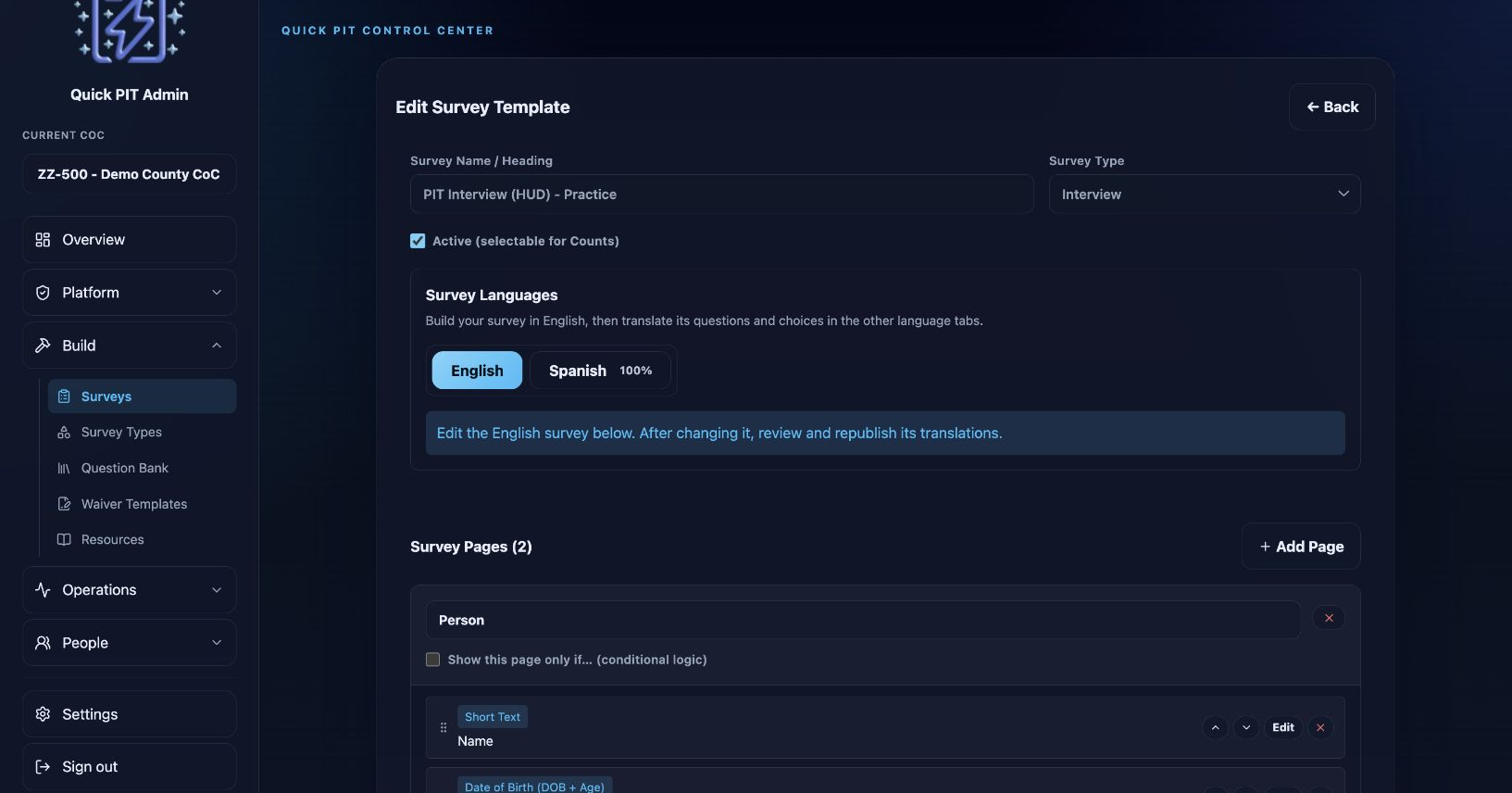
- Open the survey to edit its name, type, pages, and questions. Use Add Question to select a bank question or create a new one. A question created here is added to both the bank and this survey.
- Review required answers, answer choices, and any conditions controlling when a page or question appears. Add text blocks for instructions that should be shown or read aloud.
- Keep the survey Active when it should be available for count or program setup, then select Save Survey.
A bank question is copied into the survey when you add it. This means that modifying a question in the question bank will not modify existing survey questions. Review and update the affected surveys separately if needed.
The survey list flags missing HUD reporting questions. Open the survey to see which questions are missing, then use Add Question to add them from the Question Bank before collecting responses. Saving an incomplete survey asks you to confirm: choose Cancel to keep editing or Save anyway when the omission is intentional. Reports also shows missing-question warnings for surveys used by the selected count.
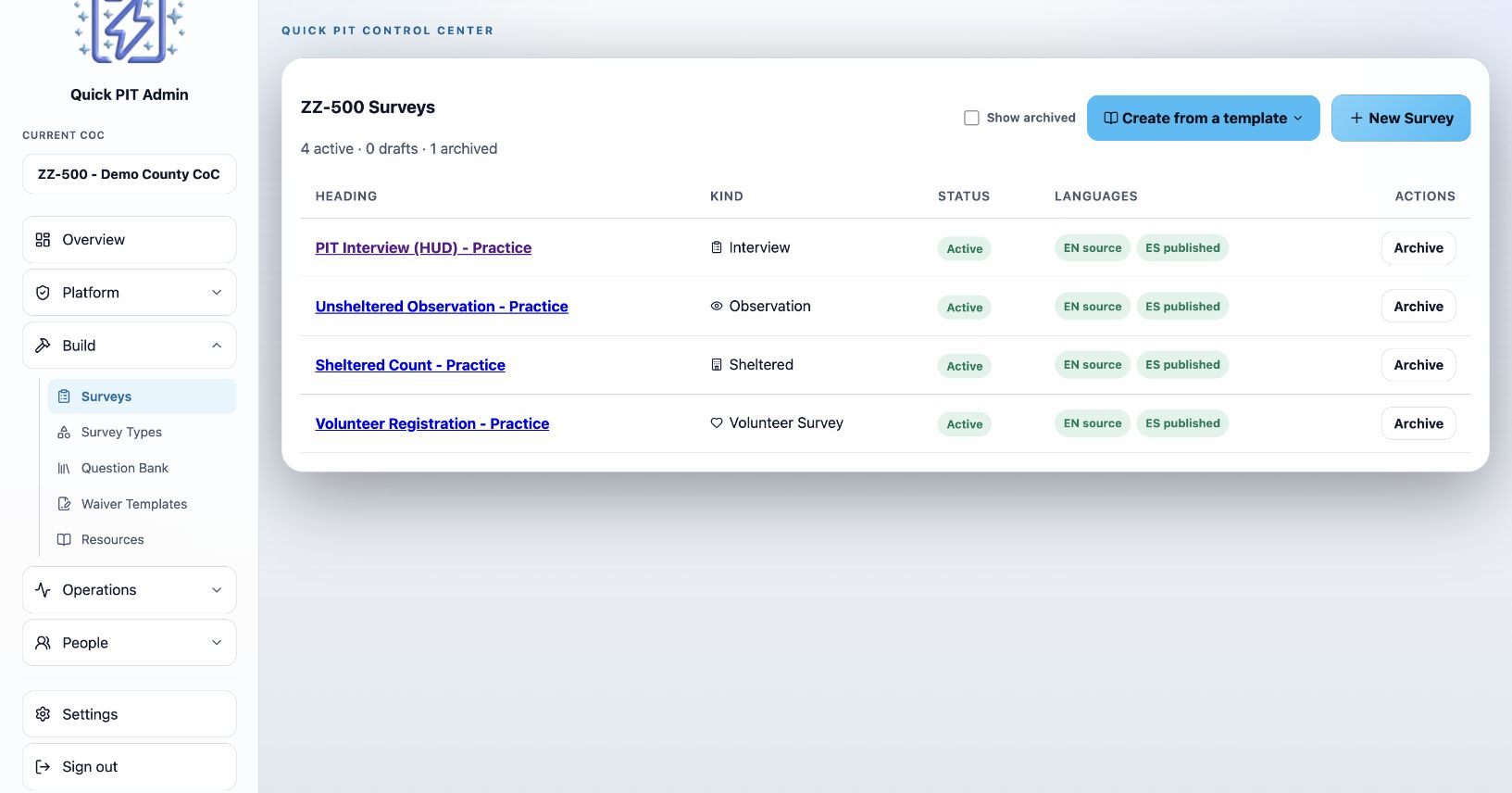
The survey list shows active and archived surveys and their language status. Use Show archived when you need to find a retired template.
Use a practice count to test the survey in the field app. The builder is an editing tool, not an interactive preview of the complete volunteer workflow.
Review and publish translations
- Open Settings → CoC → Survey Languages and enable the languages your team needs. English is the source language. Spanish translations are available for the default question bank; additional languages can be enabled from this section as well. The Spanish translations have been reviewed and refined by a professional translation service and a second review from a native Spanish speaker who works in homeless response.
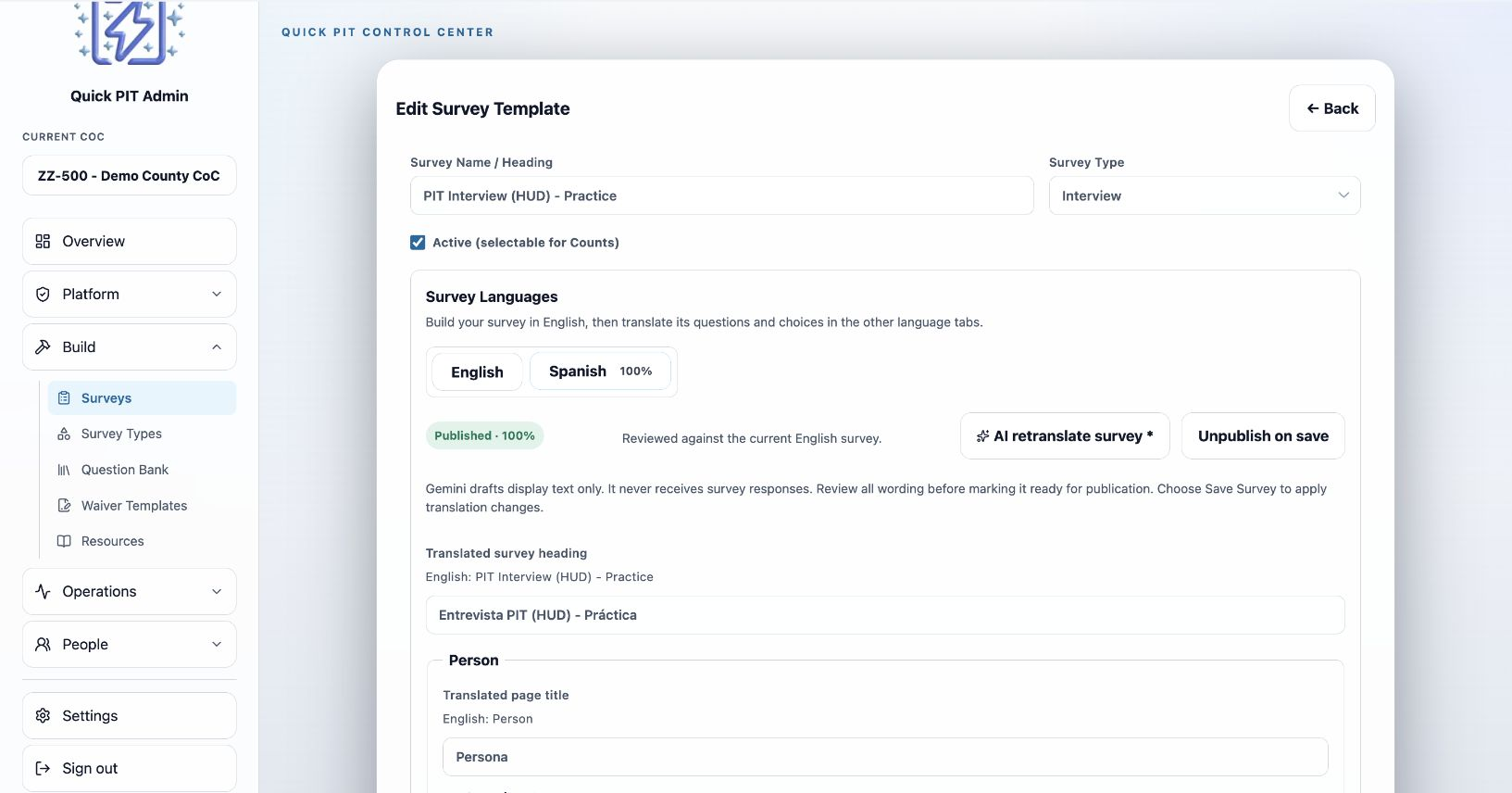
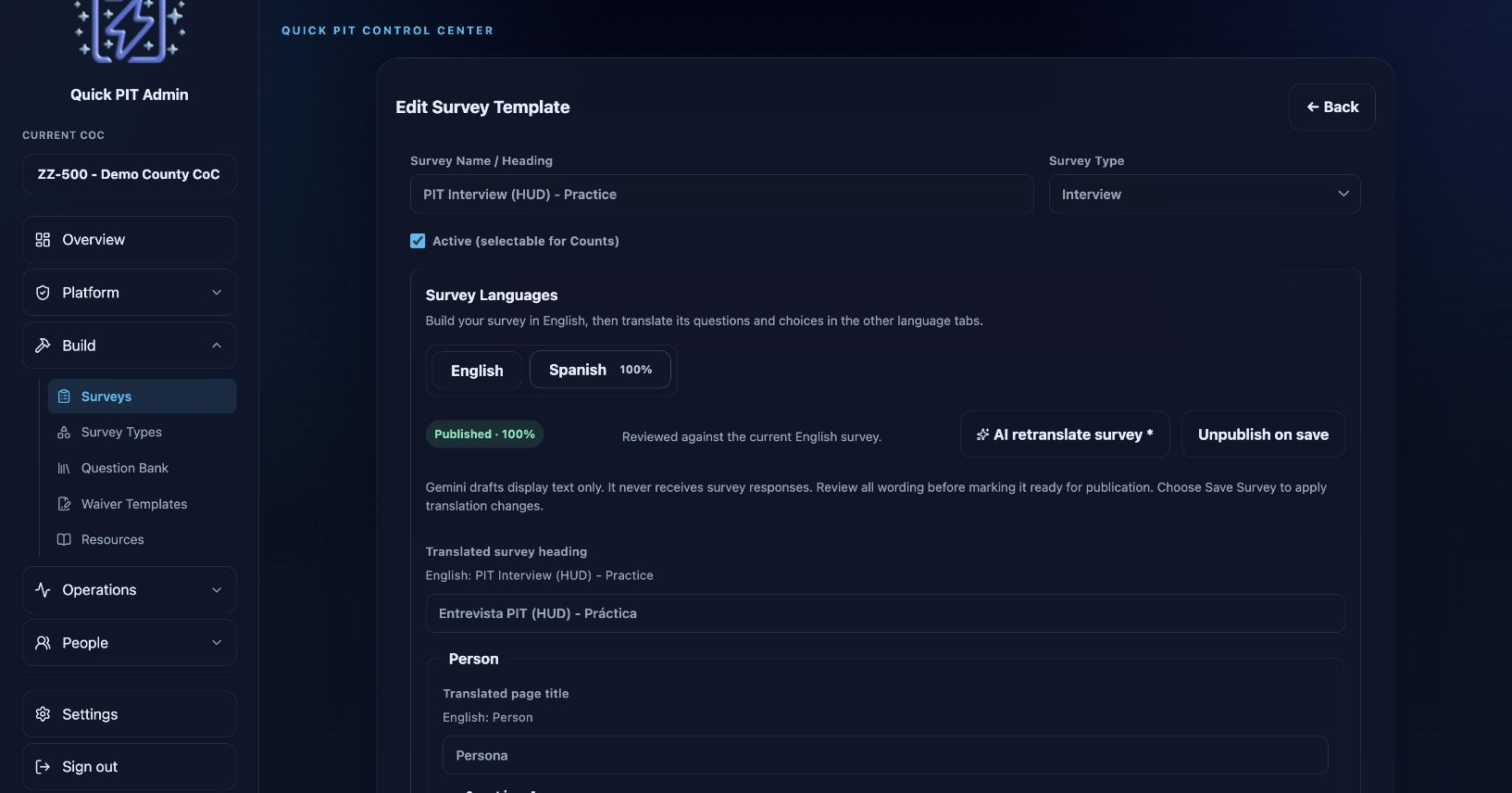
- Open a survey and select its language tab. Translate the survey title, page titles, question prompts, guidance, and answer choices.
- If you use AI translate or AI retranslate survey, treat the result as a draft. Have someone familiar with the language and your community review the wording. Preserve any placeholders shown in the source text.
- Select Mark as reviewed when the translation is complete. The status changes to Ready to publish on save.
- Select Save Survey. Only after saving is that reviewed translation published for use.
- Test the saved survey in the field app in that language.
Completion percentages check whether required text is present. They do not assess whether a translation is accurate or natural. Built-in templates can include a Spanish draft that still needs review and publication.
After changing English content, review the affected translations again. Saving can remove incomplete or outdated translations from availability until you review and publish them. English remains the fallback.
Enabling a survey language does not translate every app control, training resource, or waiver. CoC administrators are responsible for their organization’s content and language versions. Disabling a language preserves its saved translations.
Manage the Question Bank
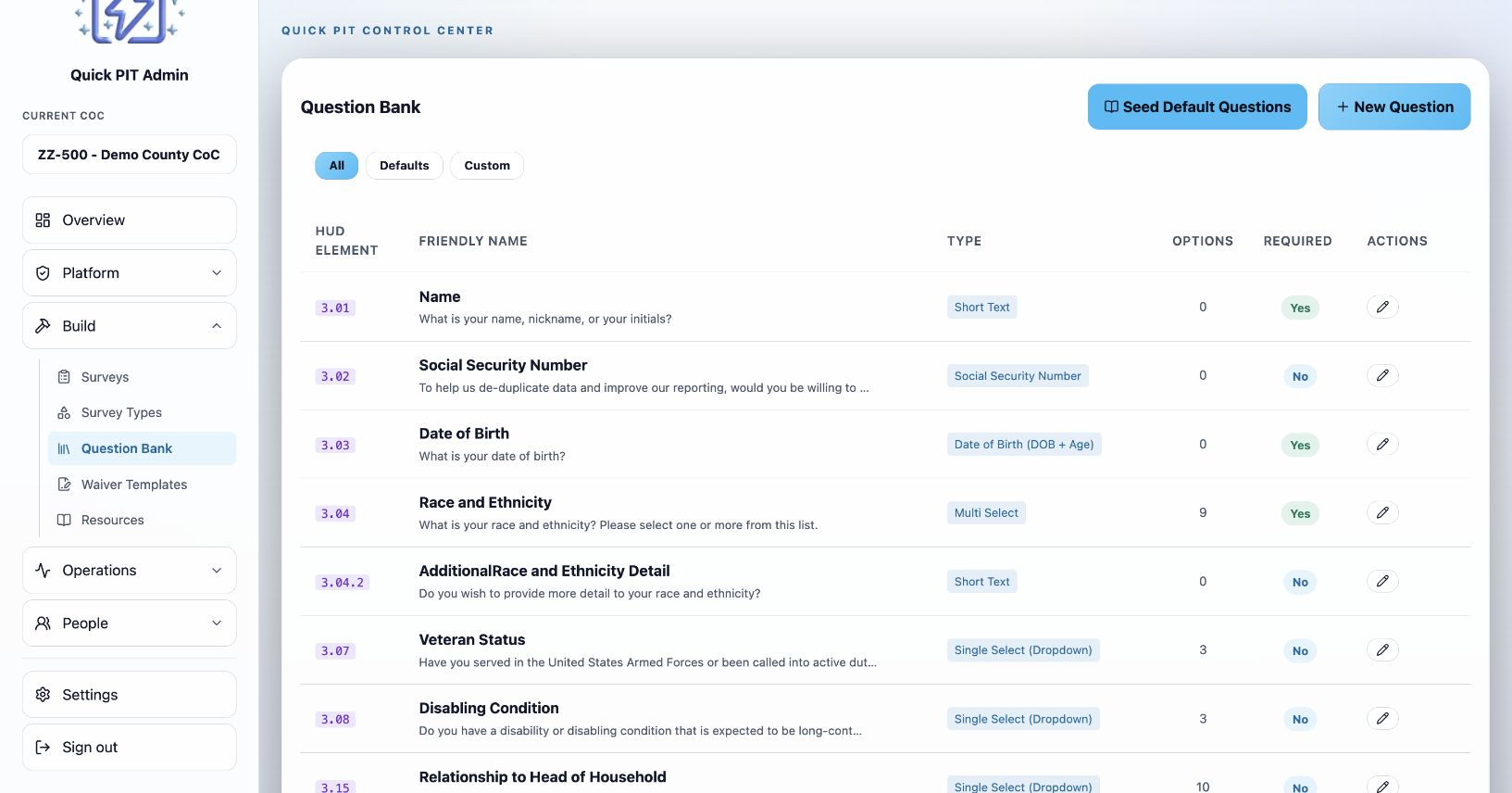
Open Build → Question Bank to create and maintain reusable questions. Use New Question to set the name, question type, prompt, guidance, required status, and answer choices. Add translations where needed and choose Save Question.
Use Seed Default Questions to review available HUD question defaults. The review shows new questions and changed fields. Review each proposed change before Apply Changes: proposed default values are initially selected, so change those selections when you want to keep your organization’s existing wording or options.
Recheck surveys that use a changed question. Bank changes do not automatically refresh copies already placed in surveys.
Choose survey types
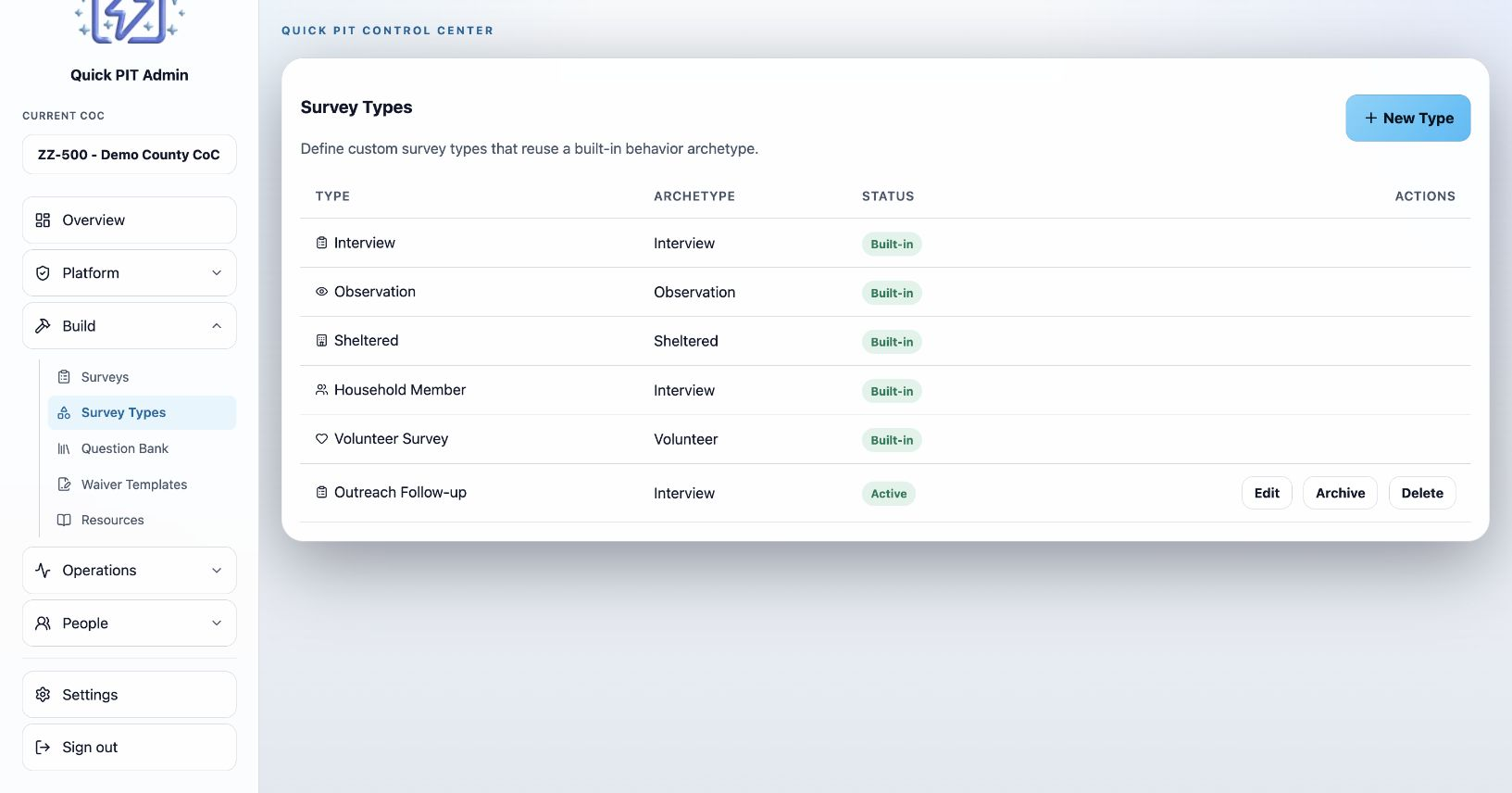
Build → Survey Types lists built-in and custom types. Most organizations can start with the built-in choices.
For a custom type, choose its label, icon, and behavior before creating it. Interview and observation types support field collection at locations. Sheltered types attach to programs and use the program’s shelter classification. The behavior determines where the survey appears and how its responses are treated, and cannot be changed after creation.
Archive a custom type when you want to stop offering it for new setup. The built-in Volunteer Survey is separate from client surveys: its responses never increase PIT people or household totals. Volunteer surveys cannot contain Social Security Number questions.