In this guide
- Sign in and join your organization
- Find help in the app
- Choose your language and appearance
- Prepare for your count
- Complete your waiver
- Complete your volunteer questionnaire
- Choose or add a location
- Conduct an interview or observation
- Add household members and make corrections
- Record an assigned sheltered count
- Work offline and check your uploads
- Read your team’s resources
- Read messages from your team
- Troubleshoot and finish your shift
Quick PIT App User Guide
Get ready for your count, record surveys, and check that your work has been sent. This guide walks volunteers and staff through Quick PIT on iPhone.
Updated October 4, 2026. The screenshots use Demo Volunteer and fictional practice data. Your organization’s forms and assignments may look different.
Use the switch below to view the guide and screenshots in light or dark mode. Select any screenshot to enlarge it.
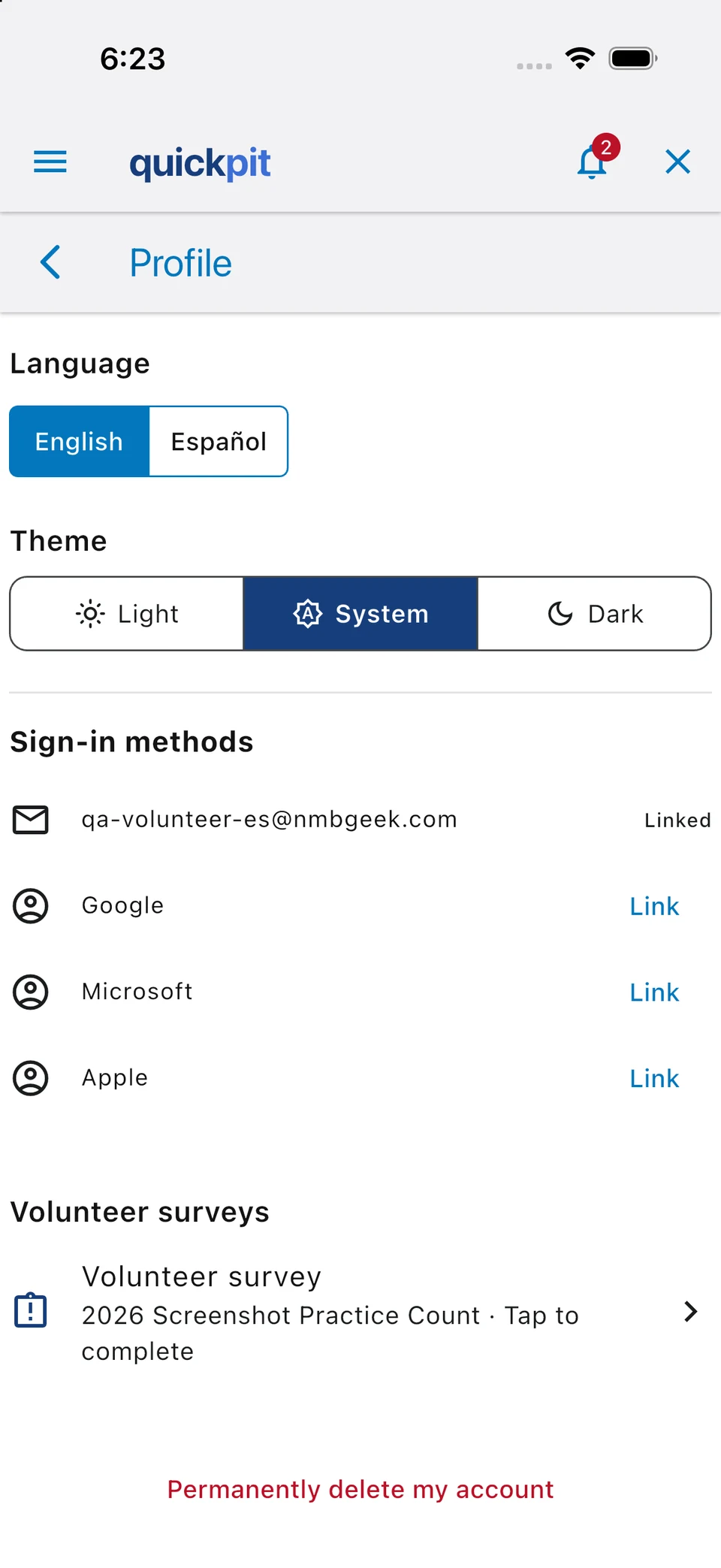
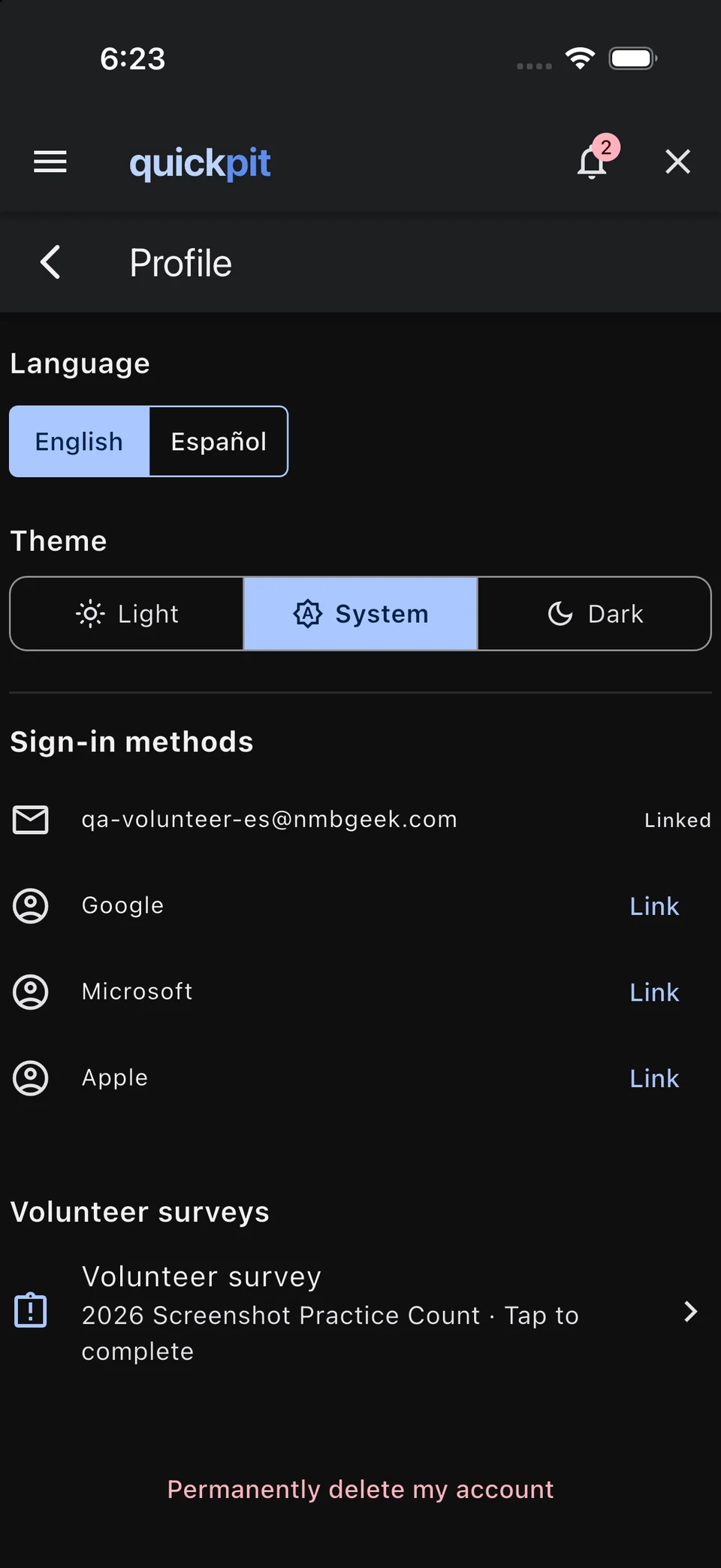
To change the app’s appearance, open Menu → Profile → Theme and choose Light, Dark, or System.
Sign in and join your organization
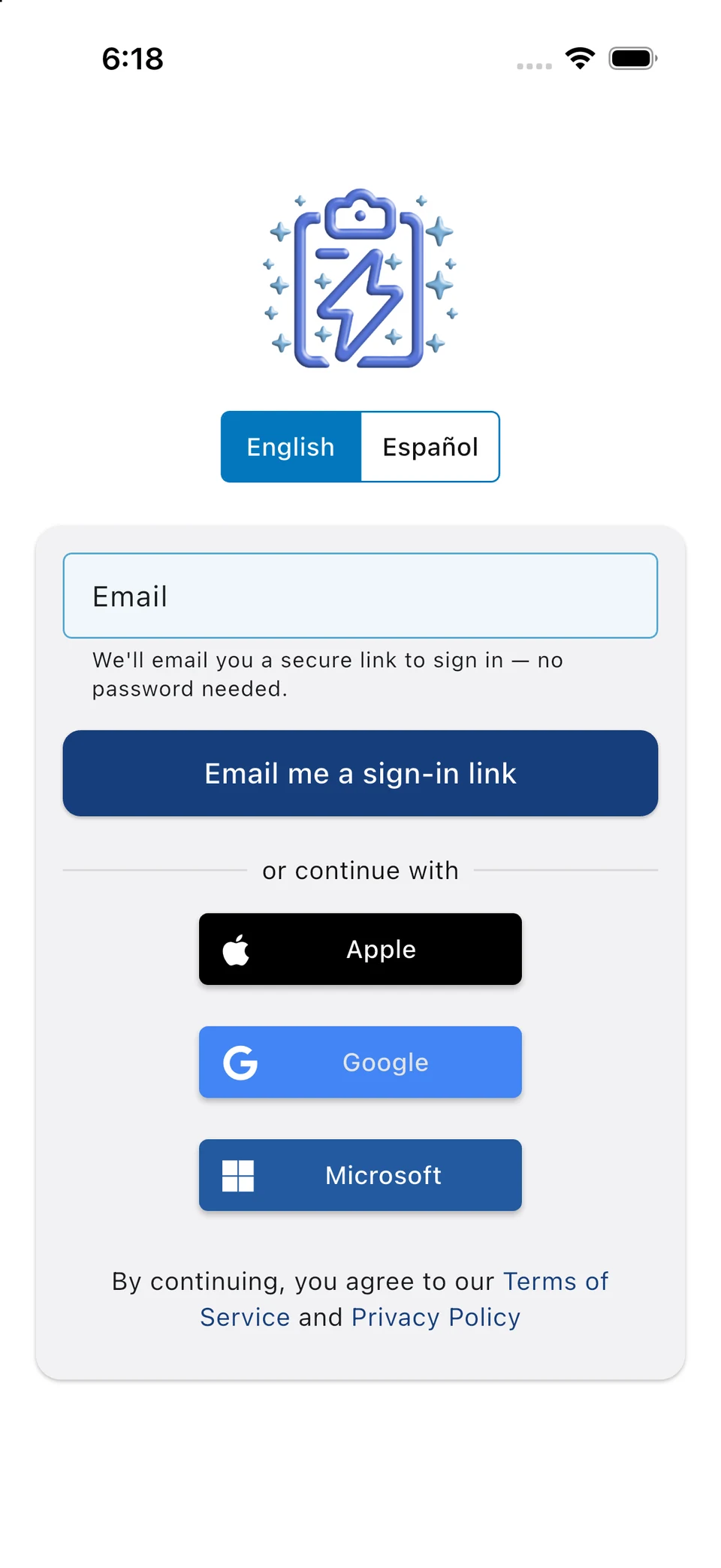
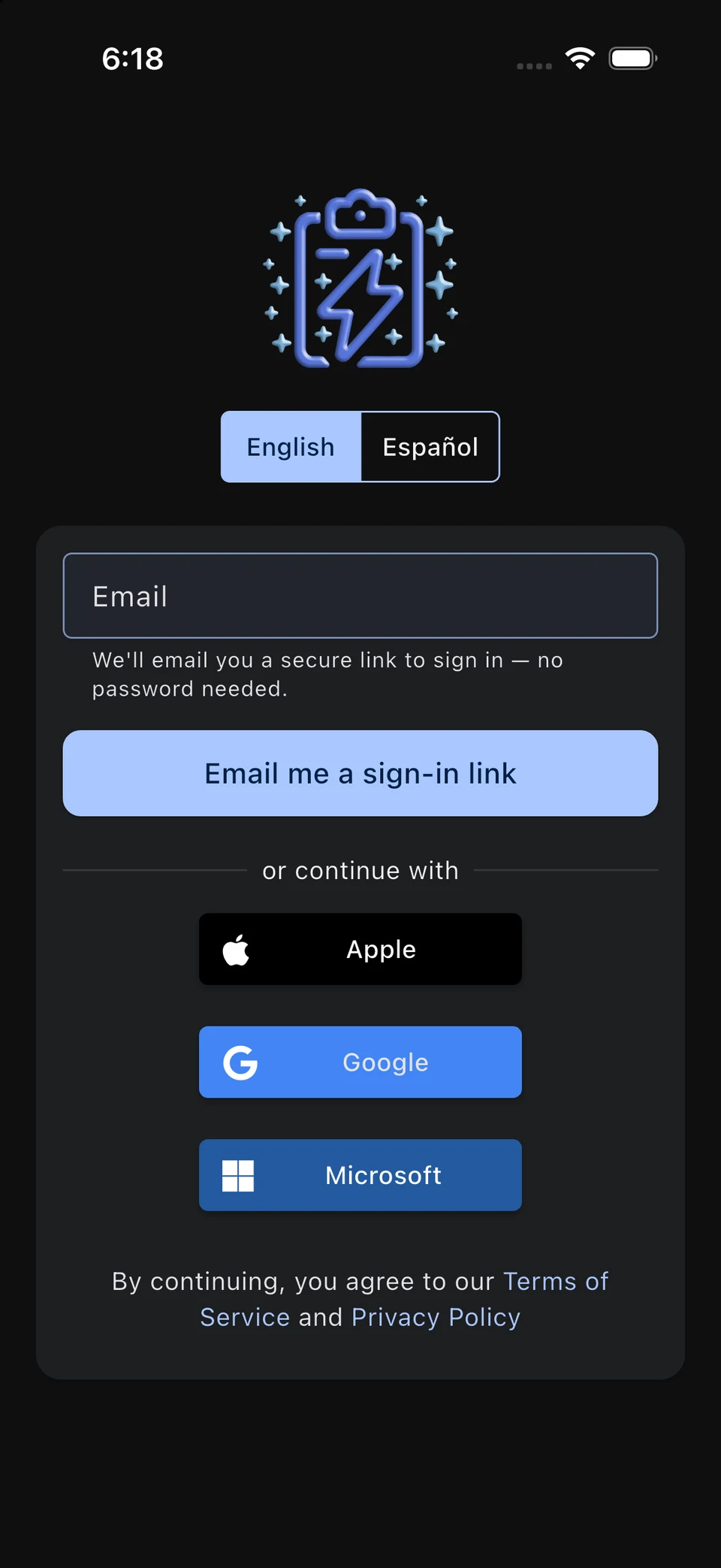
Use the sign-in method connected to your account. To sign in by email, enter the address your coordinator invited and request a sign-in link. Open the link on the device where you want to use Quick PIT. Check your spam folder if it does not arrive. If you open it on another device, you may need to confirm your email address.
You can also sign in with Google, Microsoft, or Apple. Your organization may require an invitation or joining code before you can access its count. Follow the instructions from your coordinator.
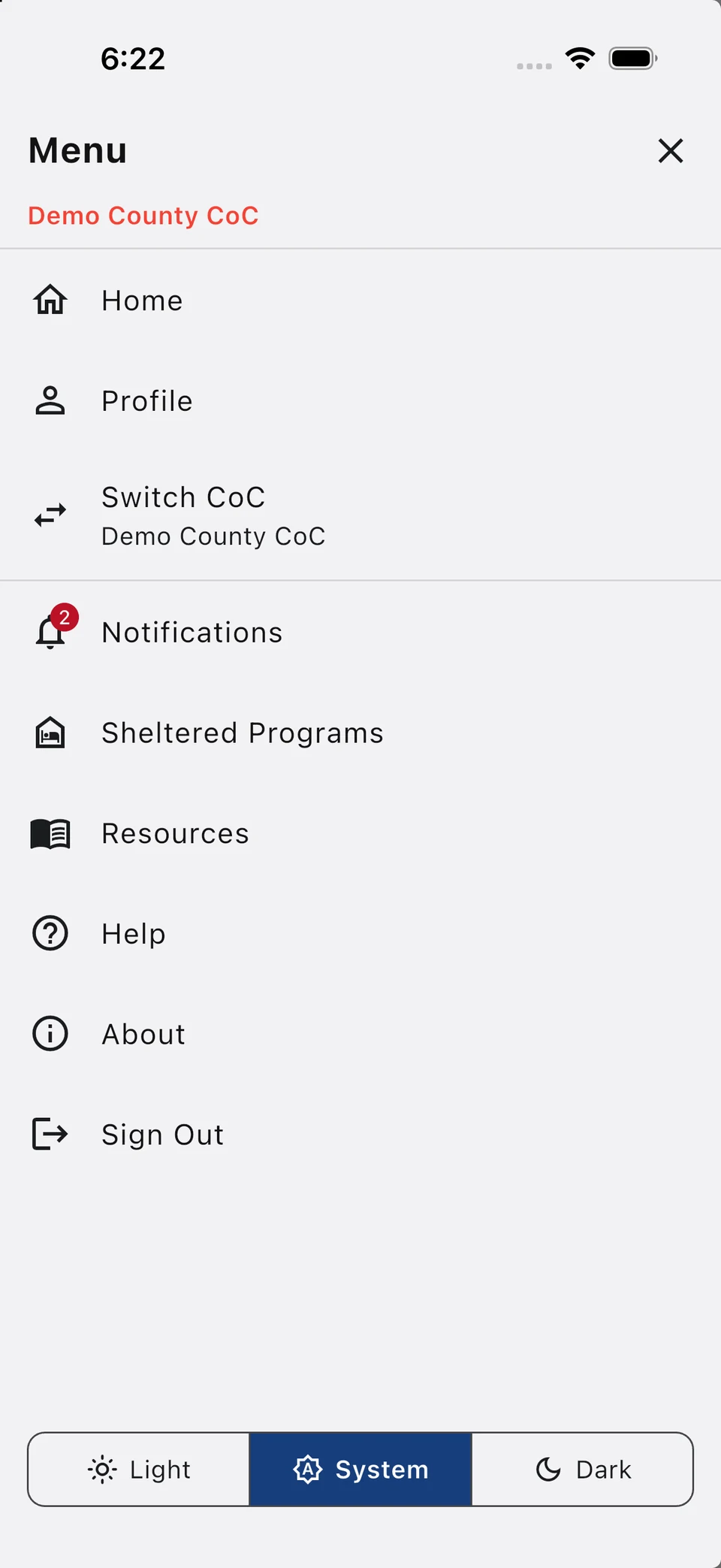
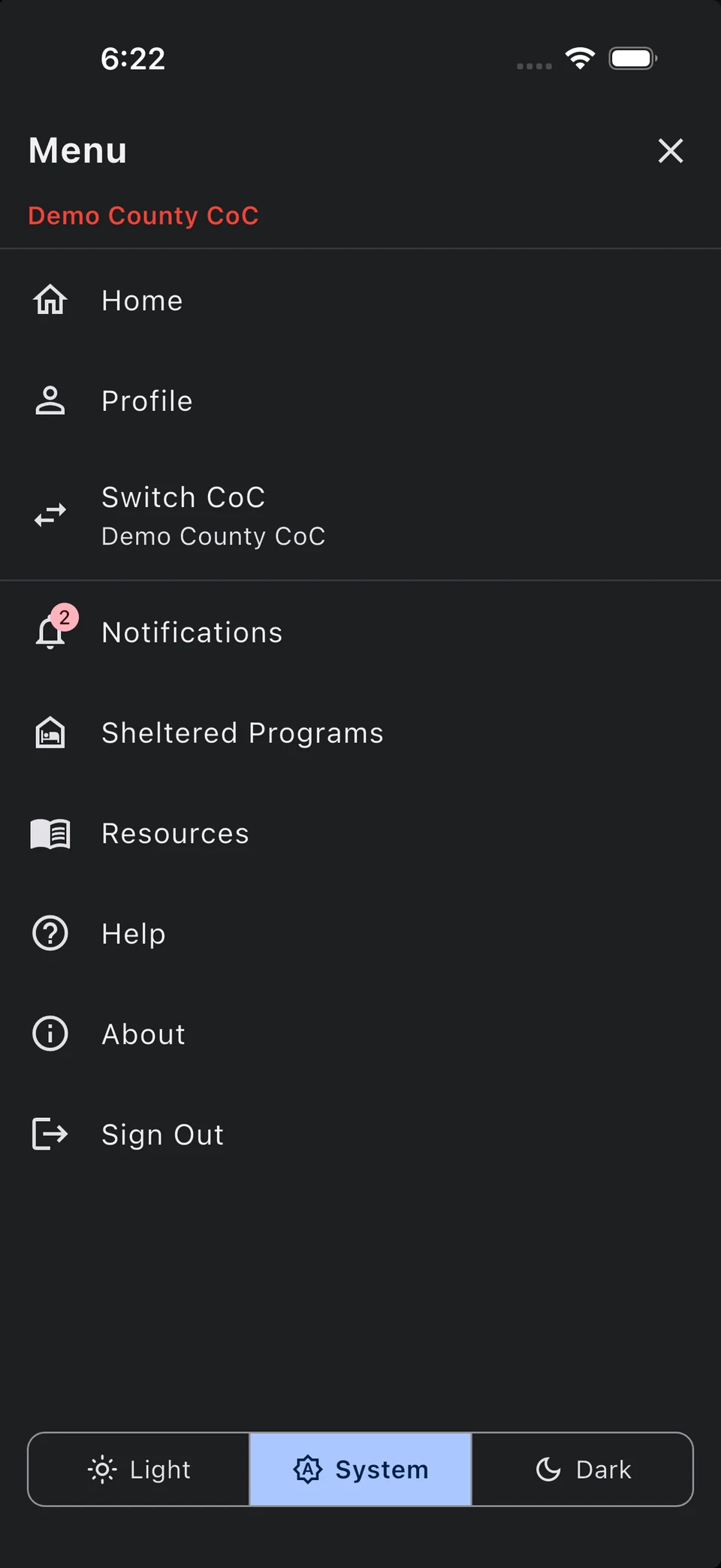
Open Menu and check the organization name before you start. If you belong to more than one organization, use Switch CoC to choose the correct one.
Find help in the app
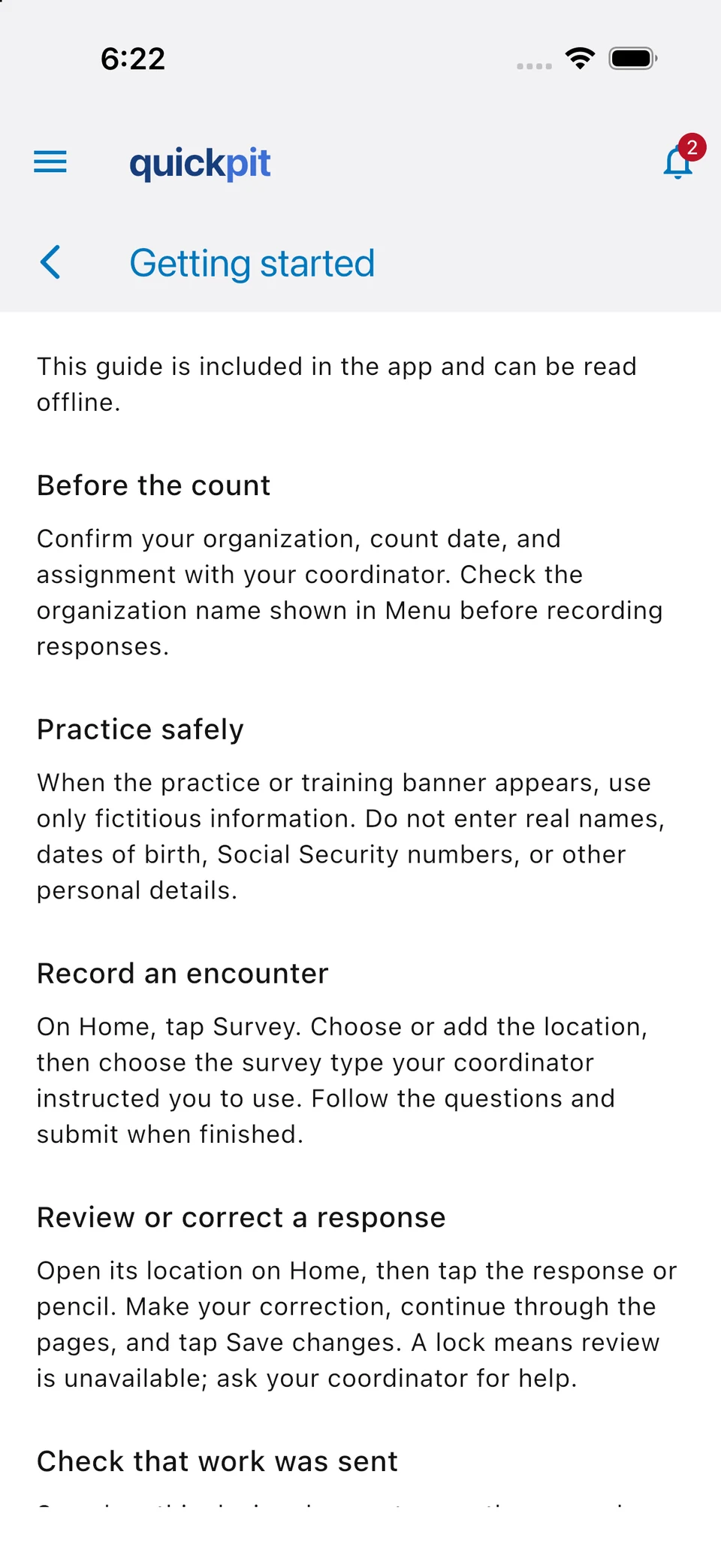
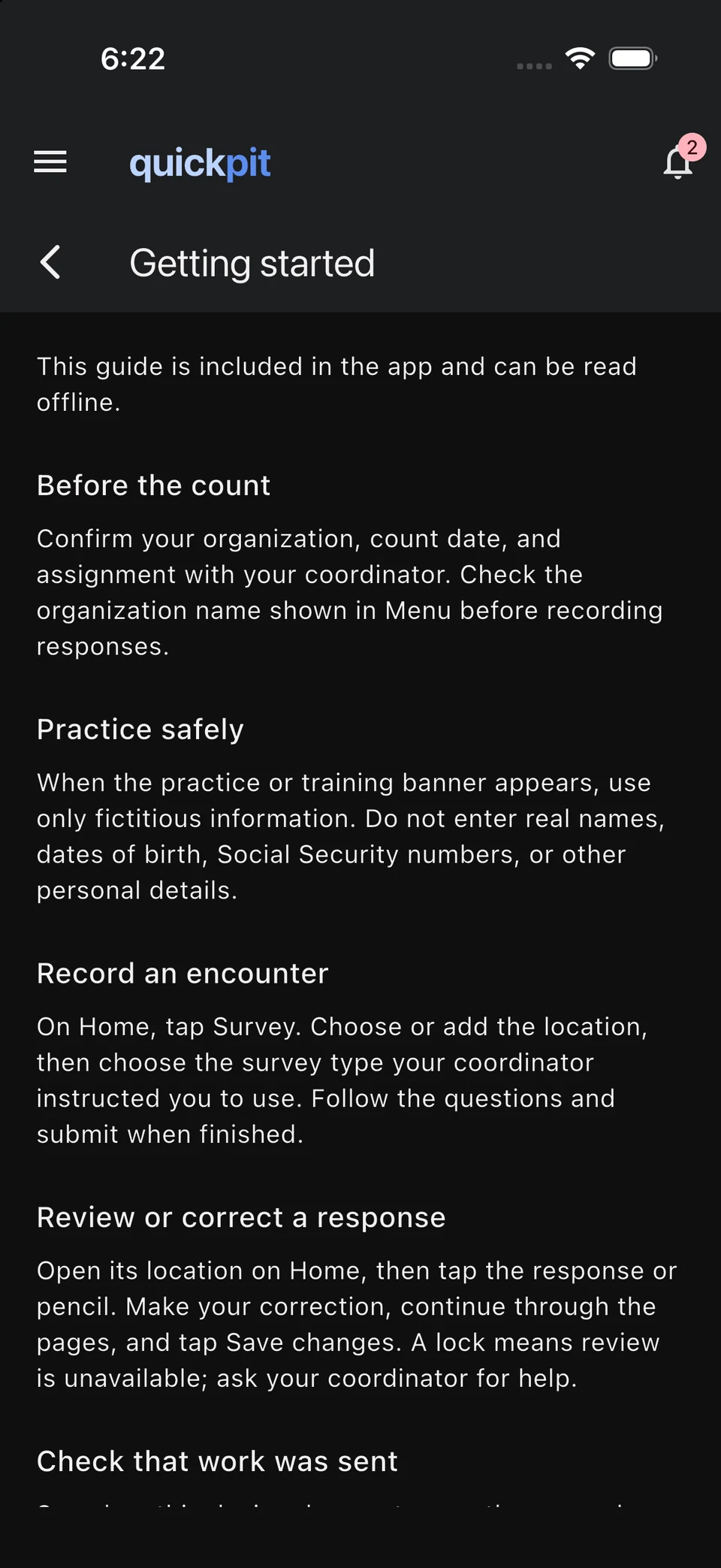
Open Menu → Help for a short Getting started guide. It is included in the app, so you can read it without an internet connection.
Use Resources for your organization’s training and count instructions. Contact your coordinator if you are unsure what to record or cannot find an assignment.
Choose your language and appearance
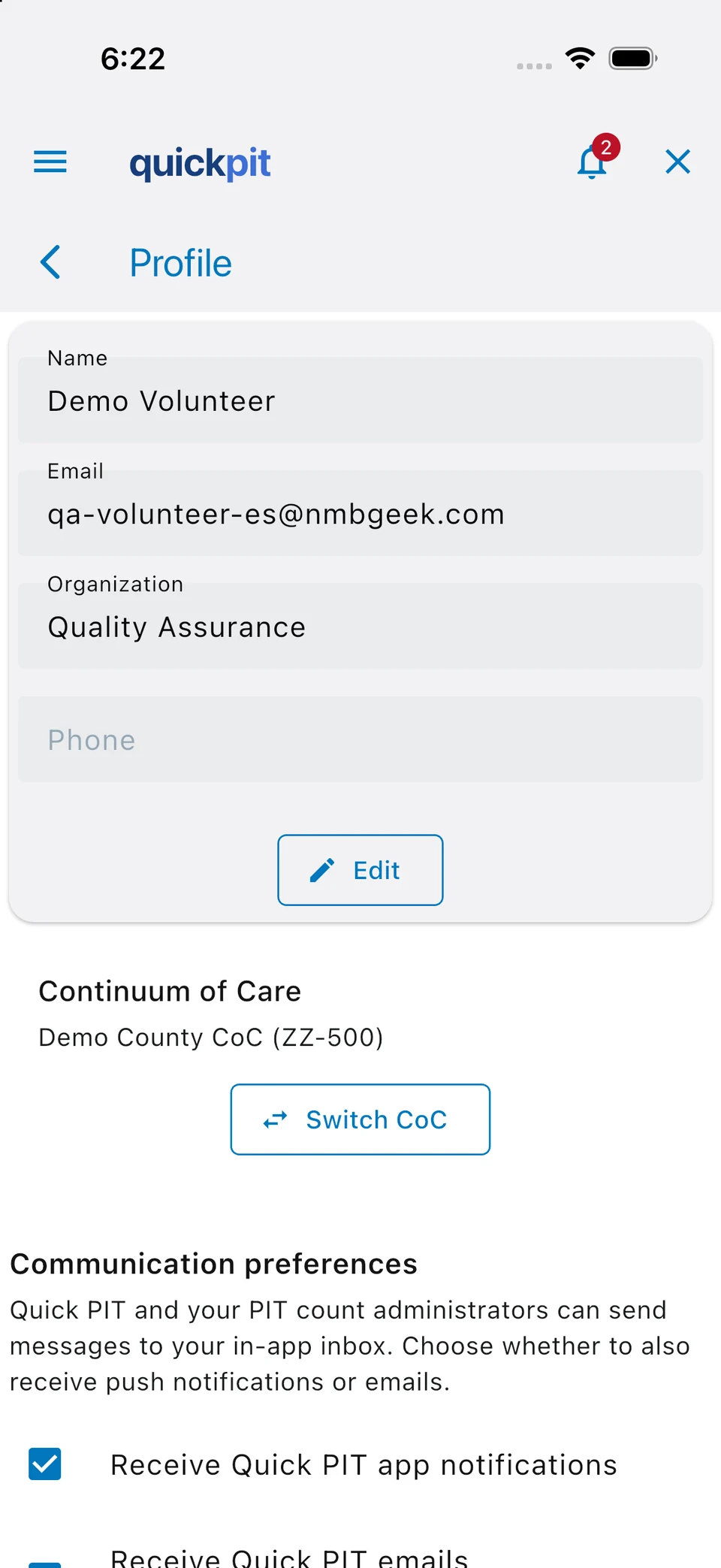
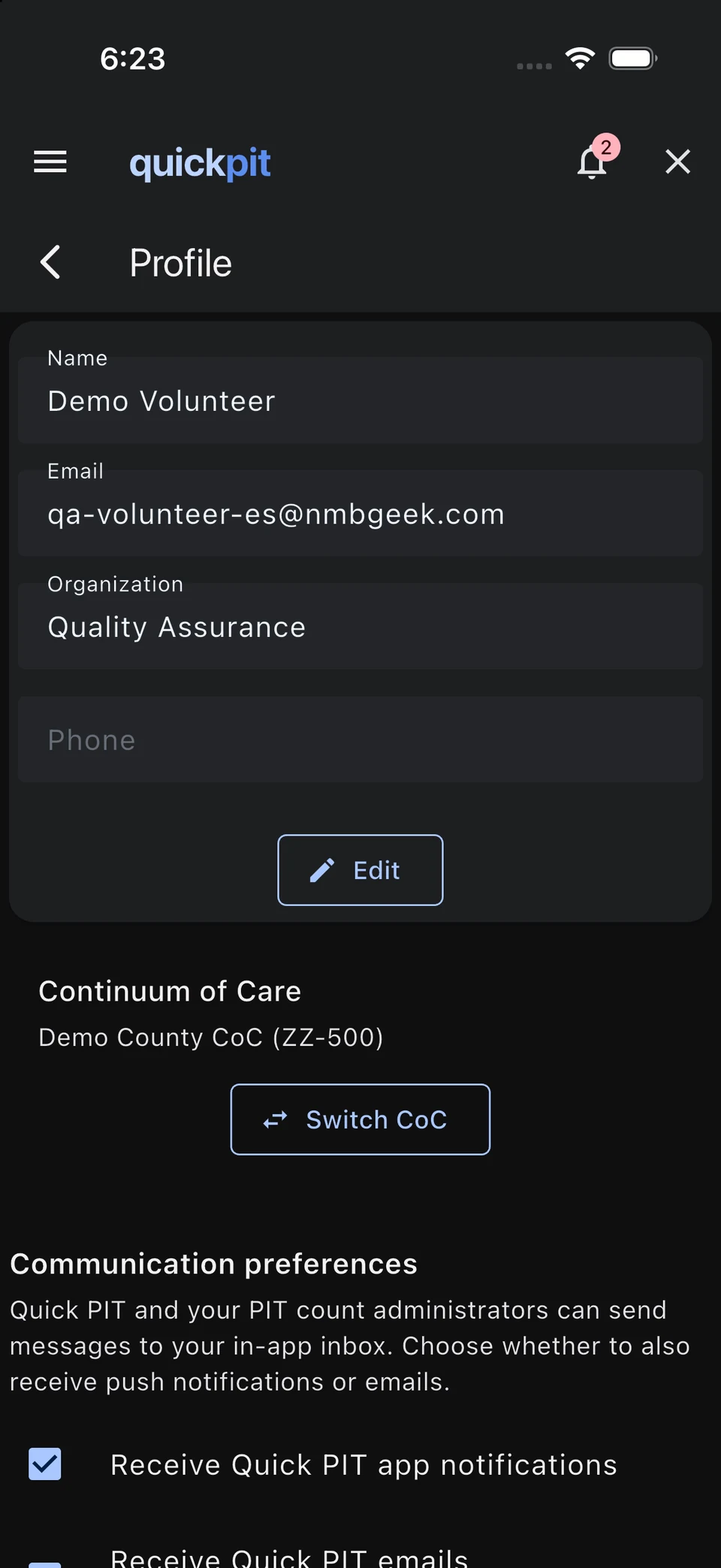
Open Menu → Profile. Under Language, choose English or Español for the app’s menus and buttons. Survey questions and resources use translations supplied by your organization, so some content may remain in its original language.
Under Theme, choose Light, Dark, or System. System follows your iPhone’s appearance. You can also change the theme at the bottom of Menu.
The switch at the top of this web guide changes the guide and its screenshots. It does not change the app’s settings.
Prepare for your count
Quick PIT helps you record encounters and send count information to your Continuum of Care (CoC). Your coordinator will explain your assignments, the surveys to use, and the procedures for your count.
- Install or update the app and sign in before count day, while you have a reliable connection.
- Confirm your count date, meeting point, partner, and assigned area.
- Open your assignments and read your team’s Resources before heading out.
- Complete any required waiver or volunteer questionnaire. Charge your phone and make sure you know how to contact your team.
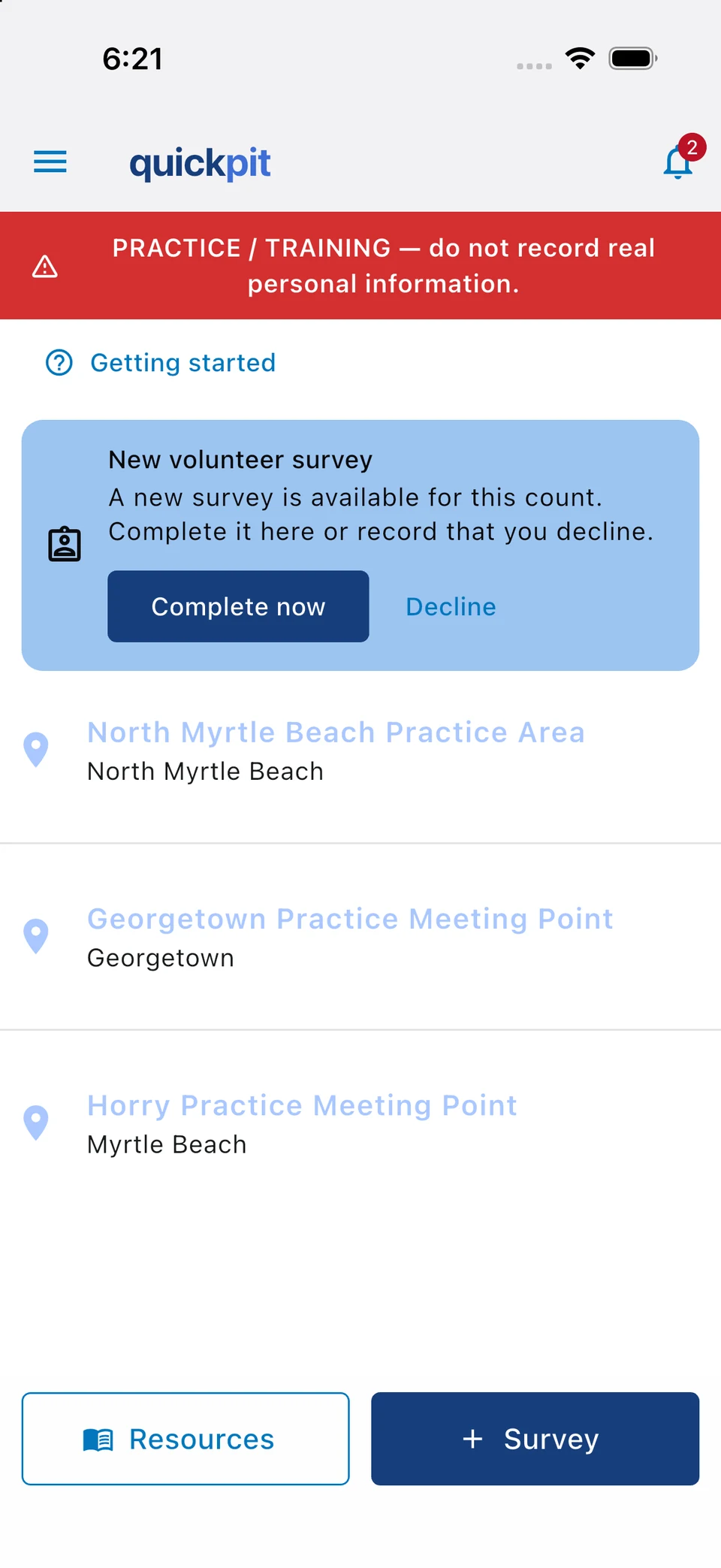
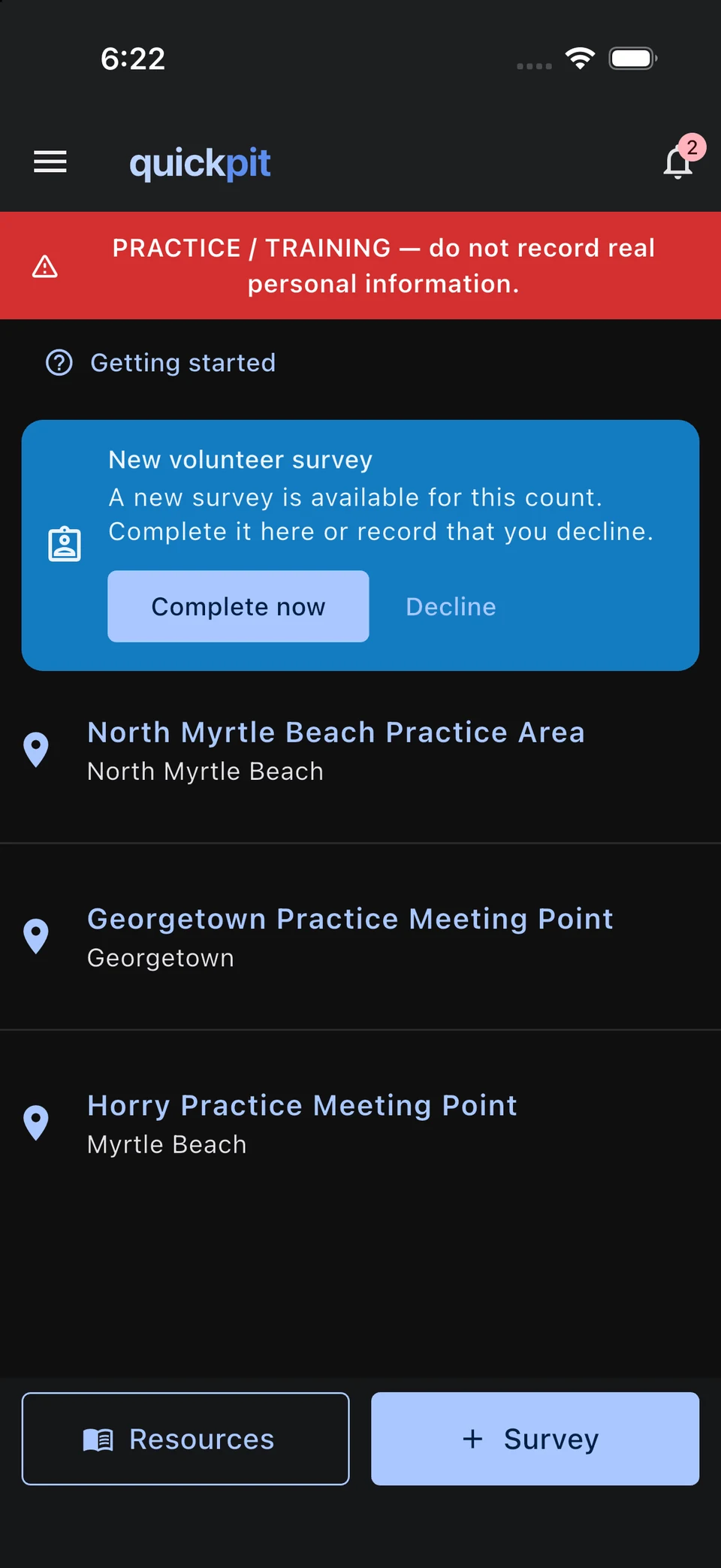
A red Practice / Training banner means you are in a practice count. Use fictional information only.
Complete your waiver
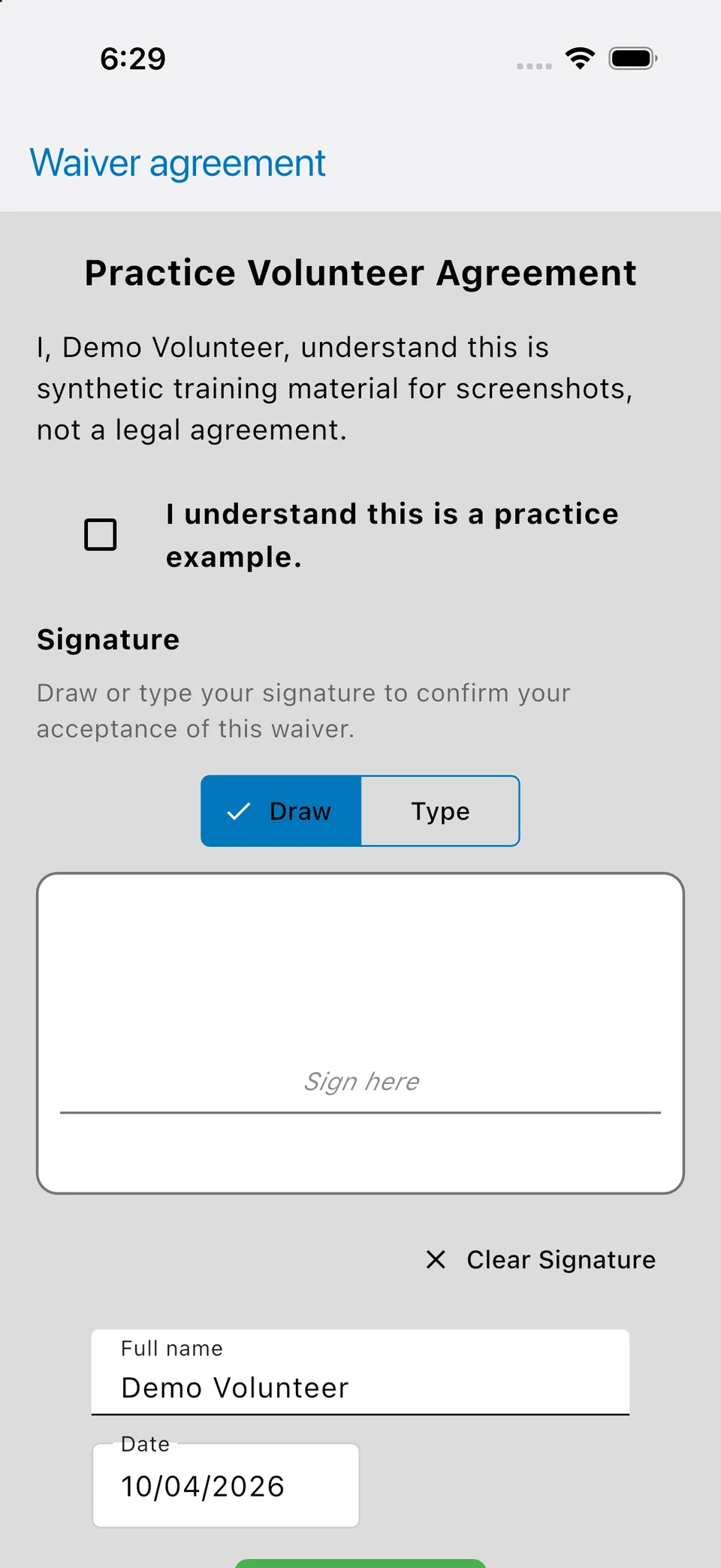
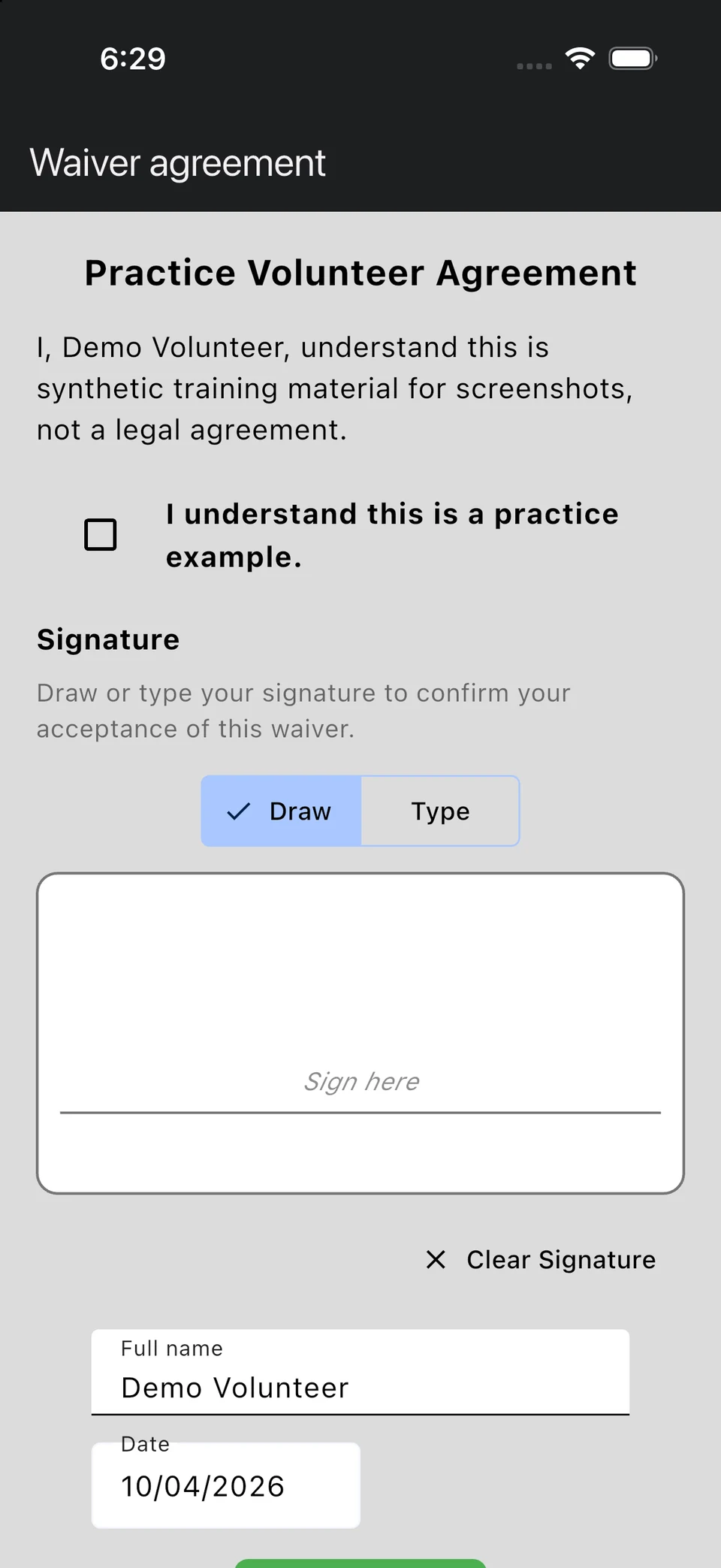
Your organization may ask you to complete a waiver before continuing. Read it carefully, check your full name, and use Draw or Type to add your signature. Select the consent checkbox and submit only when you understand and agree to the terms.
Complete your waiver while online before heading out. Ask your coordinator about anything that is missing, incorrect, or unclear.
Complete your volunteer questionnaire
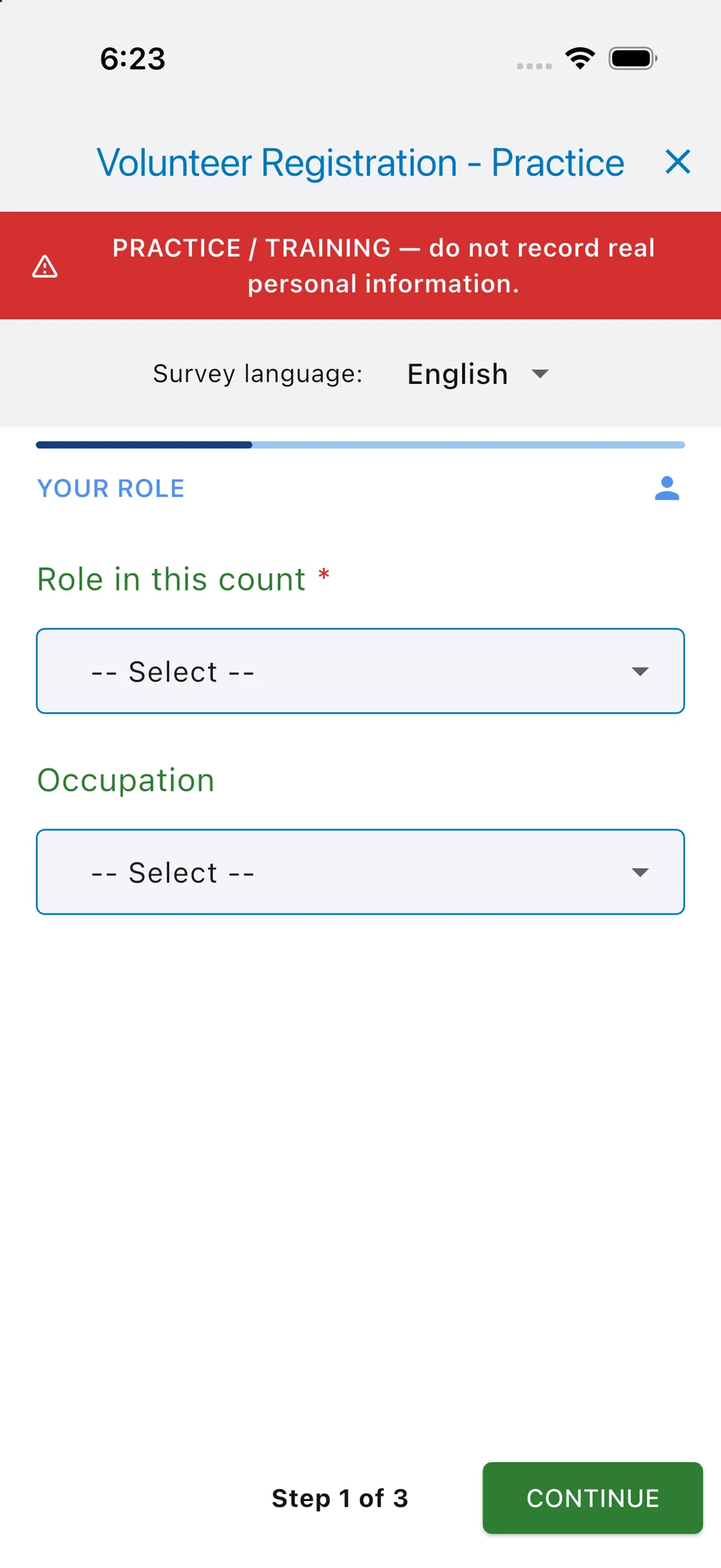
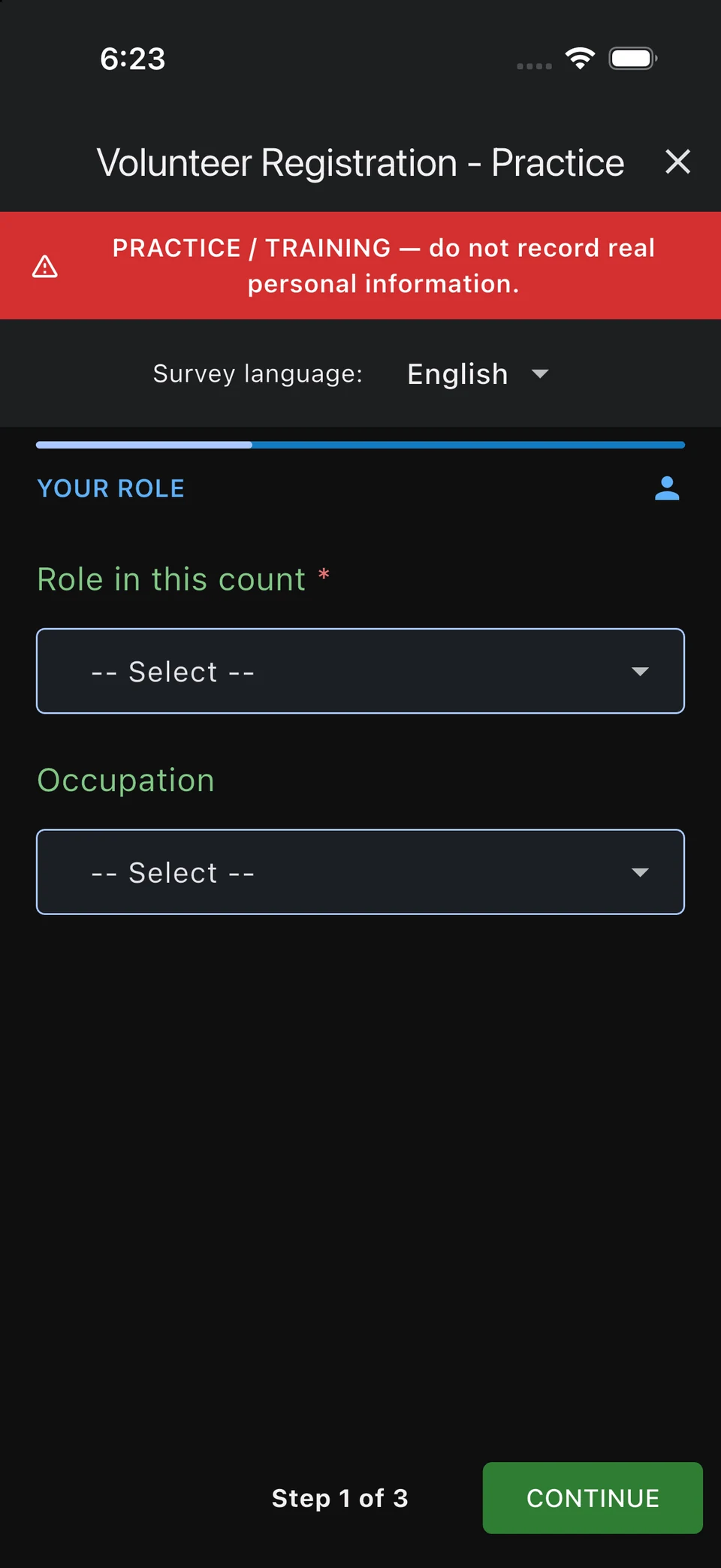
A volunteer questionnaire asks about you and your participation in the count. It is separate from surveys about the people being counted.
If Home shows a new volunteer survey, tap Complete now. Answer the questions, tap Next to move through the pages, and submit when you finish. You can also find volunteer surveys in Profile.
If the form offers Decline, follow your coordinator’s instructions about participation.
Choose or add a location
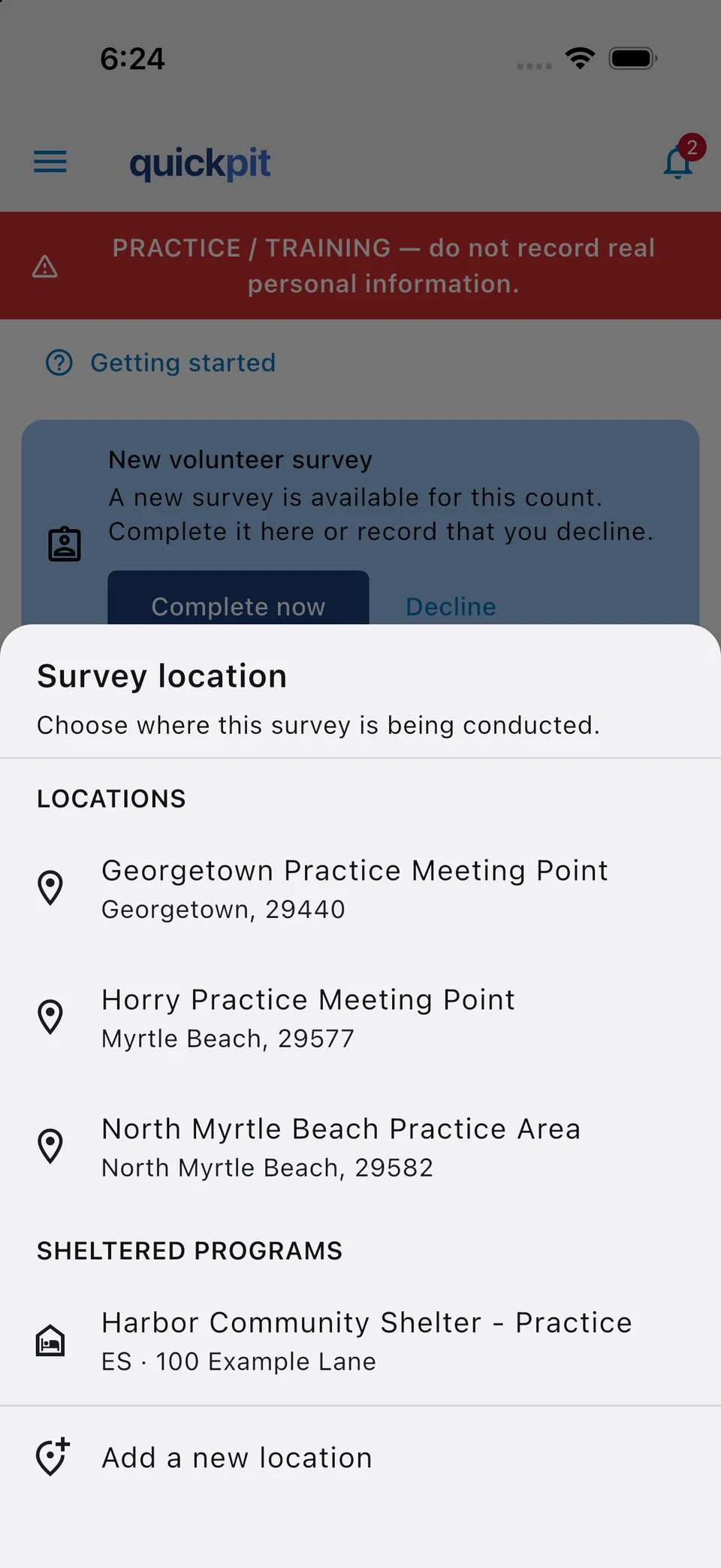
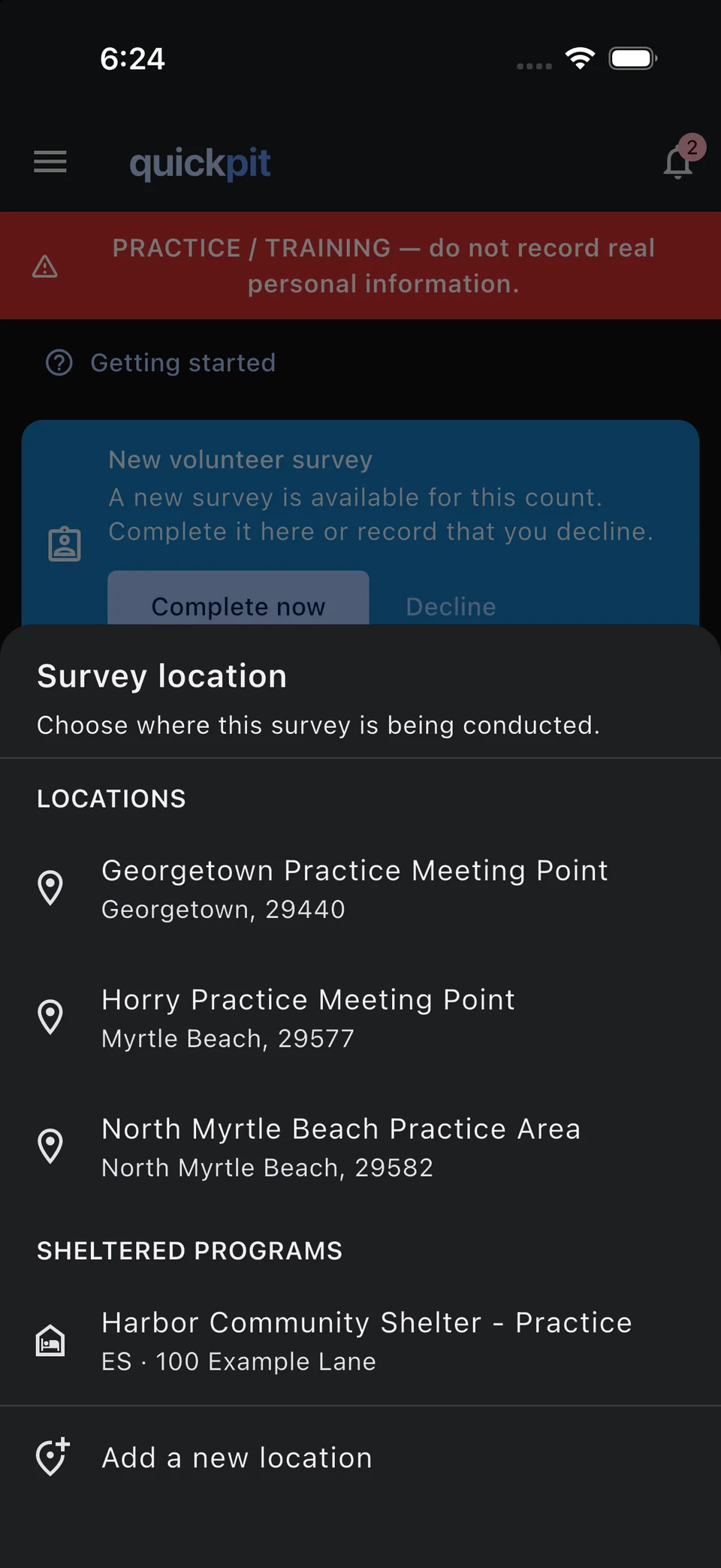
Home shows the locations available to you. Tap a location to see your responses there, or tap + Survey to choose a location and begin a new survey.
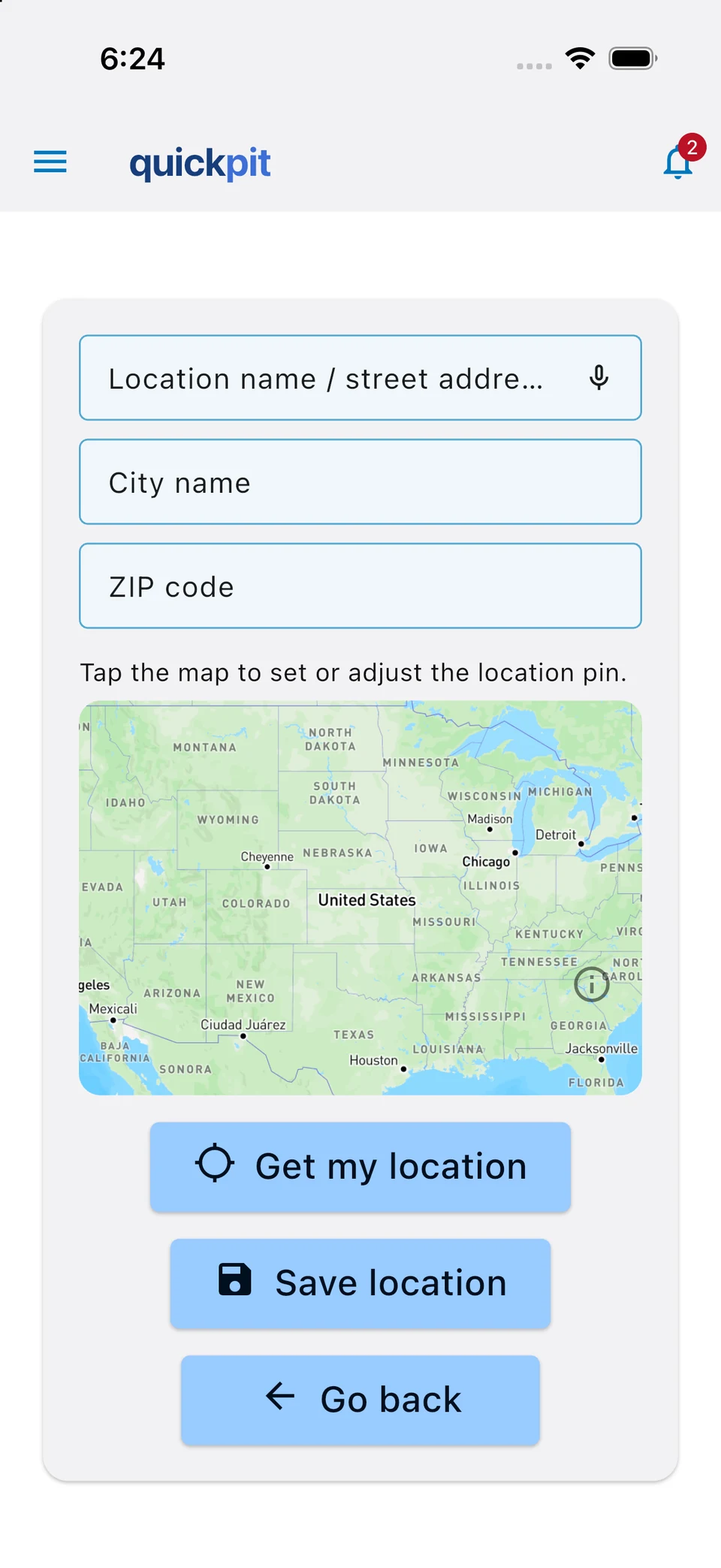
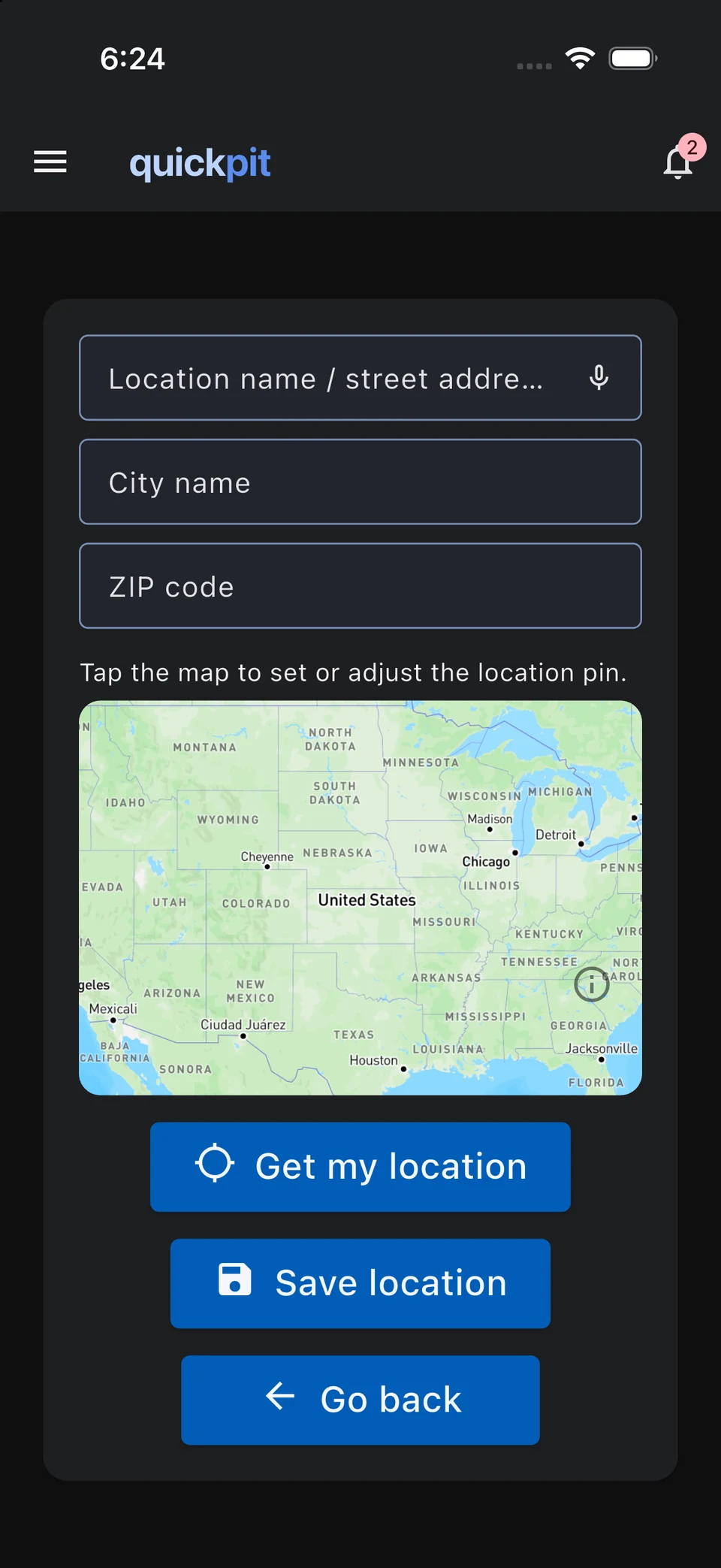
If the place is missing, choose Add a new location. Enter a useful name or street address, city, and ZIP code. Tap the map to place or adjust the pin, or use Get my location when you are at the encounter location. Check the details and pin before tapping Save location.
Whenever possible, record the encounter while you are still at the location. This helps you capture details accurately and, when connected, lets your team see count activity sooner. If you enter it later, choose where the encounter took place or adjust the map pin before saving.
If location access is unavailable, use the address fields and map. A ZIP code identifies an area, so check that the pin marks the place you intend.
Conduct an interview or observation
- Tap + Survey on Home or Start a survey inside a location.
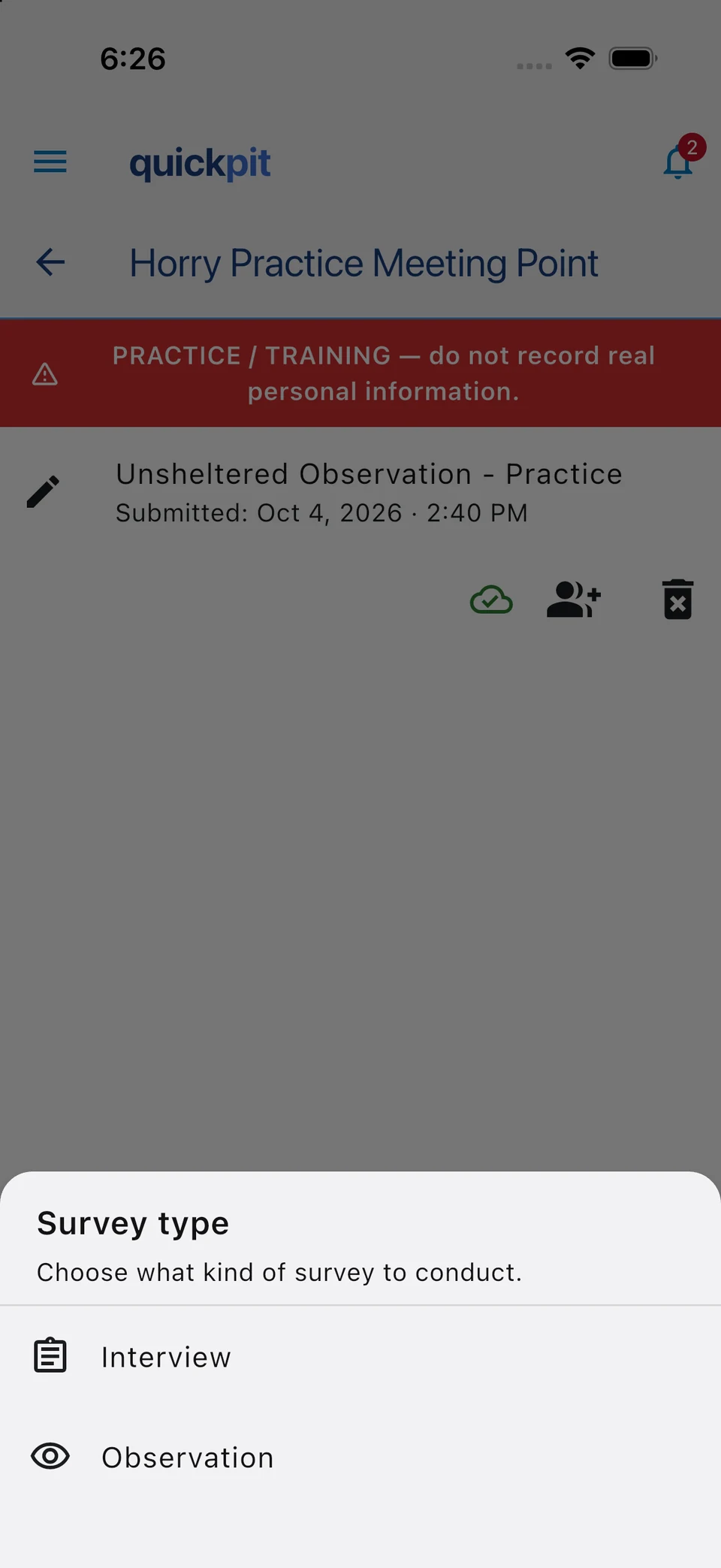
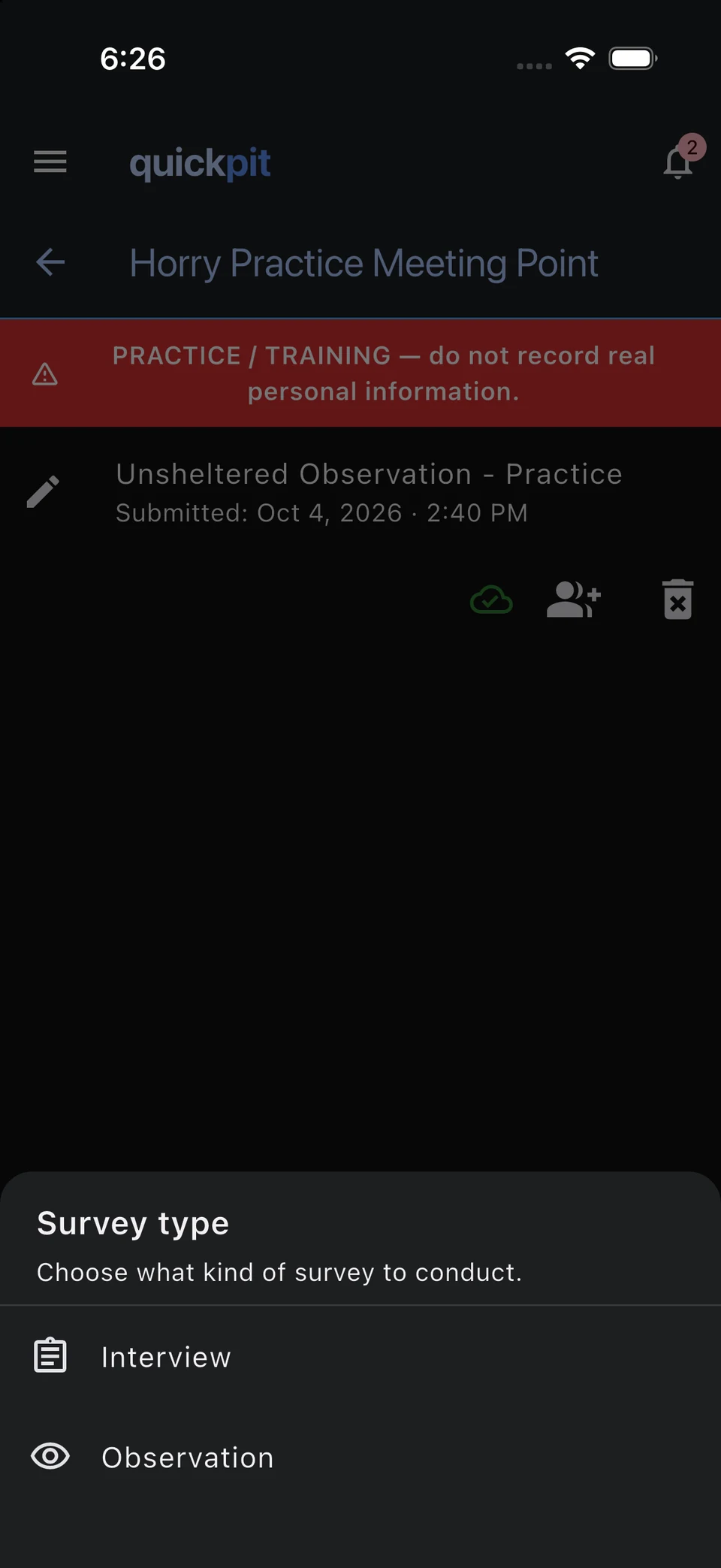
- Choose the location and the survey type your coordinator has instructed you to use.
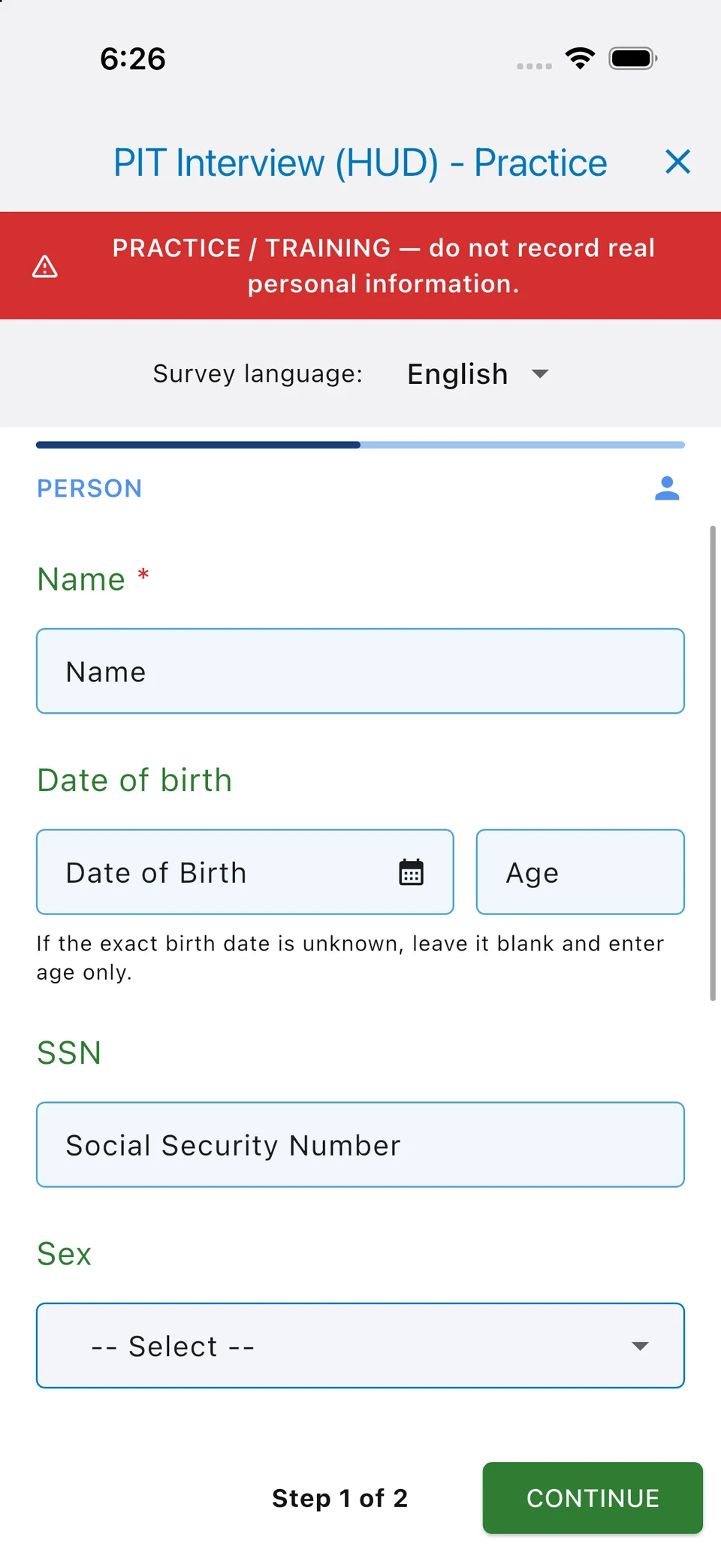
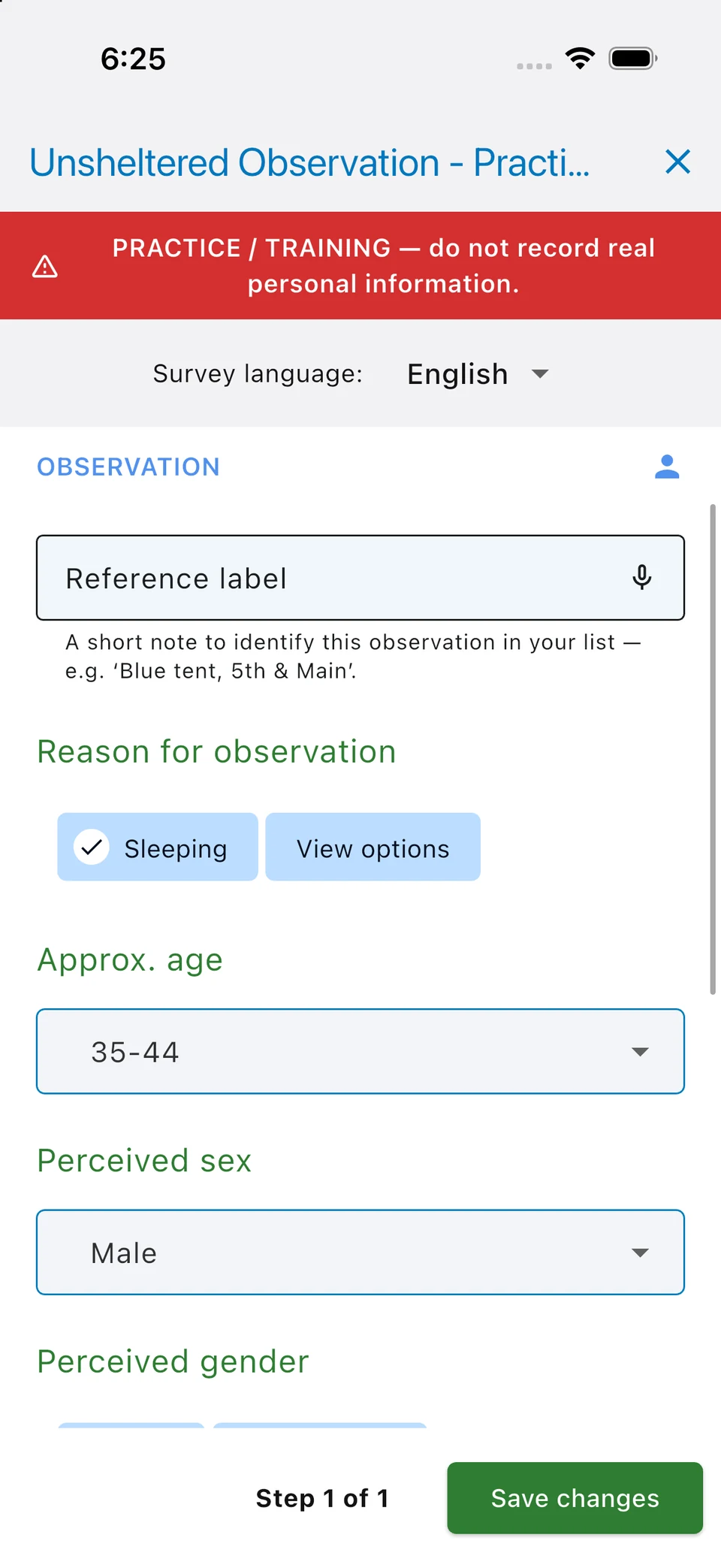
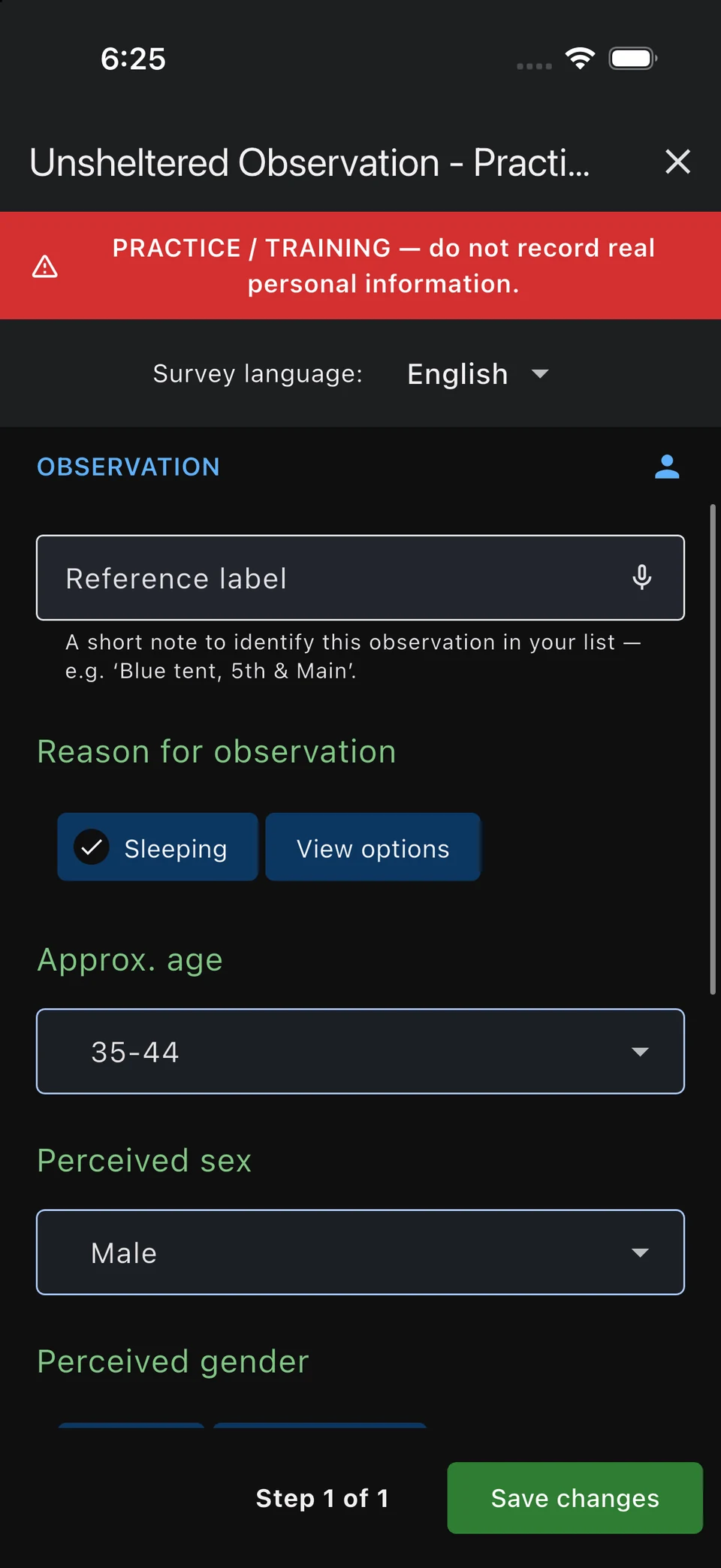
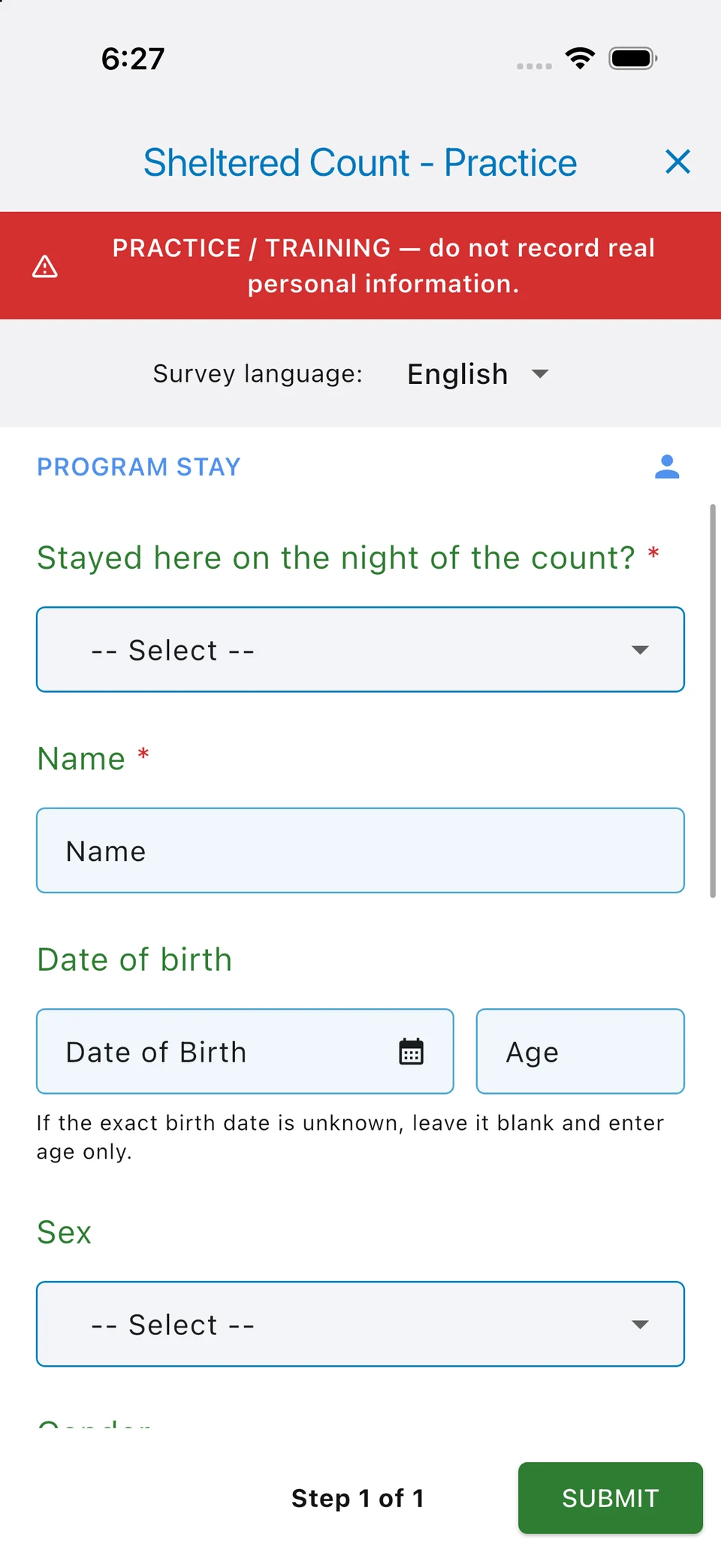
- Follow the questions and instructions. An asterisk marks a required question.
- Tap Next to continue, review your answers, and submit at the end.
Interview is used when you speak with someone and complete your organization’s interview questions. Observation follows your organization’s procedures when an interview cannot be completed. Some Continuums of Care do not enable observation surveys, so this option may not appear. Follow your coordinator’s instructions about which survey to use.
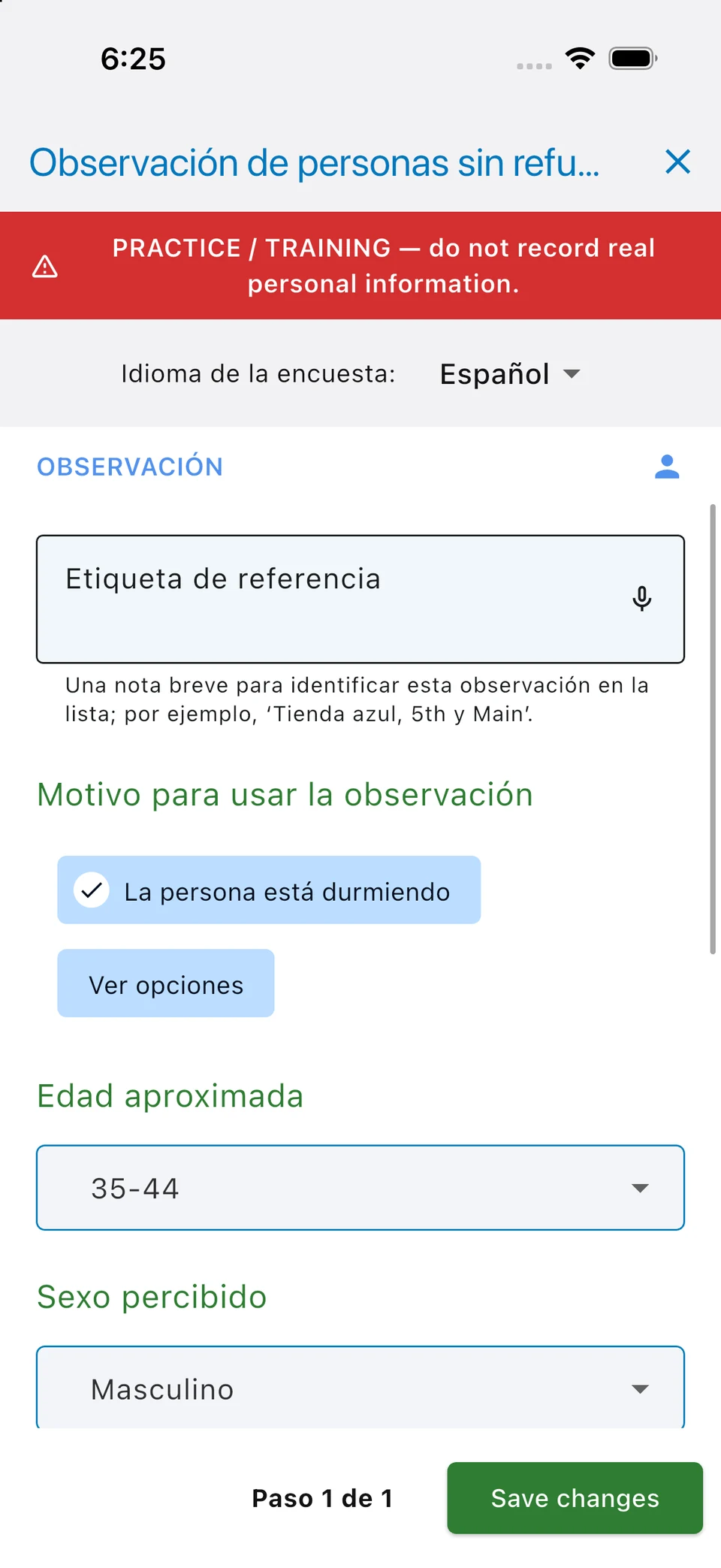
The questions and answer choices depend on your organization. Some answers show or skip later questions. Use the available refusal or unknown choices when appropriate.
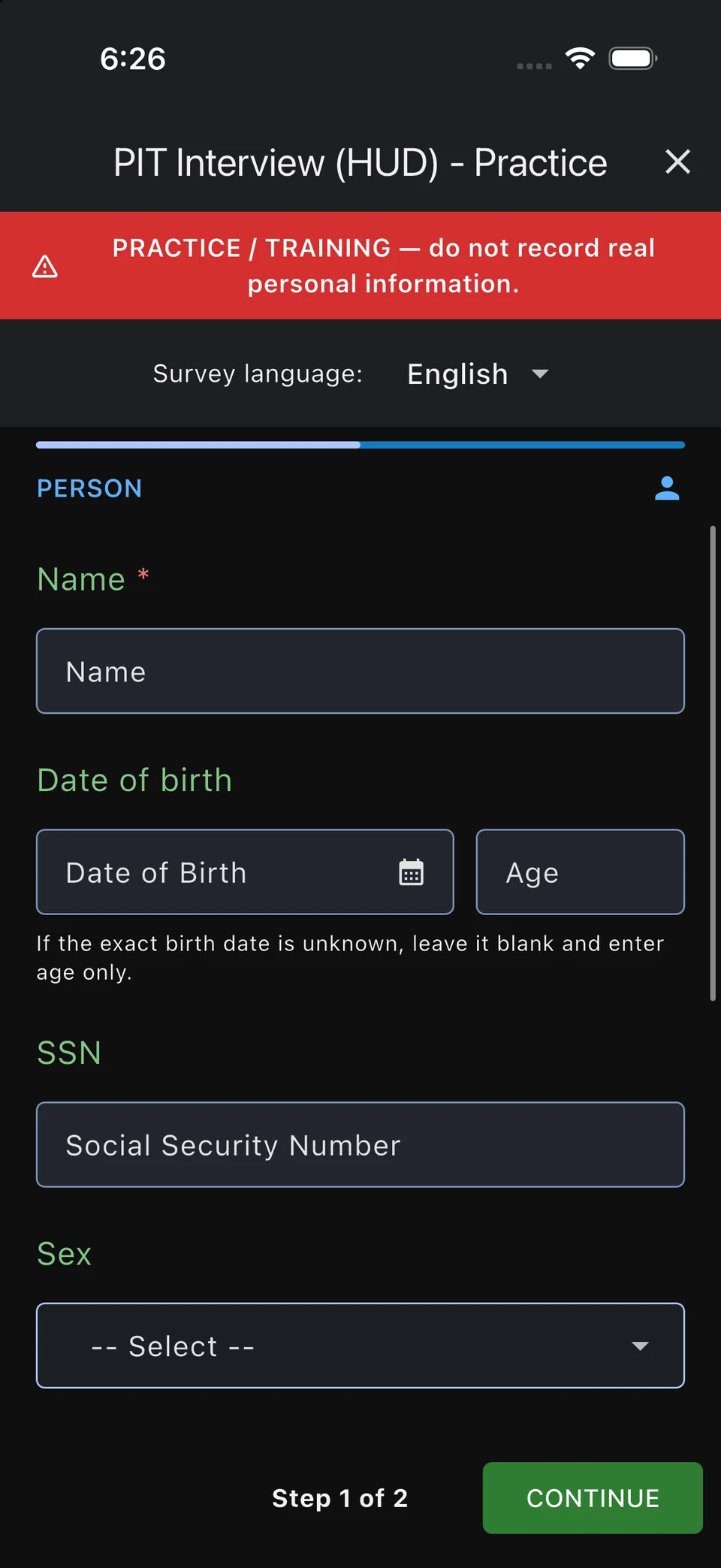
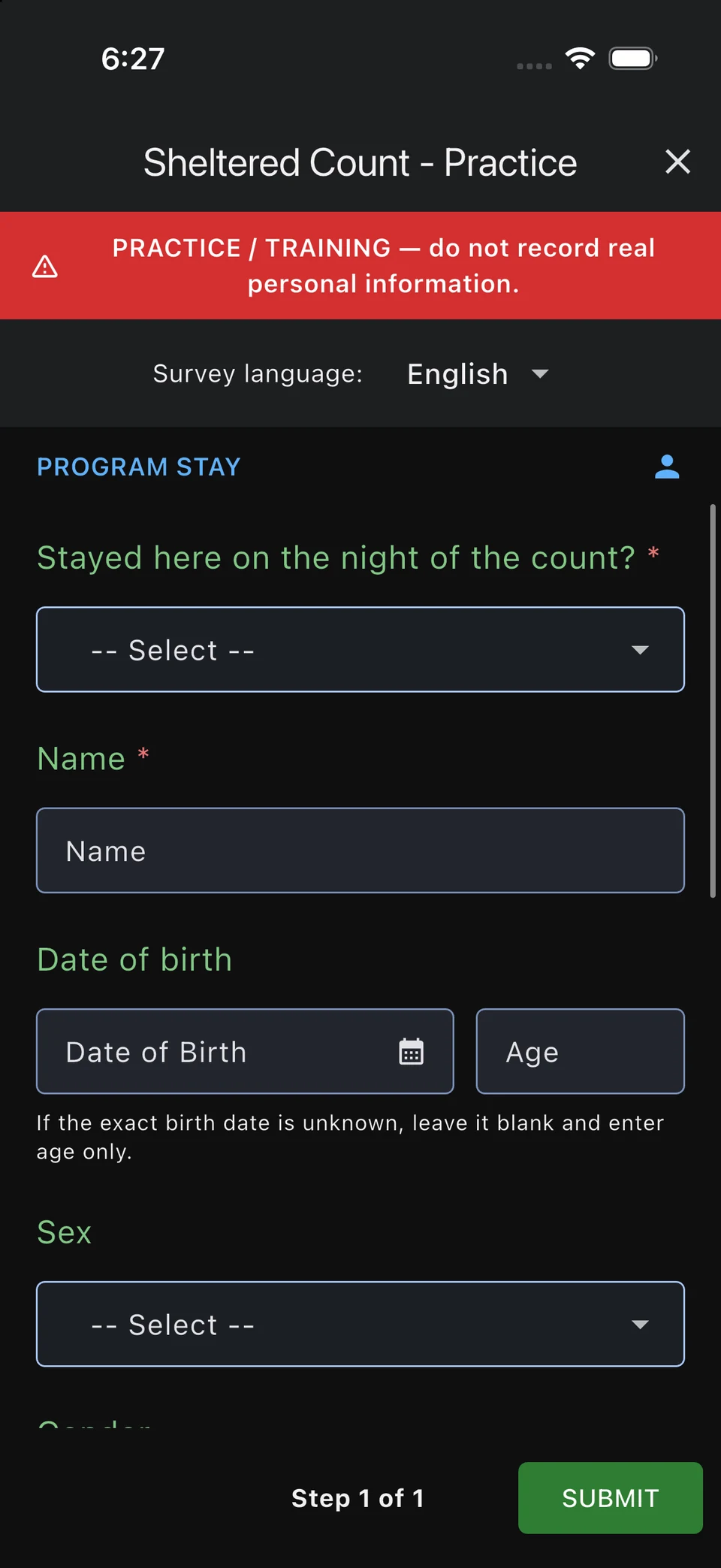
If a birth-date field offers an age-only option and you do not know the exact date, leave the date blank and enter the age. Follow your count’s instructions when collecting sensitive information.
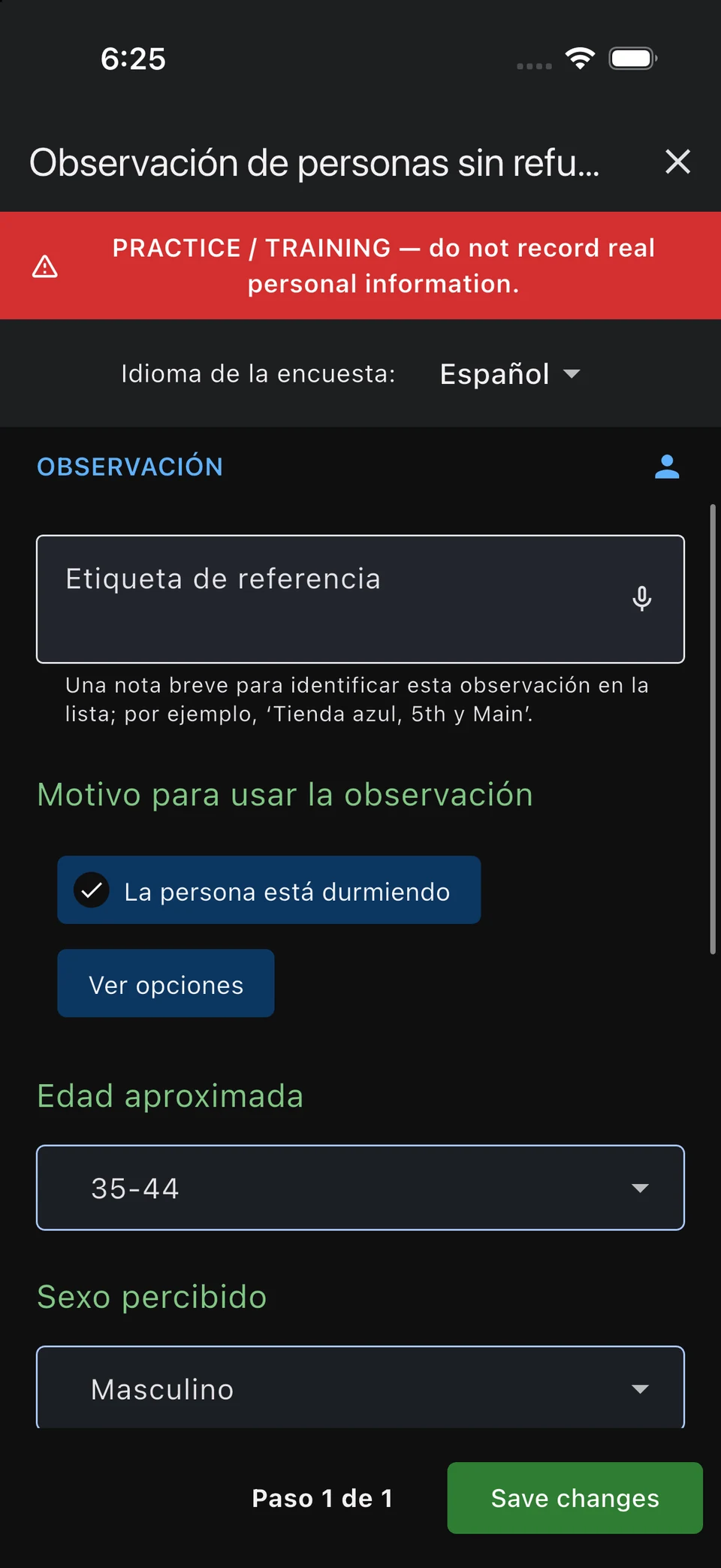
If the survey has a Survey language choice, you can select a published translation. This can be different from your app language. Ask your coordinator for language support if the translation you need is unavailable.
Add household members and make corrections
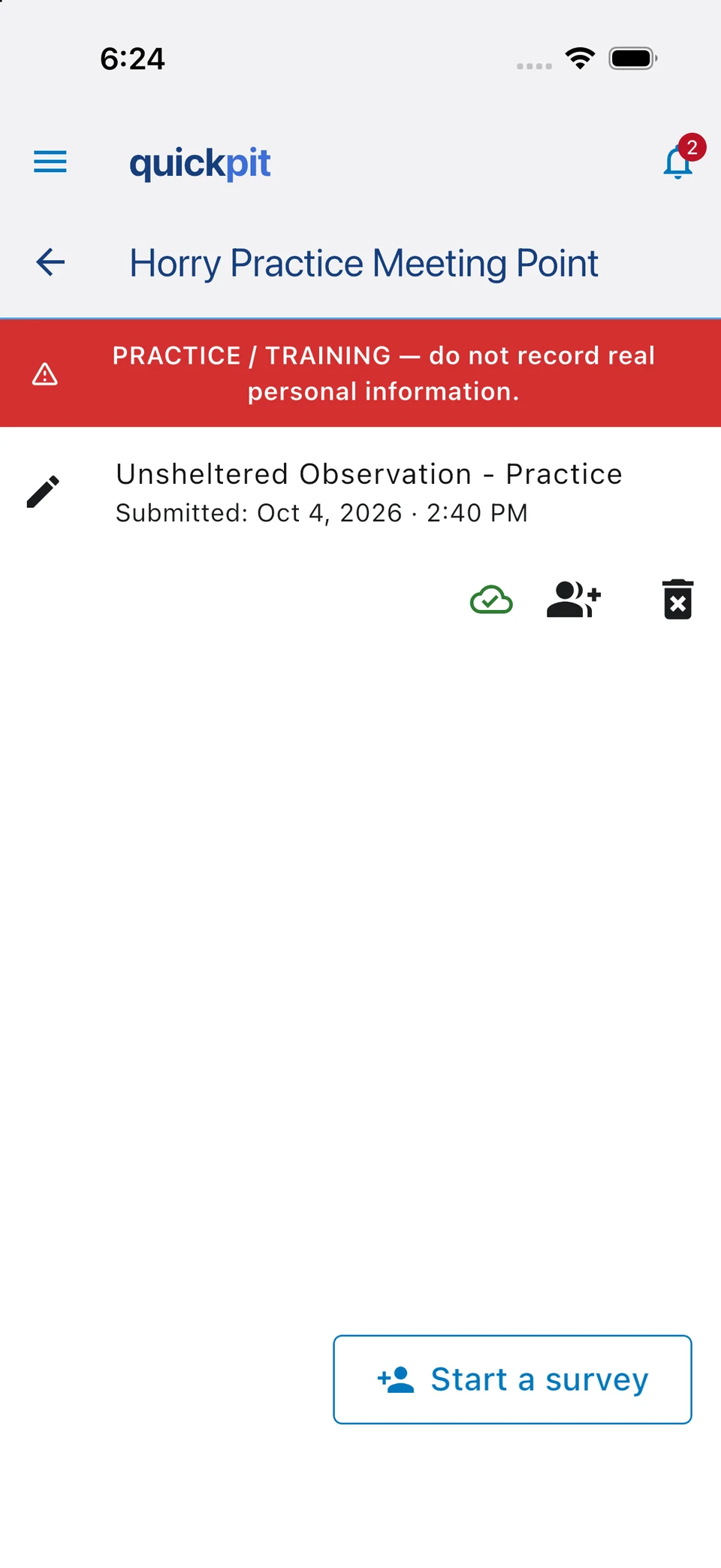
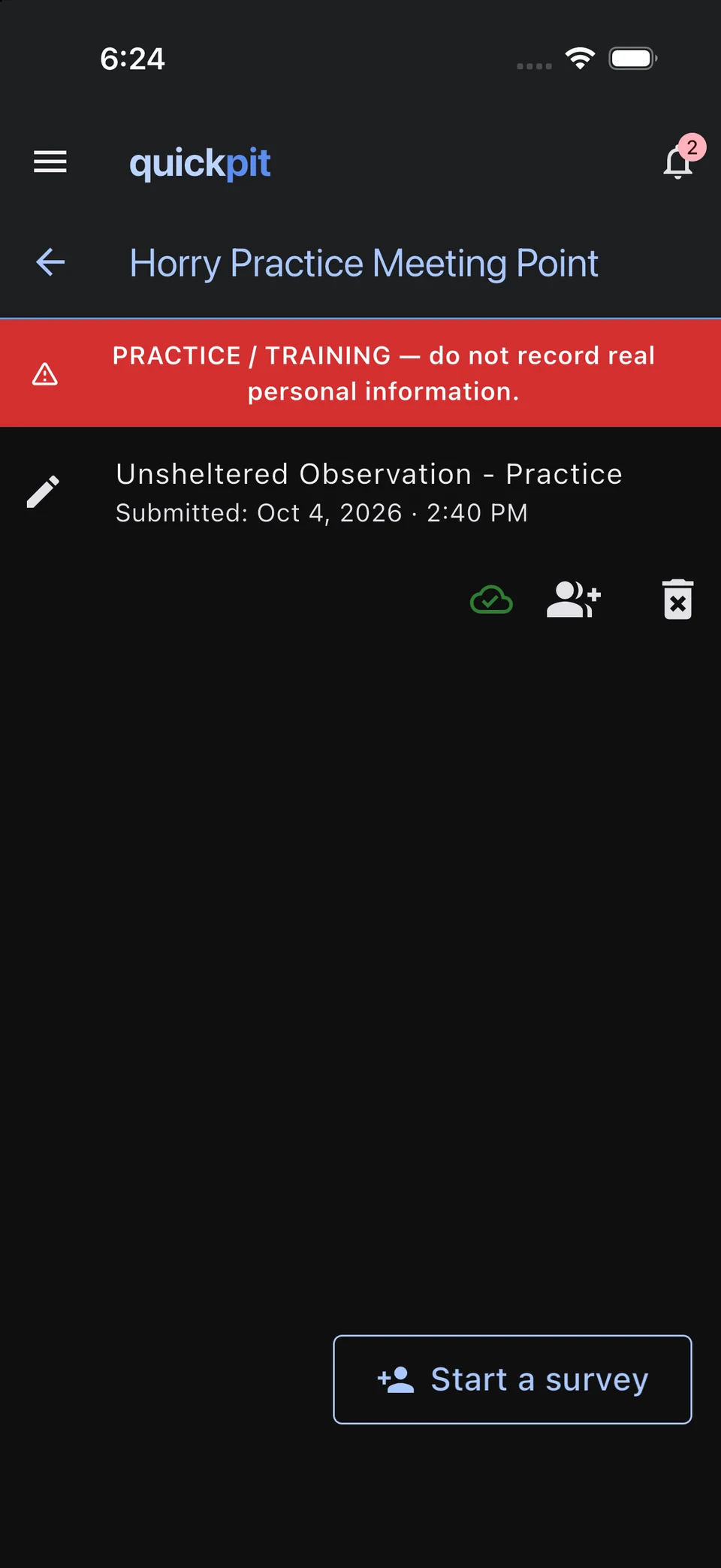
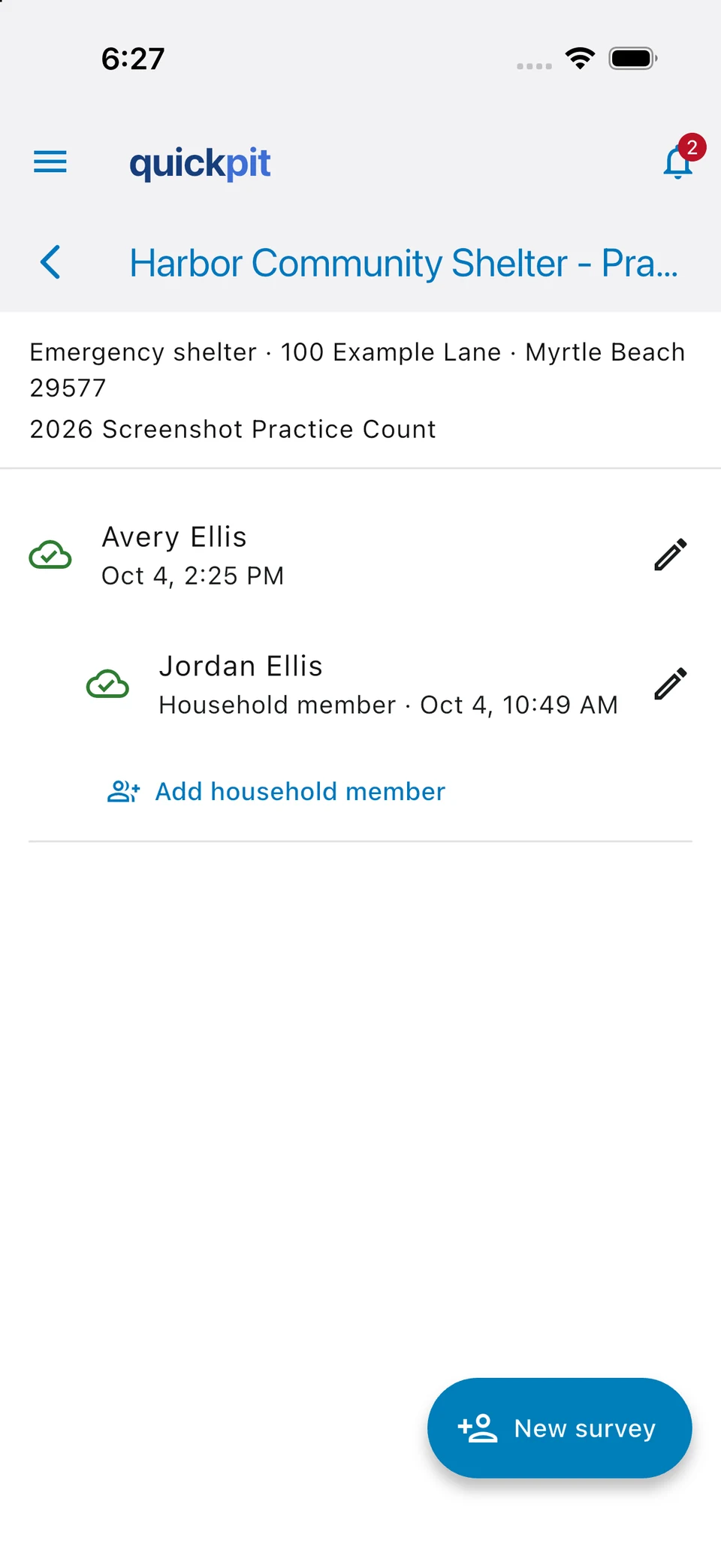
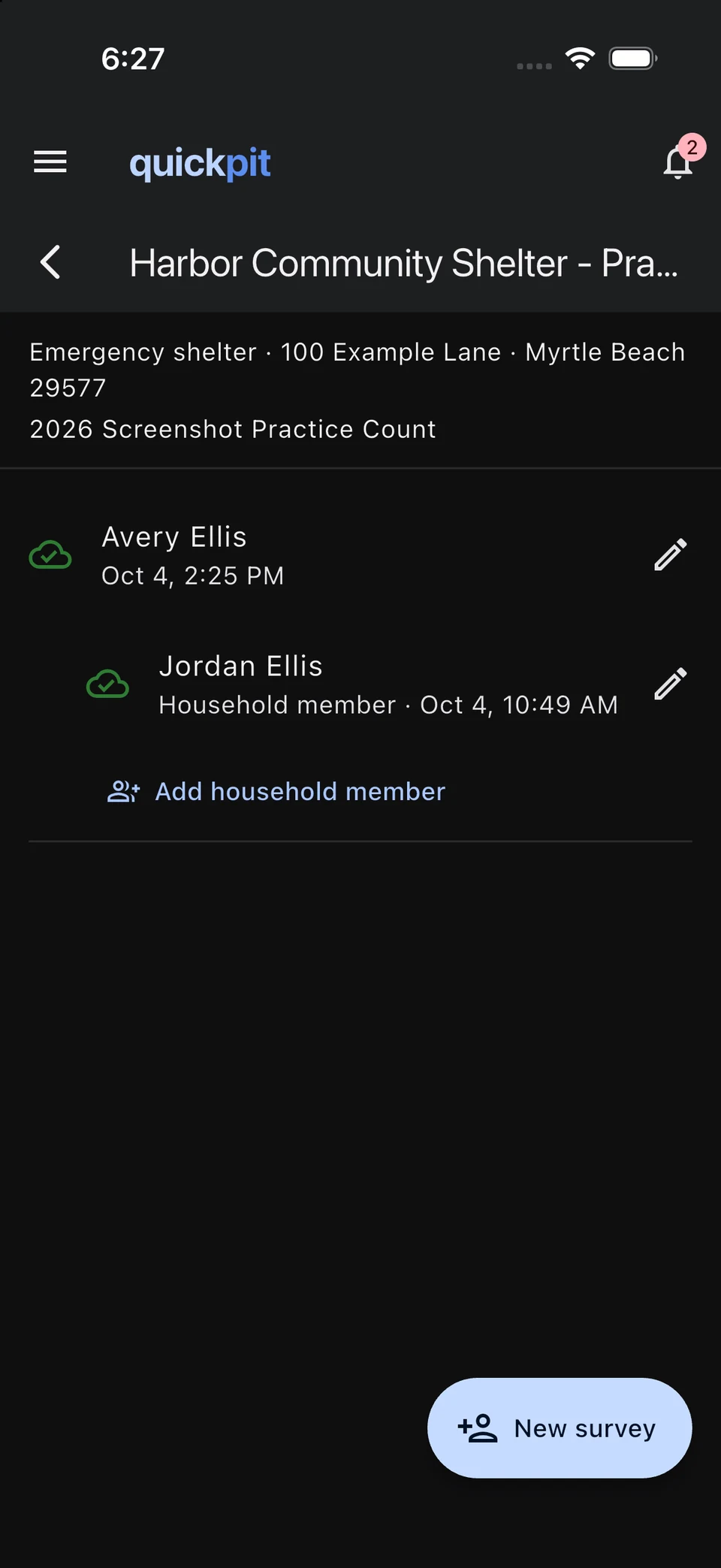
Open a location on Home to see your responses. Use Add household member beside the appropriate response to record another person in that household. Follow your coordinator’s instructions so household members are linked correctly and each person is counted once.
To correct a response, tap it or its pencil icon, change the answer, continue through the survey, and tap Save changes. Remember to save before closing the form.
Your administrator sets when responses can be reviewed and edited. If a response is locked, ask your coordinator for help instead of creating a second response.
Record an assigned sheltered count
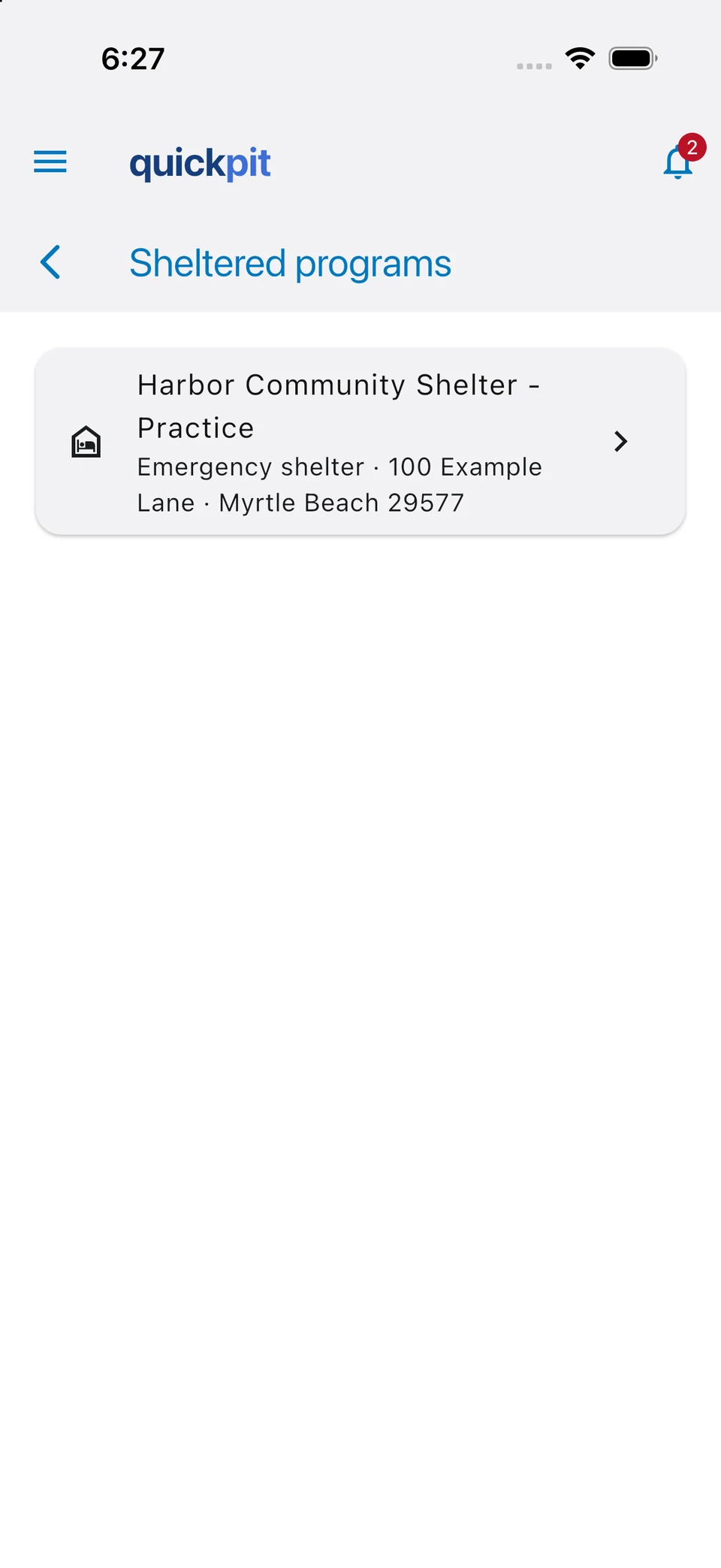
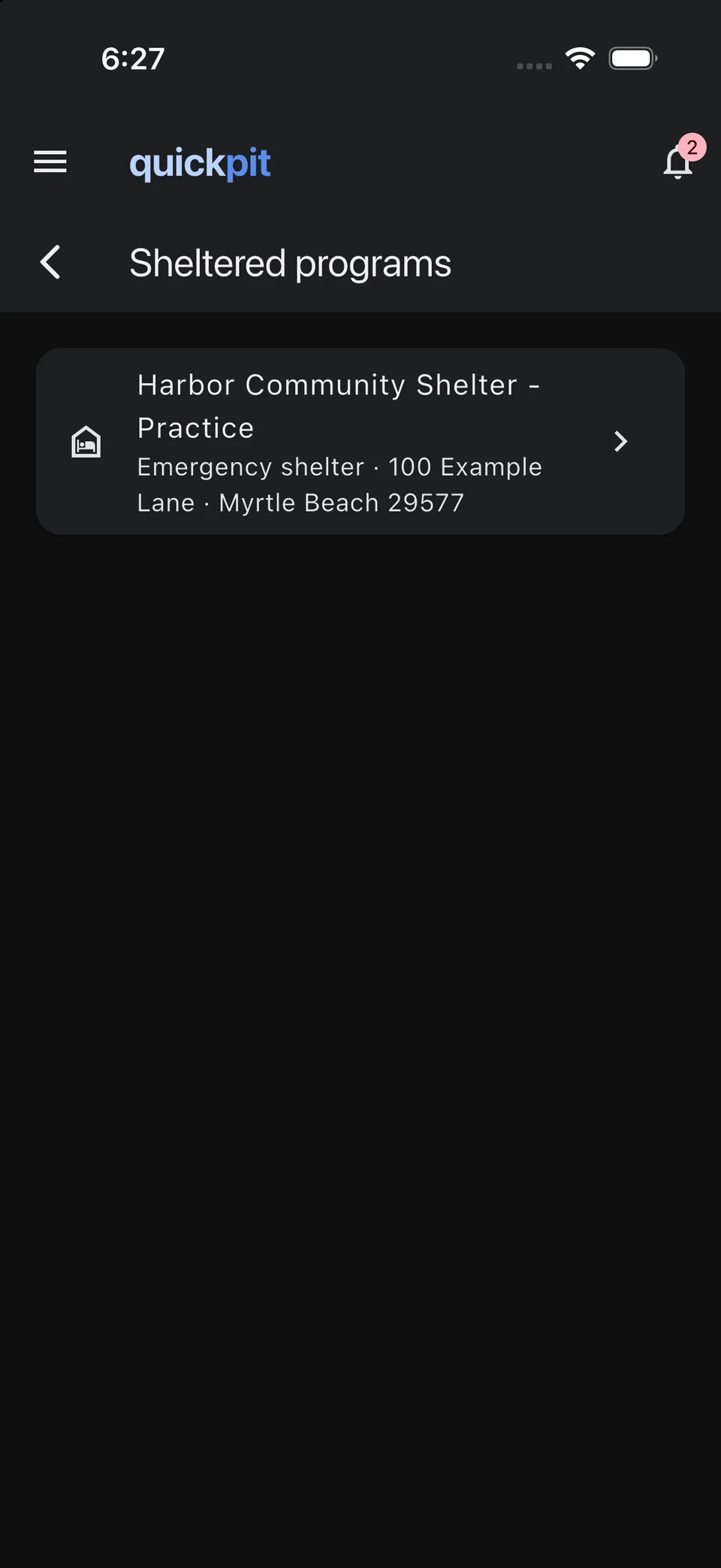
If you have a sheltered assignment, open Menu → Sheltered Programs or choose the program after tapping + Survey. The list shows the names, types, and addresses of programs assigned to you.
Open your program, check its name and count, and start its survey. Follow your coordinator’s instructions for recording each person and household. Your responses stay linked to that program and count.
If your program or survey is missing, ask your coordinator to check your assignment and the count setup.
Work offline and check your uploads
Before leaving internet coverage, sign in and open the assignments, surveys, and materials you will need. Quick PIT stores working data on your device, but signing in, joining an organization, signing a waiver, and loading something for the first time may need a connection.
Surveys sync automatically when you reconnect. If you closed the app or restarted your phone, reopen Quick PIT and leave it open until pending uploads finish. You do not need to start recovery or submit the same survey again.
If the app says a submission needs attention, follow the notice or ask your coordinator for help. Keep the app and its data until your work has been sent; uninstalling the app or clearing its data can remove surveys that have not uploaded.
Read your team’s resources
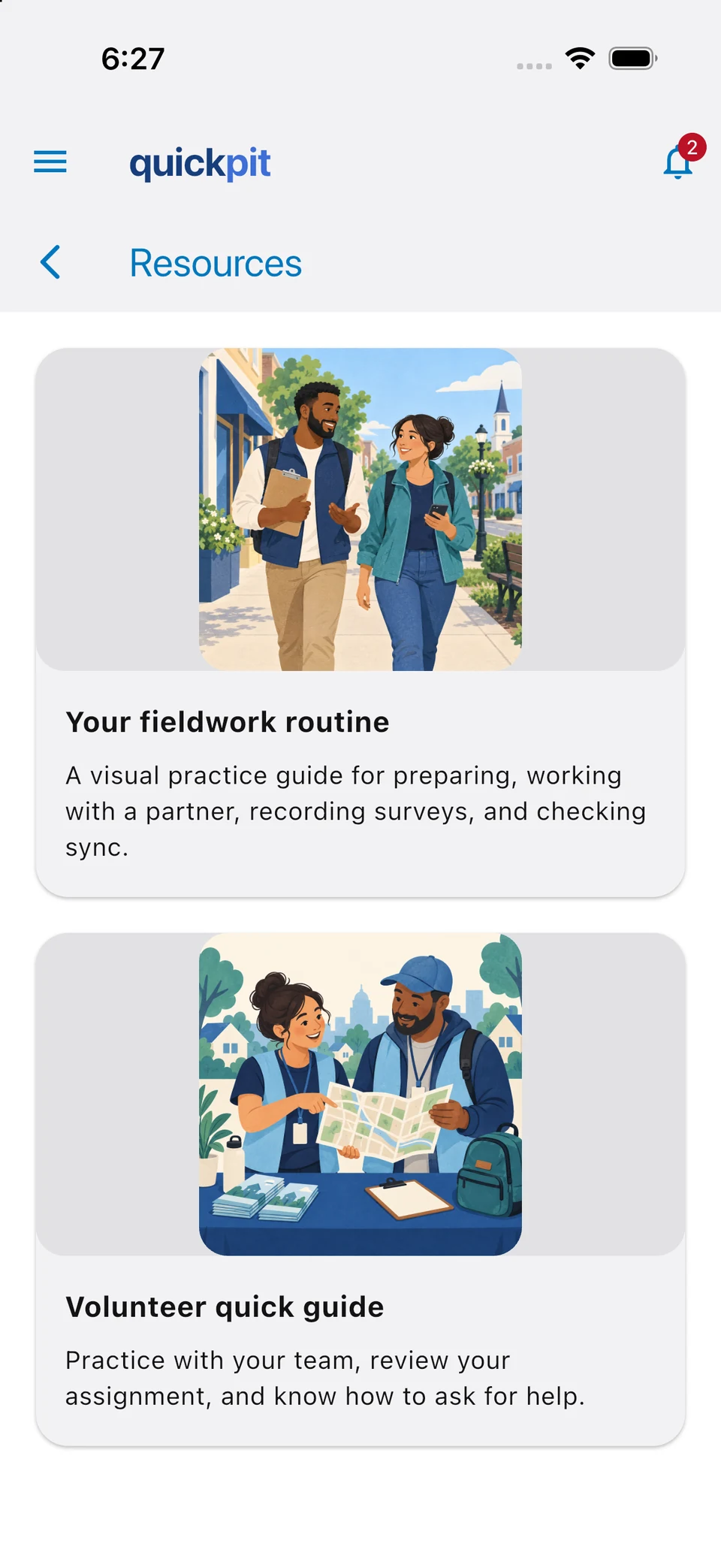
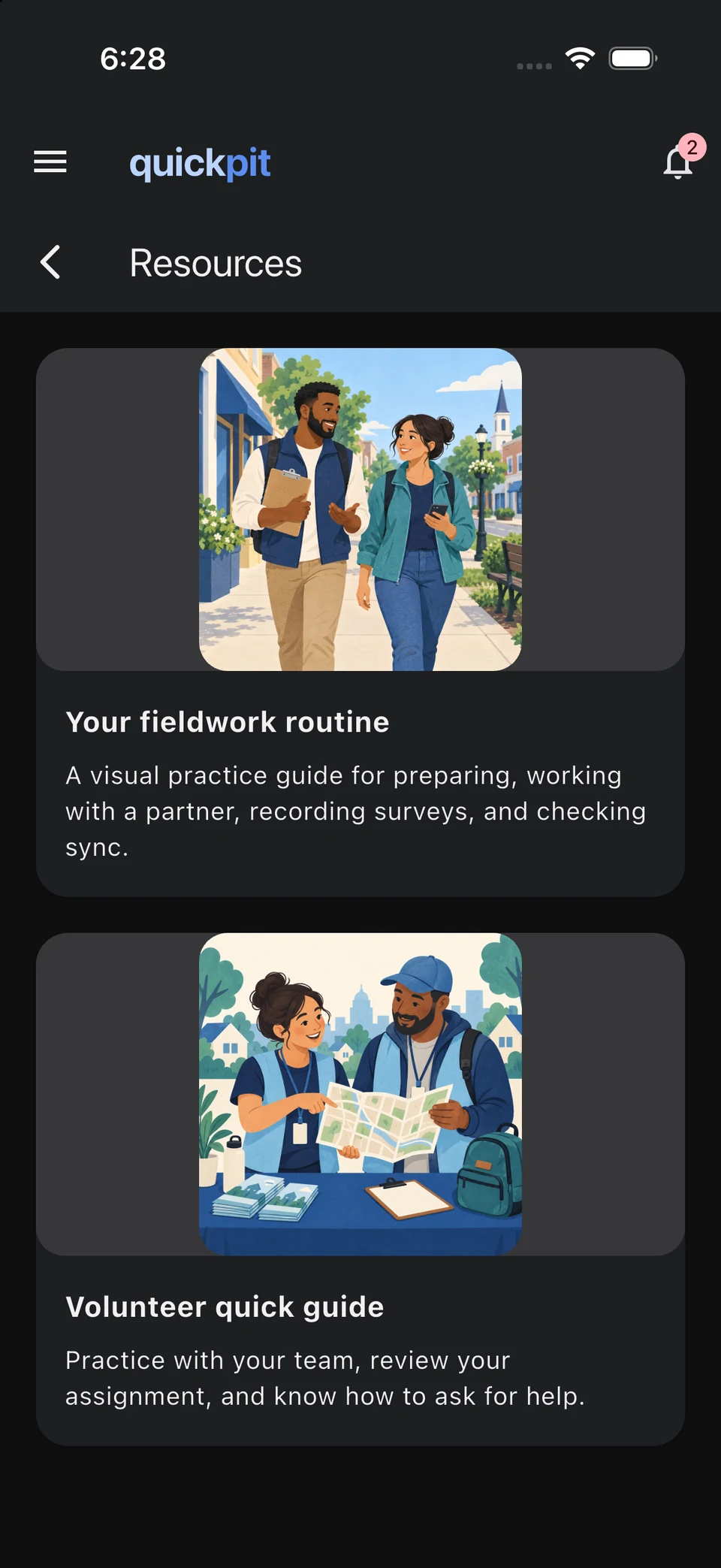
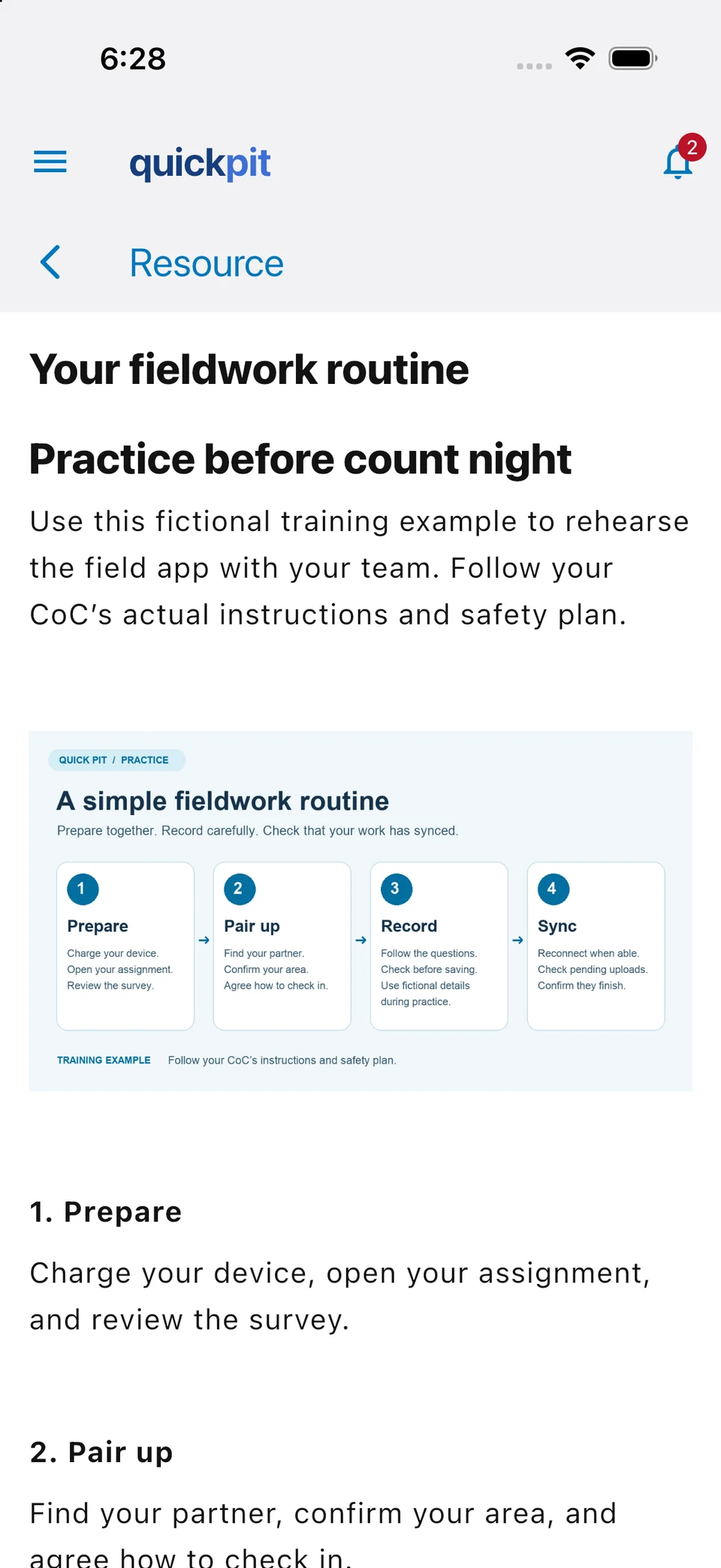
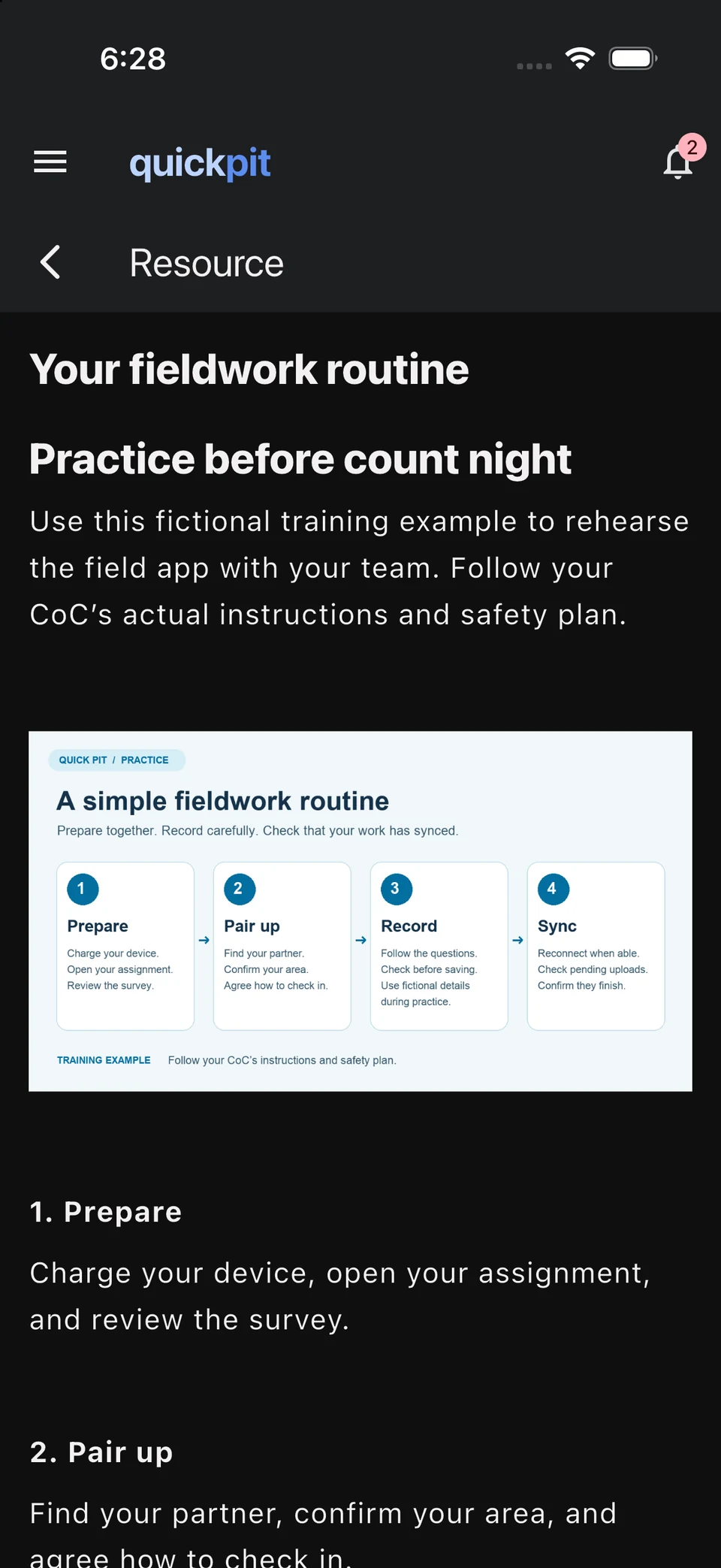
Tap Resources on Home or in Menu to find your organization’s training and reference materials. Select a card to read an article or open a file, website, or video.
Open the materials you need before heading out. External websites and videos may need an internet connection. If something is missing, ask your coordinator.
A resource can include translations within the same item. The app shows a published translation for your chosen language when one is available; otherwise, it shows the original content. Your organization supplies these translations.
Read messages from your team
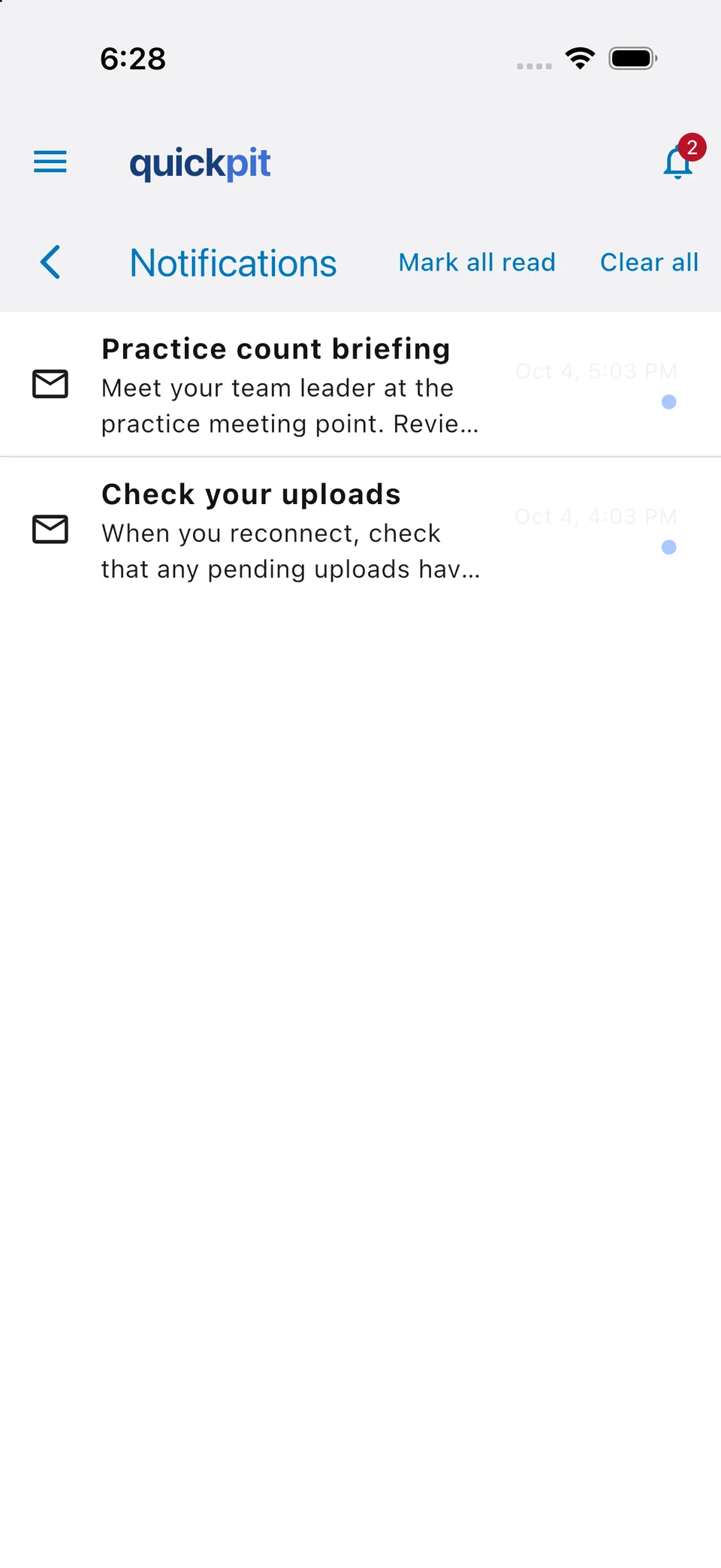
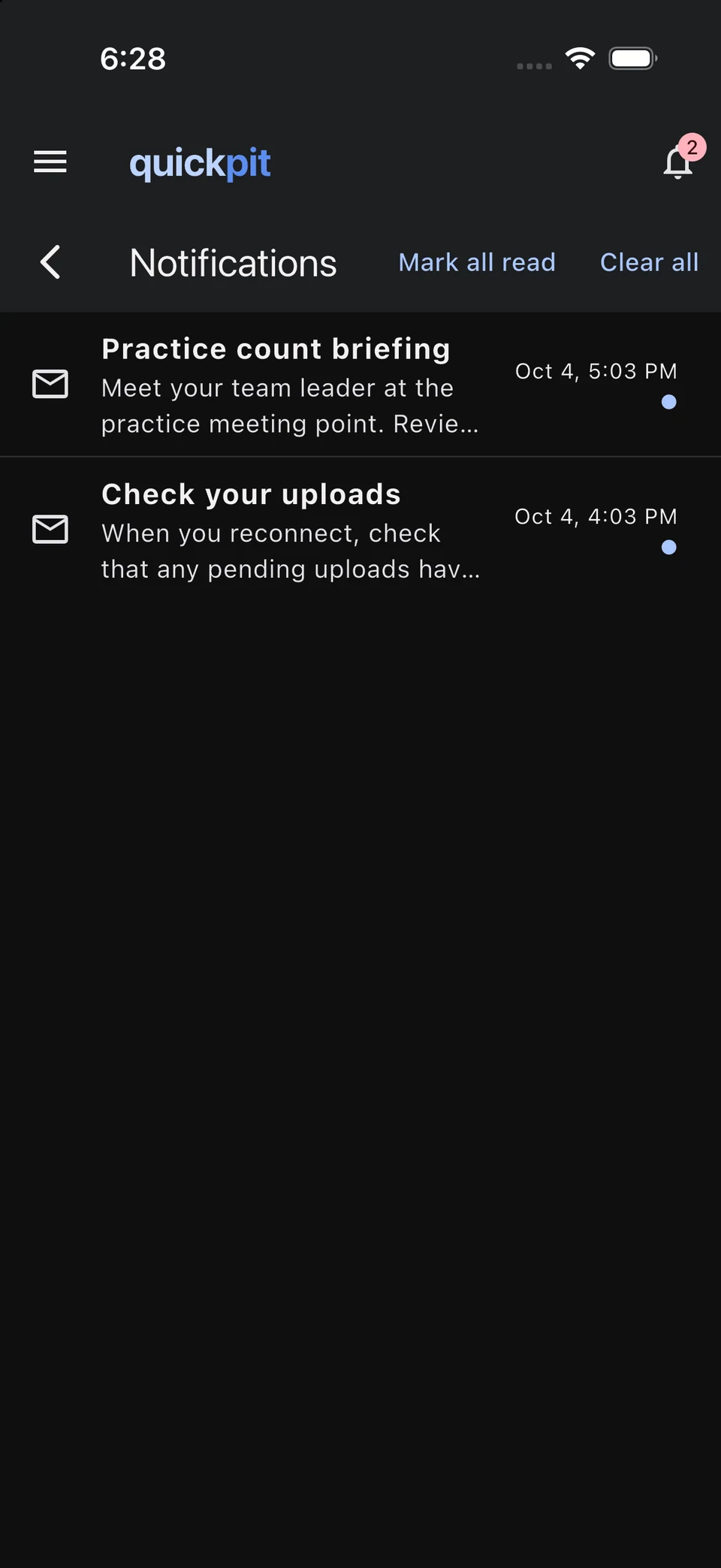
Tap the bell icon or open Menu → Notifications to read messages from Quick PIT and your count administrators. A badge shows unread messages. Open a message to read it, or use Mark all read after reviewing the list.
In Profile → Communication preferences, choose whether to receive push notifications and email as well. Messages remain available in the app inbox. Your iPhone’s notification permission also affects push notifications.
Clear all removes notification history. Keep any instructions you still need, and contact your team directly for urgent help.
Troubleshoot and finish your shift
- Missing location or program: check the organization in Menu and ask your coordinator to confirm your assignment.
- No survey available: ask whether the count is active and the correct survey is assigned.
- A response is locked: ask your coordinator about the review period and how to make a correction.
- Surveys waiting to sync: reconnect and leave Quick PIT open. Uploads finish automatically. If a notice says a submission needs attention, ask your coordinator for help.
- Content remains in English: app language and survey or resource translations are separate. Ask your coordinator for an approved translation.
- A sign-in link does not work: check your email address, request a fresh link, and open it on the device you want to use.
Before finishing your shift, reconnect, check for pending uploads, and follow your team’s check-out instructions. When asking for help, describe the problem without sharing participant details in ordinary messages or screenshots.
Administrators can use the Admin Platform Guide to manage their count.